Table of contents (8)
- What is connecting an RFID reader to sales software?
- USB keyboard emulation mode: plug and play, fastest to test
- SDK/API or network mode: bulk reading, duplicate filtering, RSSI retrieval
- EPC code and item code: the software must have a mapping table
- Aura A033 and A032 Desktop Readers: Specifications to Know for Integration
- Glossary Summary Table
- Common Mistakes When Integrating RFID POS
- Frequently asked questions
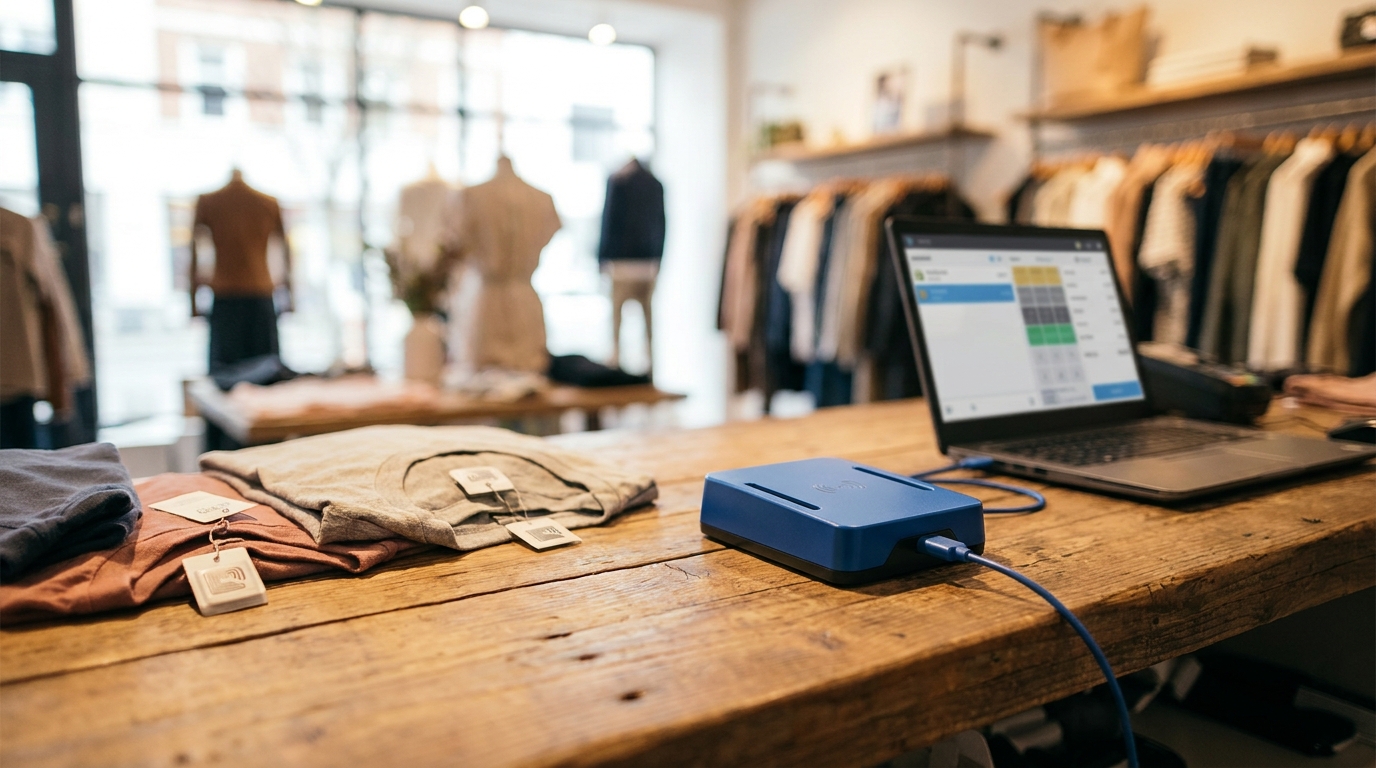
Connecting an RFID reader to sales software is the step that turns tag data into line items in the POS system. There are two connection paths: USB keyboard emulation — the reader types the tag code into the input field like a barcode scanner; and SDK/API or network port — the software receives multiple tags at once, filters duplicates, and reads RSSI. Each method has its own limits, and both require a mapping table linking EPC codes to item codes if the POS is to identify products correctly.
Connecting an RFID reader to sales software has two paths: (1) USB keyboard emulation — plug in the reader, the EPC code is typed into the input field like a barcode scanner, no driver needed, used for quick testing; (2) SDK/API or network port — the software receives multiple tags at once, filters duplicates, reads RSSI, suitable for stocktaking and dedicated POS. Whichever method you choose, the software must have a mapping table linking EPC codes to item codes for accurate conversion.
Table of contents
- What is connecting an RFID reader to sales software?
- USB keyboard emulation mode: plug and play, fastest to test
- SDK/API or network mode: bulk reading, duplicate filtering, RSSI capture
- EPC codes and item codes: the software must have a mapping table
- Aura A033 and A032 desktop readers: specifications to know when integrating
- Glossary summary table
- Common mistakes when integrating RFID POS
- Frequently asked questions
What is connecting an RFID reader to sales software?
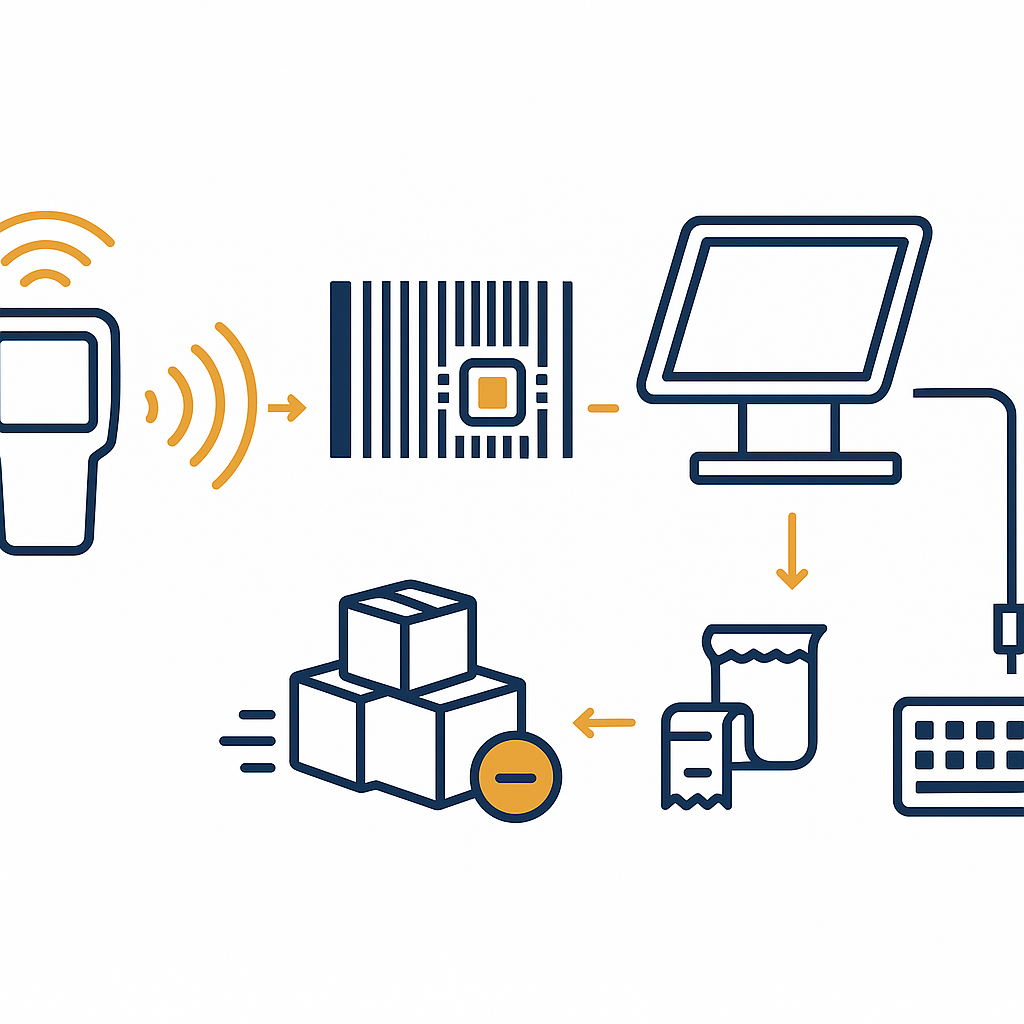
Connecting an RFID reader to sales software is the process of feeding data read from RFID tags (mainly the EPC code) into the POS system so the software can identify products, calculate prices, and deduct inventory. There are two modes: USB keyboard emulation and SDK/API or network. The end goal is for the POS to receive the correct item code corresponding to each tag, with no duplicates and no omissions.
In actual operations, this connection determines the speed and accuracy of the RFID checkout counter. If you only need to quickly test a new reader, keyboard emulation mode is the lowest-risk option. If you need to read a whole basket of items, filter duplicate tags, and track signal strength, you must switch to SDK/API or a network port.
See the deployment approach, devices, and phased roadmap on the RFID checkout counter solution page.
USB keyboard emulation mode: plug and play, fastest to test
Related products
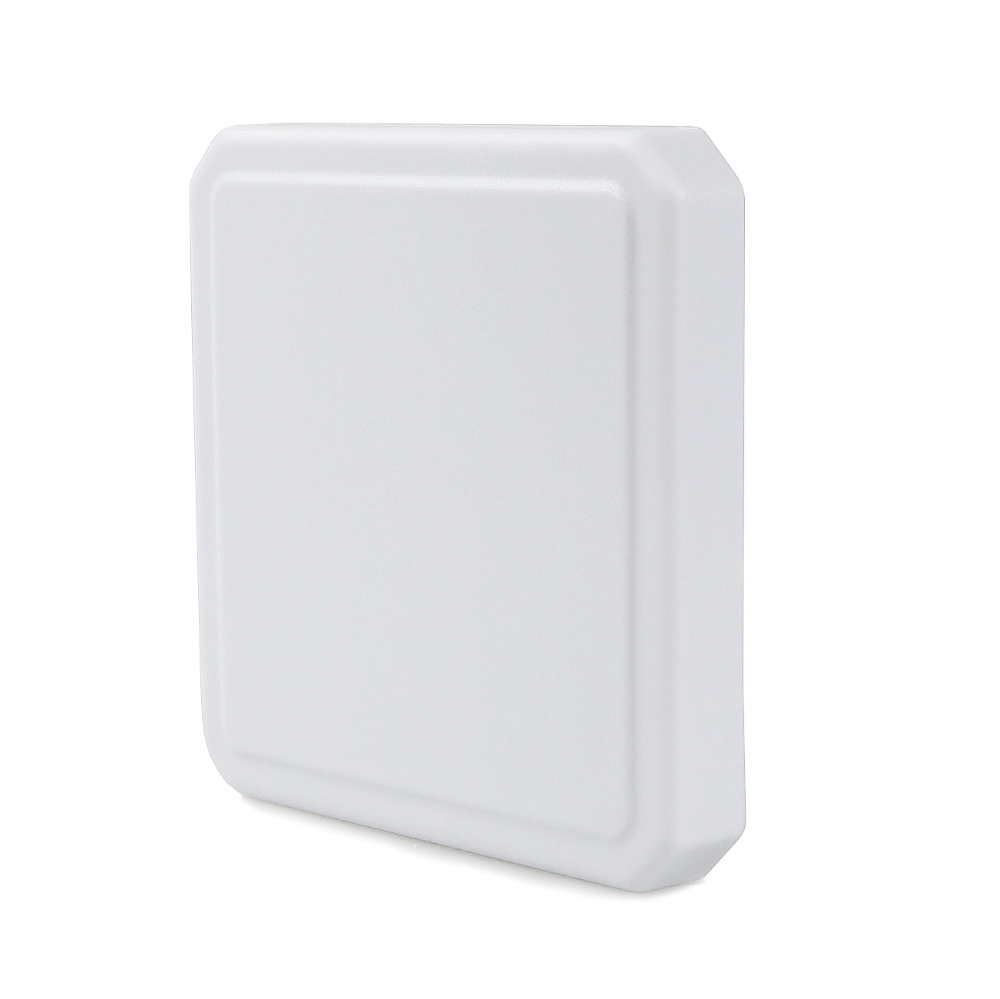
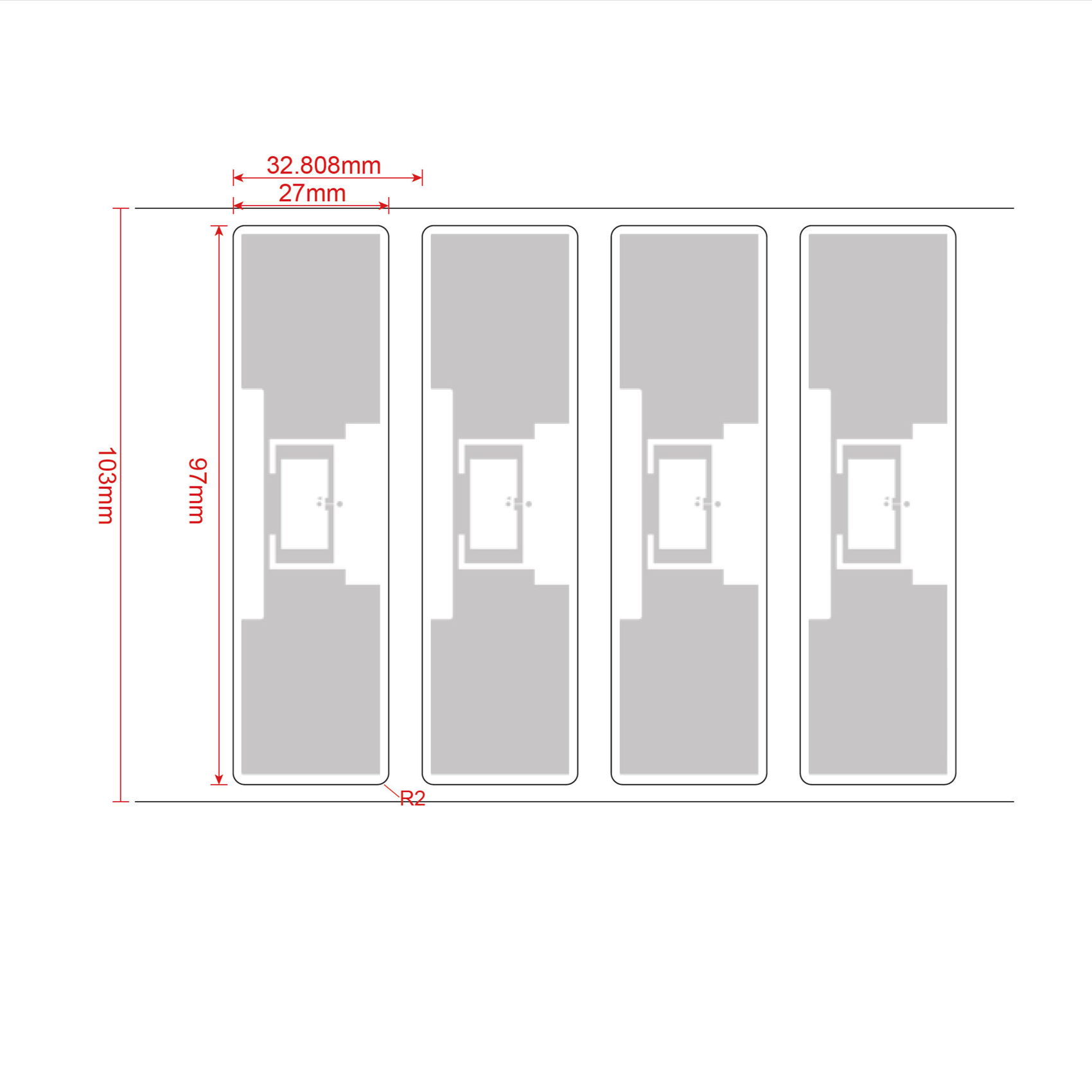
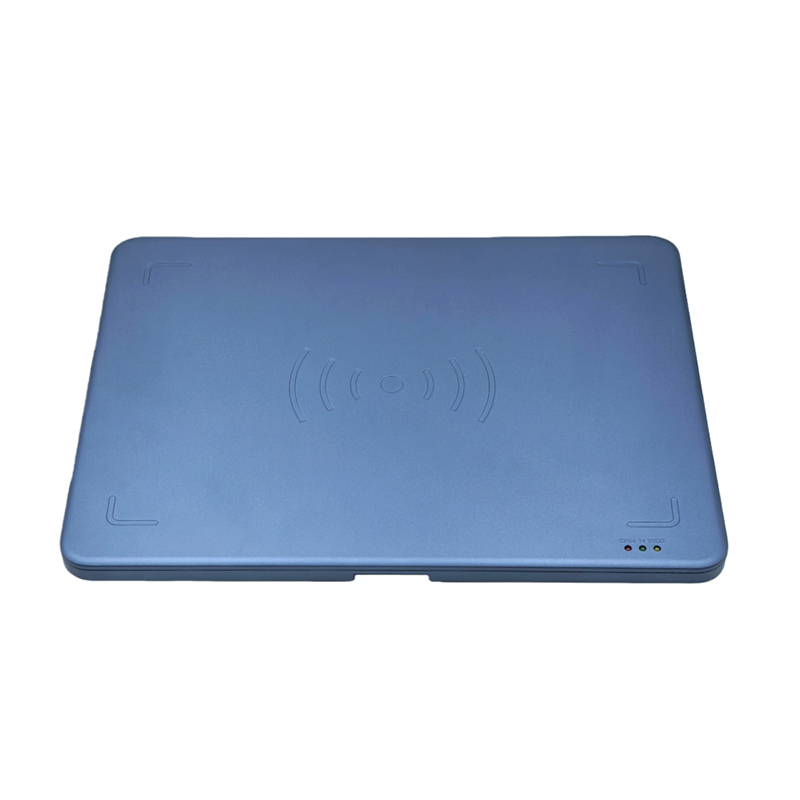
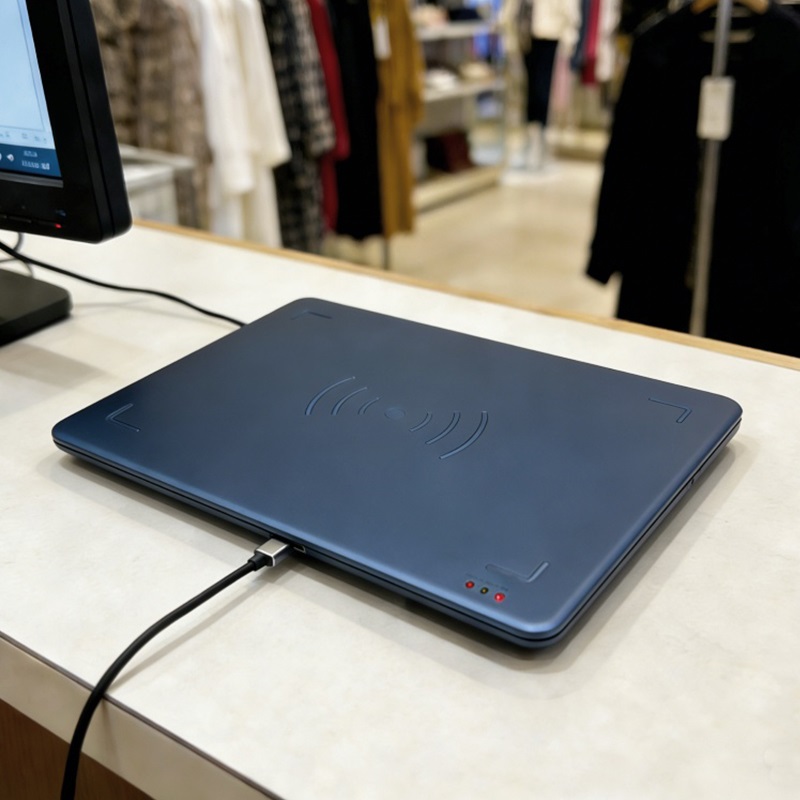
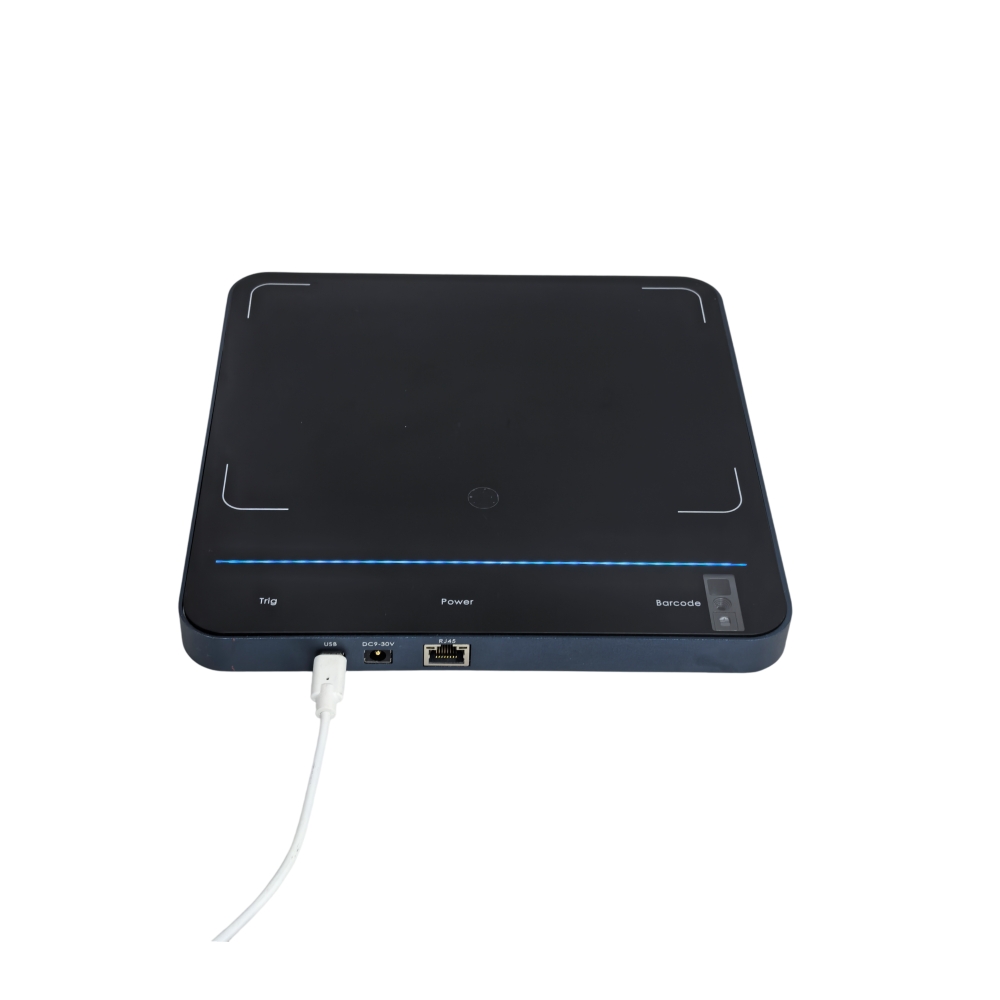
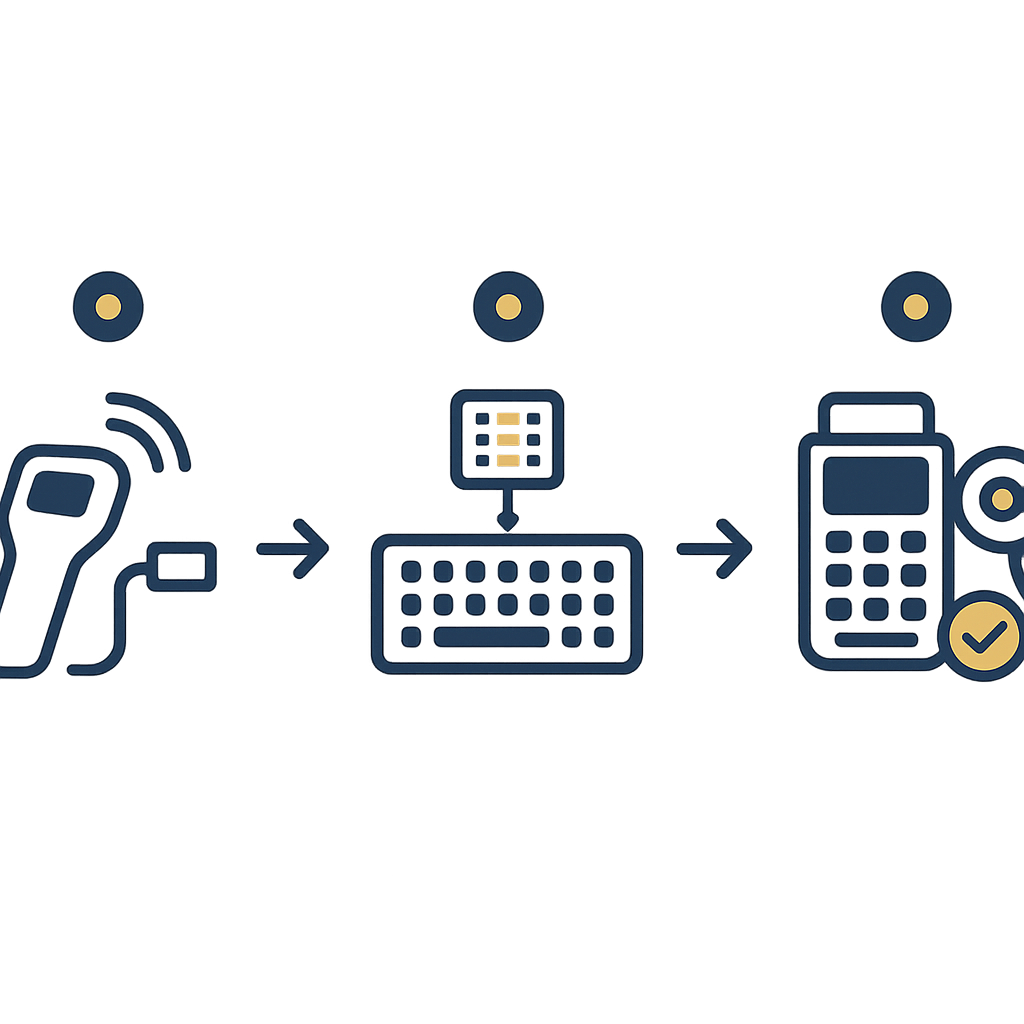
USB keyboard emulation mode (USB HID keyboard emulation) lets an RFID reader act as a keyboard: each time a card is read, the EPC code is typed into the focused input field, followed by a newline character. No driver, no programming required. This is the fastest way to check whether the reader works with your current POS software.
How to configure in 4 steps
- Physical connection: plug the reader into the USB Type-C or USB-A port on the POS. With Aura A033, power is drawn from USB 5V, maximum power 6W at 30 dBm — so use a USB 3.0 port to ensure sufficient current.
- Switch mode: on Aura A032, double-press the Power/Mode touch key to switch to keyboard mode (according to manufacturer specifications, A032 has 16 preset key groups). With A033, use the utility software or configuration commands to enable USB keyboard emulation.
- Open the input field in the software: go to the sales screen, place the cursor in the product search field or the barcode input field.
- Bring the card into the read zone: each card will generate an EPC character string and automatically add a line break. If the input field receives the correct string, the connection has succeeded at a basic level.
This mode is suitable for quickly testing a reader before buying in large quantities, or for counters that only read one item at a time. Limitations: it accepts only one card per read, does not filter duplicates, does not return RSSI, and if the reader reads multiple cards at once, the software will receive a jumbled string. Therefore, keyboard emulation should only be used for single checkout counters, not for stocktaking.
SDK/API or network mode: bulk reading, duplicate filtering, RSSI retrieval
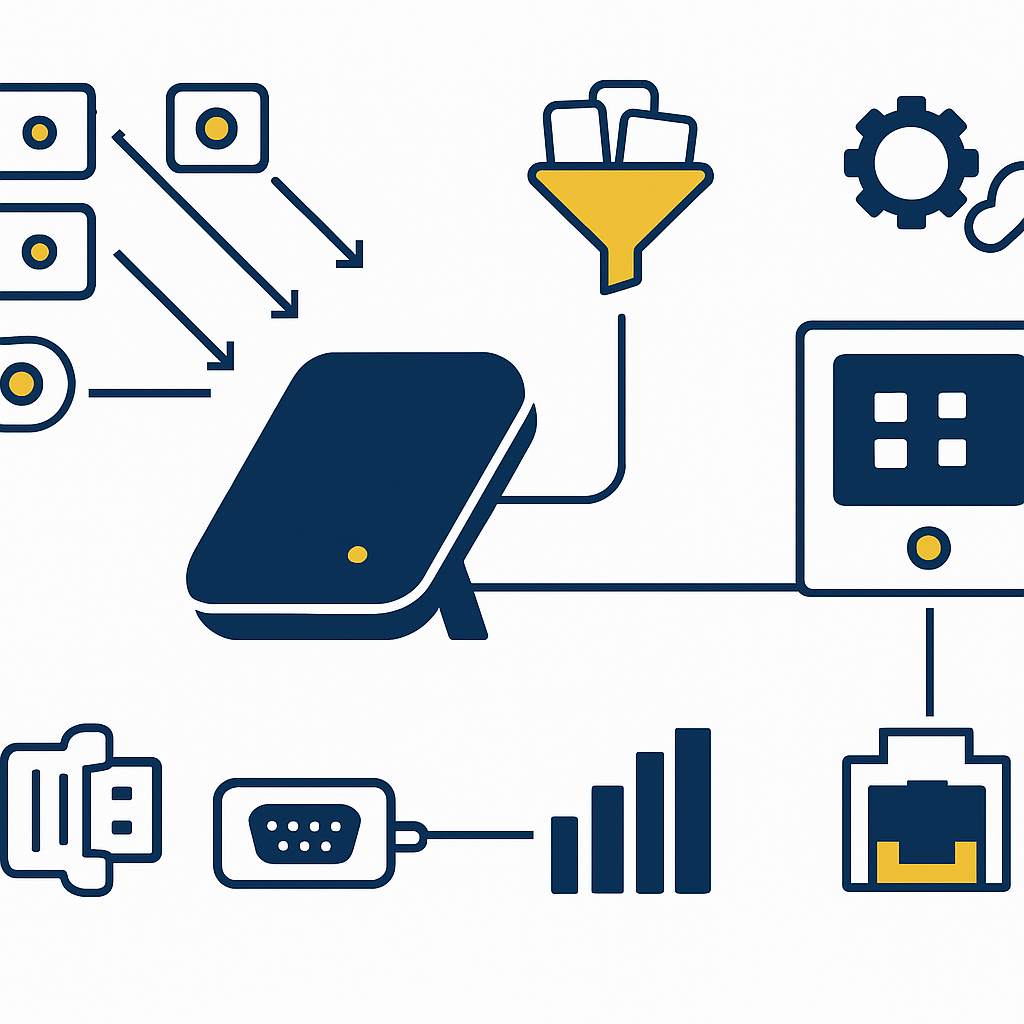
SDK/API mode or network connection allows the sales software to receive multiple cards in a single read, automatically filter duplicate cards, and additionally retrieve RSSI signal strength to determine which card is closer to the reader. This is the necessary mode for inventory stocktaking and dedicated POS counters that can read an entire basket of goods.
Technically, the Aura A032 reader supports USB-to-serial, USB HID and a 10/100M RJ45 port; the version with an optional PoE+ module draws power through the network cable itself. A033 supports USB Type-C with USB-to-serial and keyboard emulation. When using the SDK, the software can issue continuous read commands, receive a list of EPCs along with RSSI and phase angle, and then decide for itself which cards are valid.
When should you choose SDK/API instead of keyboard emulation?
- Inventory stocktaking: need to read hundreds of cards in a few seconds, filter duplicates so an item is not counted twice.
- RFID checkout counter: the customer places the entire basket of goods on the counter, the reader must receive all cards at once and the software calculates the total in one pass.
- Inbound/outbound control: need to distinguish cards inside the store from cards outside the store based on RSSI or a distance threshold.
- Writing data to cards: the SDK allows writing the item code into the card's user memory, not just reading the EPC.
With the Aura A032 desktop reader, the TOF laser distance sensor (0–400 mm, adjustable read threshold 0–80 cm, default 15 cm) helps avoid mistakenly reading cards outside the intended zone. This feature only takes effect when the software receives data via SDK/API, because keyboard emulation mode cannot transmit sensor status.
EPC code and item code: the software must have a mapping table
The EPC (Electronic Product Code) is the unique identifier written on the chip of each RFID card. The item code is the internal code in the sales software (SKU). The reader only returns the EPC, not the SKU. Therefore the software must have a table mapping EPC to item code to convert accurately. Without a mapping table, the POS will not know which product the just-read card belongs to.
The EPC–item code mapping table can reside in the sales software's database, or in an intermediate module. The minimum structure includes: EPC (hex string or character string), item code, product name, status (on sale, sold, in transfer). When the reader sends an EPC, the software looks up the table and returns the corresponding item code.
Process for creating a mapping table in 3 steps
- Write the EPC to the card when printing: use an RFID encoding printer (for example Zebra ZD621R) to print the label and write the EPC at the same time. Each card receives a unique EPC, with no duplicates.
- Scan the EPC and enter the item code: bring the card to the reader, the software receives the EPC, the staff member selects the corresponding item code. For large batches, you can use bulk read mode and then match each EPC with the item code on screen.
- Cross-check: read the card again and confirm the software returns the correct item code. Repeat with 5–10% of the cards in the batch to detect discrepancies.
Without a mapping table, keyboard emulation mode is also useless: the EPC string will be typed into the search field but will not match any item code. This is a common error when first integrating an RFID POS.
Aura A033 and A032 Desktop Readers: Specifications to Know for Integration
The Aura A033 and A032 are two popular desktop RFID readers for retail counters. The A033 measures 330 × 245 × 21 mm, weighs approximately 0.72 kg, has 5–30 dBm power adjustable in 1 dB steps, and a read range of 0–1 m. The A032 measures 320 × 320 × 18 mm, uses the Impinj E310 chip, has a read range of 0–1.2 m, and integrates a TOF laser distance sensor. Both support USB HID keyboard emulation.
| Specification | Aura A033 | Aura A032 |
|---|---|---|
| Dimensions (W×D×H) | 330 × 245 × 21 mm | 320 × 320 × 18 mm |
| Weight | Approximately 0.72 kg | Approximately 1 kg |
| Air protocol | ISO18000-6C / EPC C1G2 / Gen2X | ISO18000-6C / EPC C1G2 / Gen2X |
| RF power | 5–30 dBm, 1 dB adjustment | 5–30 dBm ±1 dB, 1 dB adjustment |
| Read range | 0–1 m (depending on power, tag, environment) | 0–1.2 m (depending on power, tag, environment) |
| Chipset | Impinj E310 | Impinj E310 |
| Connectivity | USB Type-C (USB-to-serial, keyboard emulation) | USB Type-C, RJ45 10/100M, optional PoE, optional Bluetooth |
| Special features | Read rate >350 tags/second @ E310 | TOF sensor 0–400 mm, read threshold 0–80 cm |
According to the manufacturer's specifications, the A033 has a read rate of over 350 tags/second with the Impinj E310 chip, suitable for checkout counters that need to process many items. The A032 has a TOF laser distance sensor that helps avoid reading tags outside the intended area, but it can only be used when the software receives data via SDK/API. Việt POS advises choosing a model based on the POS software in use and the actual operating workflow.
Glossary Summary Table
The terms below appear frequently when connecting RFID readers to POS software. Understanding them clearly helps you communicate with IT and suppliers faster, while avoiding incorrect configuration of read modes.
| Term | Definition | Example |
|---|---|---|
| EPC | Unique identifier on the RFID chip | E280 1160 6000 0209 2A4B 1C2D |
| USB HID keyboard emulation | Mode where the reader types the tag code like a keyboard | Plug in the reader, the EPC code is automatically typed into the input field |
| SDK/API | Set of commands for software to control the reader | Call continuous read commands, receive a list of EPCs |
| RSSI | Signal strength of the response from the tag | Tags closer to the reader have higher RSSI |
| Duplicate filtering | Removing tags read multiple times within a time period | An item is counted only once during inventory |
Common Mistakes When Integrating RFID POS
Most RFID POS integration errors come from choosing the wrong read mode, lacking an EPC–item code mapping table, or expecting too much from the read range. Below are common mistakes and how to avoid them.
- Using keyboard emulation for inventory: this mode only accepts one tag at a time and does not filter duplicates. Reading an entire basket of items will produce a jumbled string. Switch to SDK/API when you need batch reading.
- Not building an EPC–item code mapping table: the reader returns EPCs but the software does not know which product each one is. You must create the mapping table before going live.
- Expecting reads through metal and liquids: UHF waves are blocked by metal and water. Tags affixed to metal boxes or perfume bottles may not be readable. Always test on real goods.
- Setting maximum power for every situation: high power increases the read zone and makes it easy to read unintended tags. Adjust power for each counter, and use the TOF sensor if available.
- Skipping testing on real goods: sample tags and real goods may give different results. Schedule a survey and measure the read rate on real goods with Việt POS before buying in large quantities.
Frequently asked questions
Does keyboard emulation mode require a driver?
No. USB HID keyboard emulation is recognized by the operating system as a standard keyboard and does not require a driver. Both Aura A033 and A032 support this mode according to the manufacturer's specifications. However, some POS software requires additional configuration to recognize the line break character after each read.
When should SDK/API be used instead of keyboard emulation?
When you need to read multiple tags at once, filter duplicates, obtain RSSI, or control power per transaction. Keyboard emulation is suitable for quick testing or for a counter that reads only one item. SDK/API is suitable for inventory counting, RFID checkout counters, and inbound/outbound stock control.
How does the EPC code differ from the item code?
The EPC is a unique identifier on the RFID chip, written by the tag manufacturer or the RFID printer. The item code is an internal code in the POS software. One item code can correspond to multiple EPCs if each item has its own tag. The software must have a mapping table to convert EPCs into item codes.
Can the Aura A032 reader read tags attached to metal?
According to UHF principles, metal blocks the signal, so tags applied directly to a metal surface may not be readable. The A032 has a TOF sensor that supports read-zone limiting, but it does not solve the signal-blocking issue. You need to use tags designed specifically for metal or test on actual goods before deployment.
Can an RFID reader be used with existing POS software?
Yes, if the software supports receiving data from the reader via USB HID, USB-to-serial, or API. Việt POS advises on integration with the POS software in use, checks the ability to receive EPCs, and builds an EPC–item code mapping table suited to the current data structure.
What are the actual read distances of the A033 and A032?
According to the manufacturer's specifications, the A033 reads 0–1 m and the A032 reads 0–1.2 m, depending on power, tag type, orientation, and environment. This distance may decrease when there are obstructions or tags are attached to unfavorable surfaces. Always measure on actual goods before finalizing the reader placement.
Need to verify that an RFID reader reads actual goods correctly and connects to the POS software in use? Schedule a survey and measure the read rate on actual goods with Việt POS via the hotline 0935 498 384 or email info@vietpos.vn. See also the RFID checkout counter solution to prepare before integration.
Need advice on specific equipment or a solution?
Việt POS replies within 30 minutes · Hotlines in 4 regions · Free site survey.
