Mục lục bài viết (4)

The iData T1 Pro is one of the leading mobile PDA devices, integrating powerful 1D/2D barcode scanning capabilities, specifically designed for industrial applications such as warehouse management, retail, and logistics. In Vietnam, the deployment of these devices is becoming common in store chains, supermarkets, and warehouses to automate processes, enhance data accuracy, and speed up data processing. This guide will provide an overview and detailed steps to set up and configure barcode scanning on the iData T1 Pro, helping businesses maximize the device's performance.
The iData T1 Pro is a powerful Android 14 PDA, supporting 1D/2D barcode scanning, optimized for warehouse and retail management. This guide includes steps from initial setup, Wi-Fi connection, to detailed barcode scanning function configuration, advanced customizations, and troubleshooting, helping users operate the device efficiently and accurately.
Table of Contents
- What is iData T1 Pro? Overview of the Smart Barcode Scanning Device
- Basic Setup Steps for iData T1 Pro for First-Time Use
- Guide to Configuring 1D and 2D Barcode Scanning on iData T1 Pro
- Advanced Customization and Common Troubleshooting for iData T1 Pro
- Comparing iData T1 Pro with Other PDAs in its Segment
- Benefits of Optimizing iData T1 Pro in Warehouse and Retail Management
- Frequently Asked Questions about iData T1 Pro
What is iData T1 Pro? Overview of the Smart Barcode Scanning Device
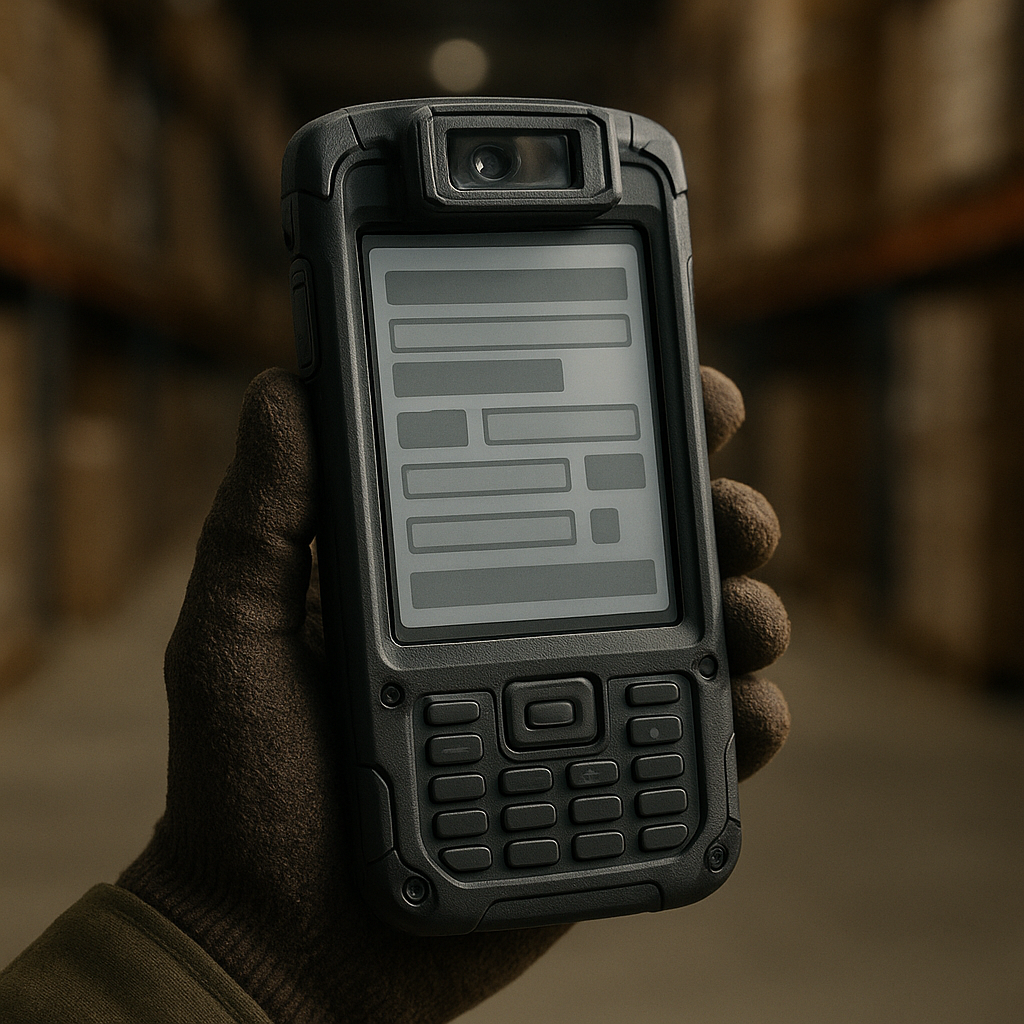
The iData T1 Pro is an industrial mobile computer (PDA) equipped with the latest Android 14.0 operating system, integrating dedicated 1D and 2D barcode scanning capabilities. This device is designed for durable operation in harsh environments, supporting fast and accurate data collection, thereby optimizing operational processes for various types of businesses.
With a high-performance Octa-core 2.0GHz processor, the iData T1 Pro ensures smooth processing of complex tasks. The device features 4GB RAM and 64GB internal storage (expandable up to 512GB via Micro SD card), providing ample space for applications and data. The 5.5-inch IPS screen with 1440x720 pixels resolution and industrial touchscreen capability supports operation with wet hands or gloves, offering maximum convenience for users.
Additionally, the iData T1 Pro is equipped with a 13MP rear camera with autofocus (PDAF) and a 5MP front camera, supporting inventory photography or recording goods status. The 3.85V 5000mAh removable battery supports 18W fast charging via a Type-C port or pogo pin charging, ensuring continuous device operation during long shifts.

Basic Setup Steps for iData T1 Pro for First-Time Use
Related Products

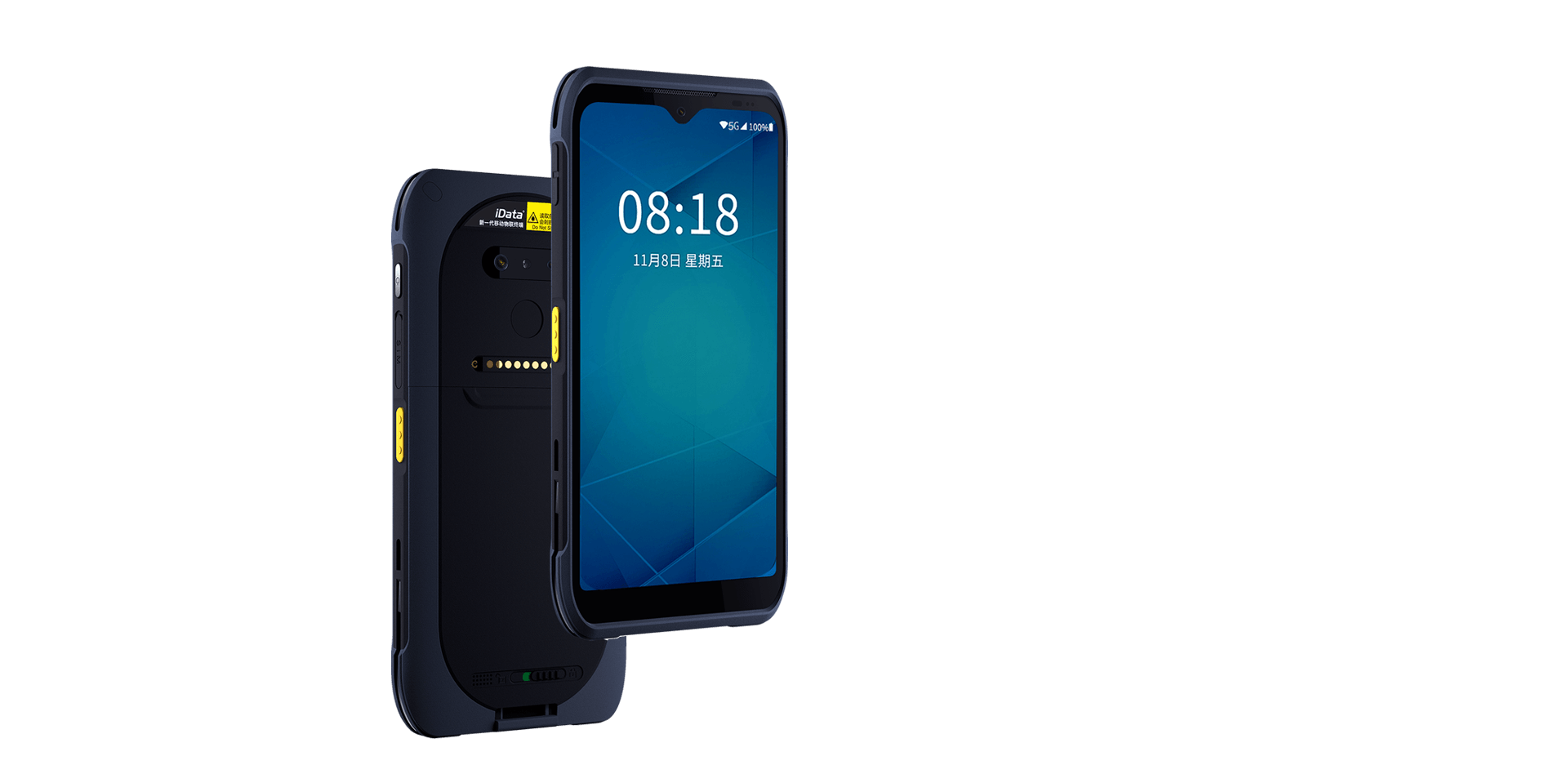
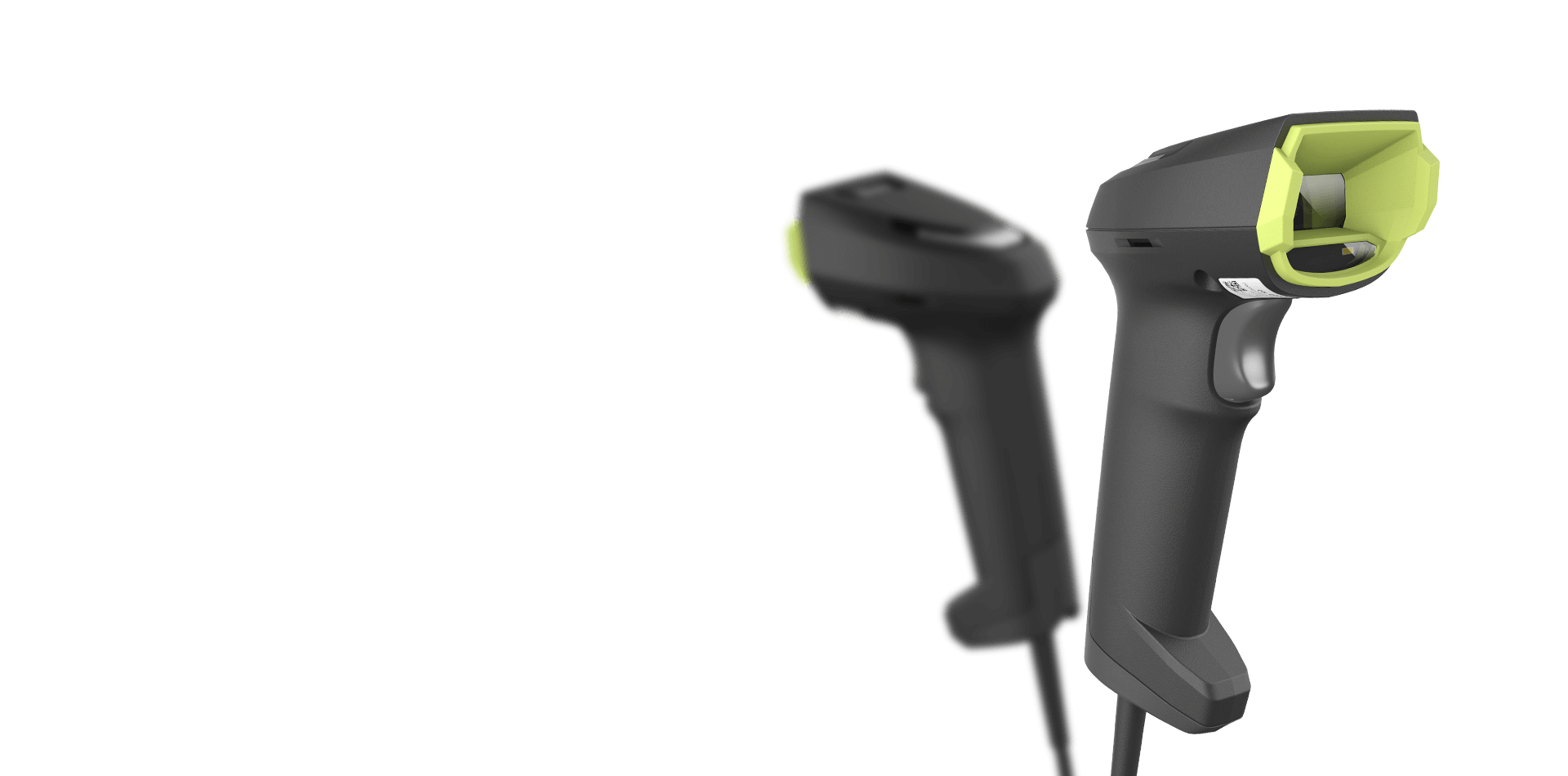
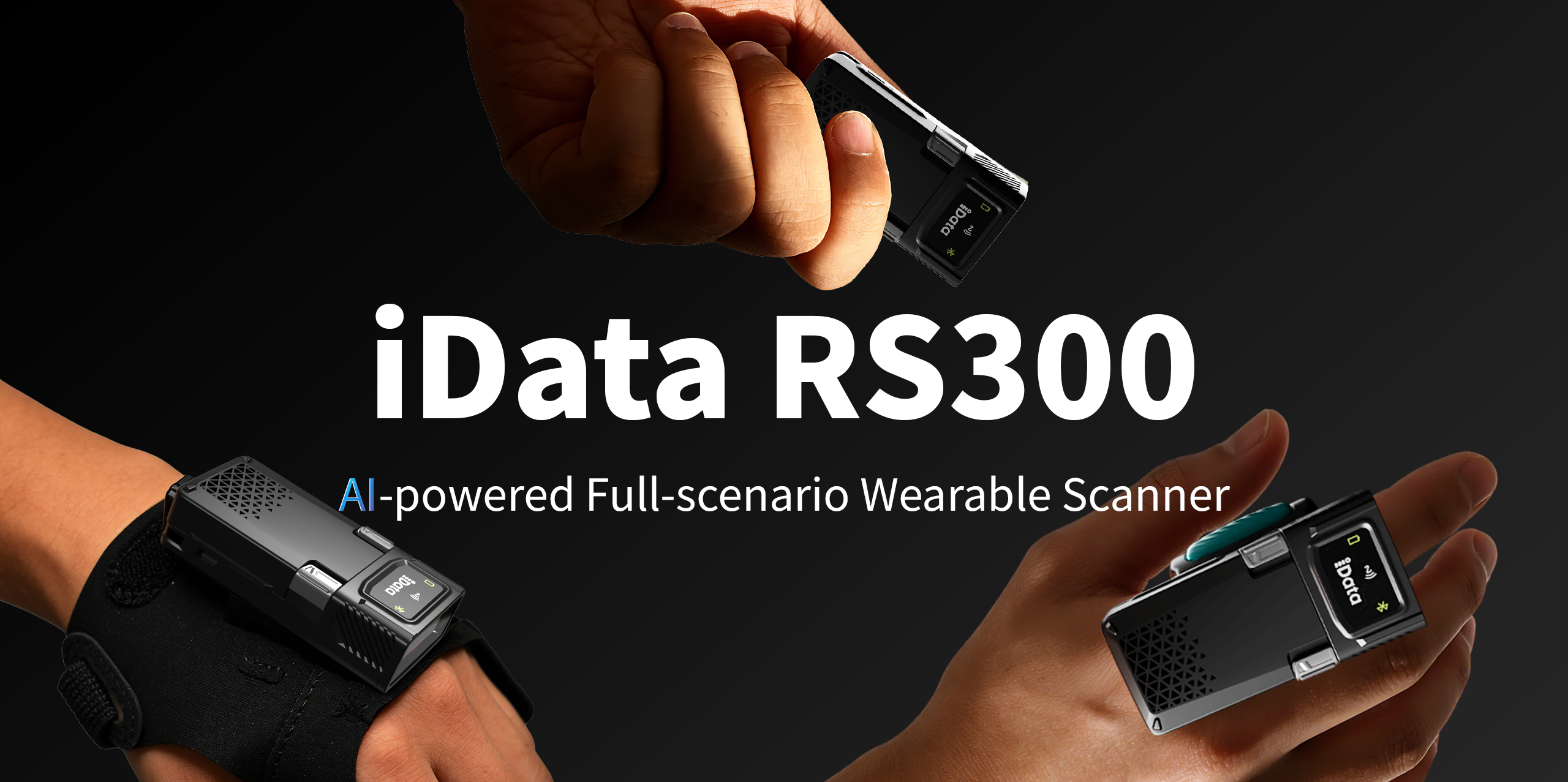
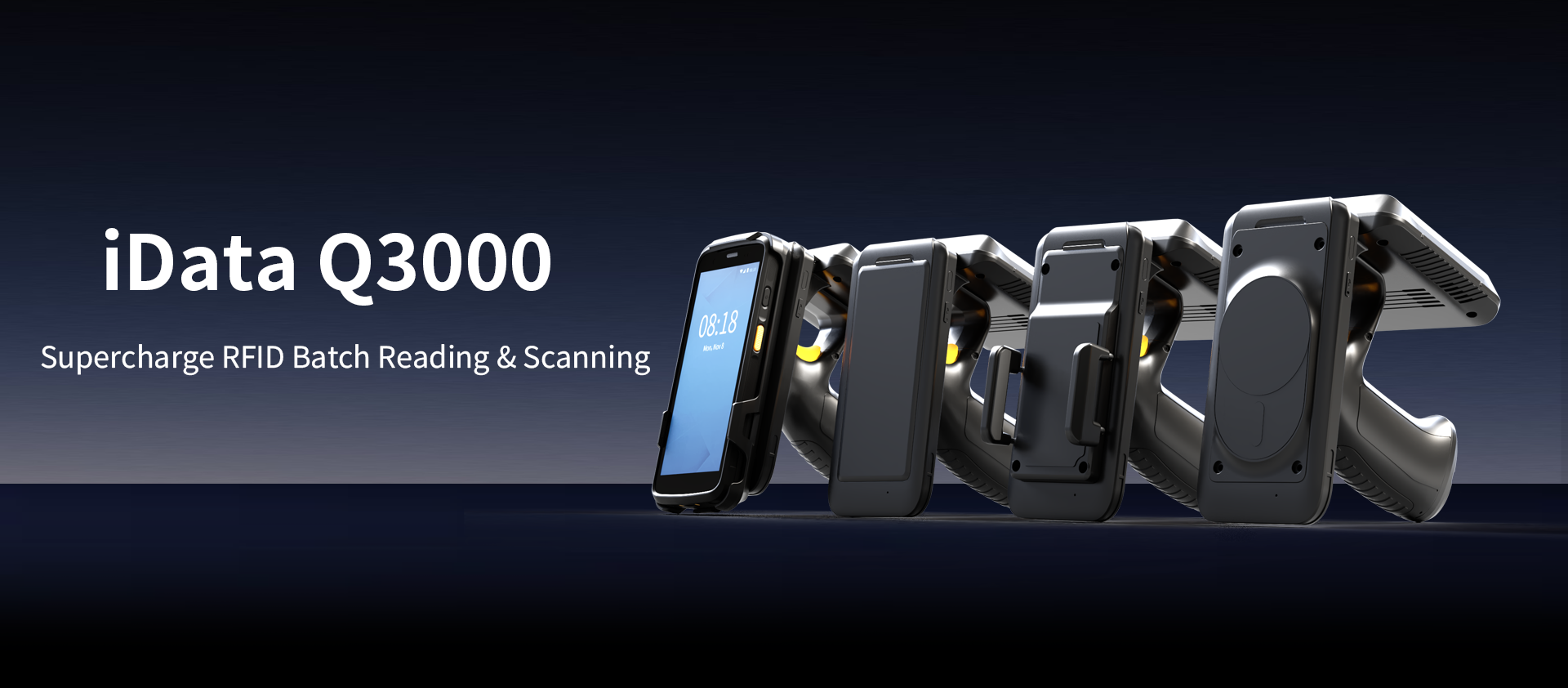
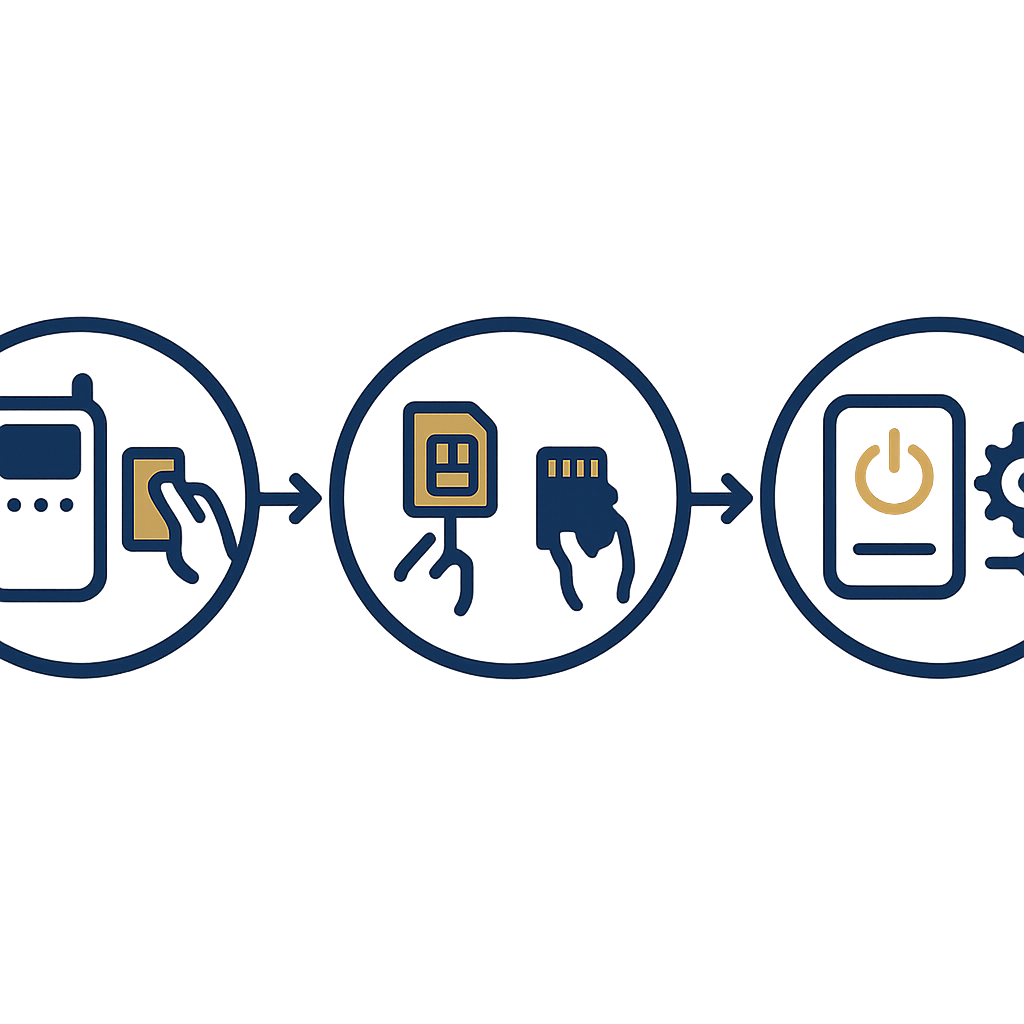
To effectively begin using the iData T1 Pro, correct initial setup is crucial. This process includes basic steps from battery installation, device startup, to configuring system options and network connections, ensuring the device is ready for work.
- Battery and SIM/Micro SD Card Installation:
- Open the device's back cover, install the 5000mAh battery in the correct position. Ensure the battery is fully charged or has sufficient capacity to power on.
- If necessary, insert a Nano SIM card into one of the two available SIM slots (supports Dual SIM, Dual Standby) and/or a Micro SD card (up to 512GB) into the expansion slot. (Note: WIFI ONLY versions do not support SIM).
- Close the back cover securely.
- Device Startup:
- Press and hold the power button (side power key) on the side of the device for about 3-5 seconds until the screen displays the iData logo.
- Wait for the device to fully boot to the Android 14.0 welcome screen.
- Initial Operating System Configuration:
- Select the desired language (e.g., Vietnamese or English).
- Set up Wi-Fi connection by selecting a network and entering the password. A stable network connection is crucial for software updates and data synchronization.
- Log in to your Google account (if necessary) and accept the terms of service.
- Configure date, time, time zone, and basic security options such as screen lock (PIN, pattern, fingerprint).
- System Software Update:
- After connecting to the internet, check for the latest operating system or firmware updates in Settings > System > System Update.
- Updates help improve performance, security, and add new features.
Guide to Configuring 1D and 2D Barcode Scanning on iData T1 Pro
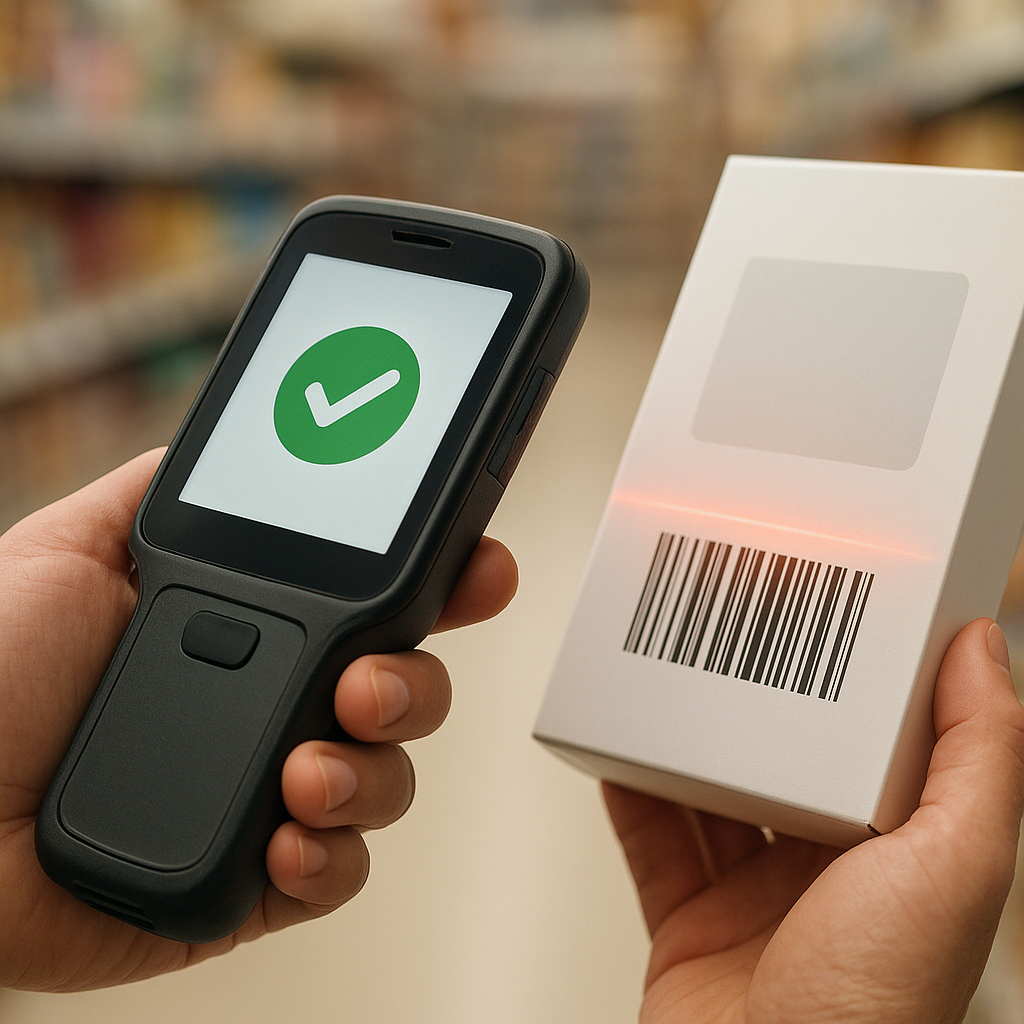
Barcode scanning functionality is central to the iData T1 Pro, enabling fast and accurate data collection. To optimize scanning performance, users need to configure parameters suitable for the specific barcode type and application, thereby enhancing efficiency in warehouse management or retail operations.

- Access Barcode Scanning Settings:
- From the home screen or app menu, find and open the "Scanner" app or "Settings" > "Scanning settings" on the iData T1 Pro device.
- This interface will display options to adjust scanning functions.
- Activate Barcode Types:
- In the scanning settings, find the "Symbologies" or "Barcode types" section.
- Enable 1D barcode types (e.g., Code 128, EAN-13, UPC-A, Code 39) and 2D barcode types (e.g., QR Code, Data Matrix, PDF417) that your business uses. Disable unused types to increase recognition speed.
- Configure Scanning Mode and Notifications:
- Scanning Mode: Choose between manual scanning mode (Manual Trigger - press the Scan button on the side) or automatic mode (Continuous/Auto Scan - continuous scanning when a barcode is detected).
- Sound & Vibration: Enable "Beep on scan" to emit a confirmation sound upon successful scan and "Vibrate on scan" for device vibration, providing physical feedback to the user.
- Illumination Light: Adjust the intensity of the illumination light to optimize scanning in low-light environments or on reflective surfaces.
- Add Data Prefix and Suffix:
- Prefix: Add a fixed string of characters to the beginning of each scanned barcode data. For example: add "SP_" to easily identify product data.
- Suffix: Add a character or string of characters to the end of the barcode data. Most commonly, add an "Enter" (CR - Carriage Return) or "Tab" character to automatically move to the next line or cell in data entry applications, similar to iData K1S.
- Save Configuration:
- After adjusting the settings, ensure to save the configuration for the changes to be applied. Some devices may save automatically or require pressing the "Apply" / "Save" button.
Advanced Customization and Common Troubleshooting for iData T1 Pro
Beyond basic settings, the iData T1 Pro also offers advanced customizations to optimize user experience and work performance. Mastering these options along with the ability to quickly resolve common issues will help the device operate more stably and efficiently in all situations.
Advanced Customizations:
- Keyboard Operation Mode: The iData T1 Pro has a total of 6 physical keys (2 scan keys, 1 power button, 2 volume buttons, 1 custom button). Users can assign functions to the custom key for quick access to frequently used applications or features, speeding up operations during warehouse management.
- Battery Saving Mode: Optimize battery settings to extend usage time. Screen brightness, screen timeout, or Android 14.0's smart battery saver mode can be adjusted. The T1 Pro's 5000mAh battery already provides impressive usage time, but optimization is still useful for extra-long shifts.
- Application Management: Install warehouse management, sales, or ERP applications from the Google Play Store or via APK files. Ensure sufficient permissions are granted to applications so they can access barcode scanning functions and store data.
- Glove/Wet Hand Mode: Activate special touch mode (wet-hand operation/glove mode) in display settings to ensure accurate operation even when users are wearing gloves or have wet hands, suitable for cold storage or manufacturing environments.
Common Troubleshooting:
- Unable to scan barcodes:
- Check if the scanning function is enabled in settings.
- Ensure the barcode types being scanned are enabled (symbologies enabled).
- Check scanning distance and angle. Try scanning different barcodes to rule out damaged barcodes.
- Check if the laser/LED light is working. If not, the device may need to be restarted.
- Device operating slowly or freezing:
- Close unnecessary background applications to free up RAM.
- Check available storage space. Delete unused data or applications.
- Restart the device. If the issue persists, consider a Factory Reset after backing up important data.
- Wi-Fi/Cellular connection error:
- Recheck Wi-Fi password or cellular network signal.
- Restart the Wi-Fi router or check APN settings for the cellular network.
- Update Wi-Fi/Modem drivers if available (via system update).
Cần tư vấn thiết bị/giải pháp cụ thể?
Việt POS phản hồi trong 30 phút · Hotline 4 vùng · Khảo sát miễn phí.
Bài viết cùng chủ đề