Mục lục bài viết (8)
- What is an in-store network for F&B outlets?
- Why must guest Wi-Fi be separated from the POS network?
- Standard in-store network diagram for the counter and kitchen
- Choosing switches for the counter and kitchen: which criteria matter?
- How to run network cabling for the counter and kitchen
- Server hosted at the company headquarters: why is it important for the in-store network?
- Common mistakes when building an in-store network for F&B
- Frequently asked questions
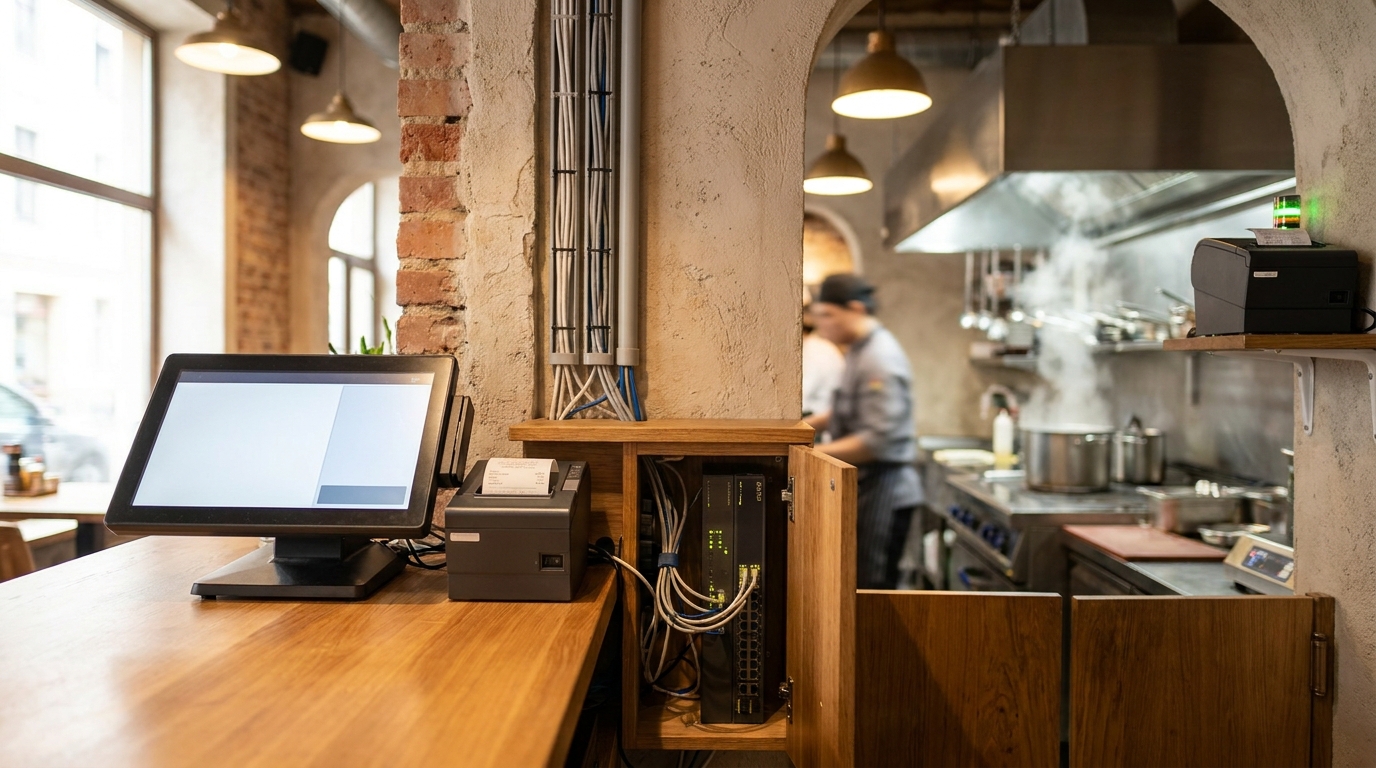
An in-store network for F&B outlets is the connectivity infrastructure that separates guest Wi-Fi, the network for POS terminals/kitchen printers, and the connection back to a server hosted at the company headquarters. Unlike a home network, an F&B in-store network must ensure that POS terminals do not get congested when guests arrive in large numbers, that kitchen printers receive print commands instantly, and that any connectivity issue is immediately visible for resolution.
An in-store network for F&B outlets should be separated into 3 layers: guest Wi-Fi, the POS terminal/kitchen printer network, and the connection back to a server hosted at the company headquarters via VPN. Use dedicated switches for the counter and kitchen, run fixed LAN cabling instead of Wi-Fi for cashier devices, and design so that any connection failure is immediately visible — not silently hanging.
Table of contents
- What is an in-store network for F&B outlets?
- Why must guest Wi-Fi be separated from the POS network?
- Standard in-store network diagram for the counter and kitchen
- Choosing switches for the counter and kitchen: which criteria matter?
- How to run network cabling for the counter and kitchen
- Server hosted at the company headquarters: why is it important for the in-store network?
- Common mistakes when building an in-store network for F&B
- Frequently asked questions
What is an in-store network for F&B outlets?
What is an in-store network for F&B outlets?
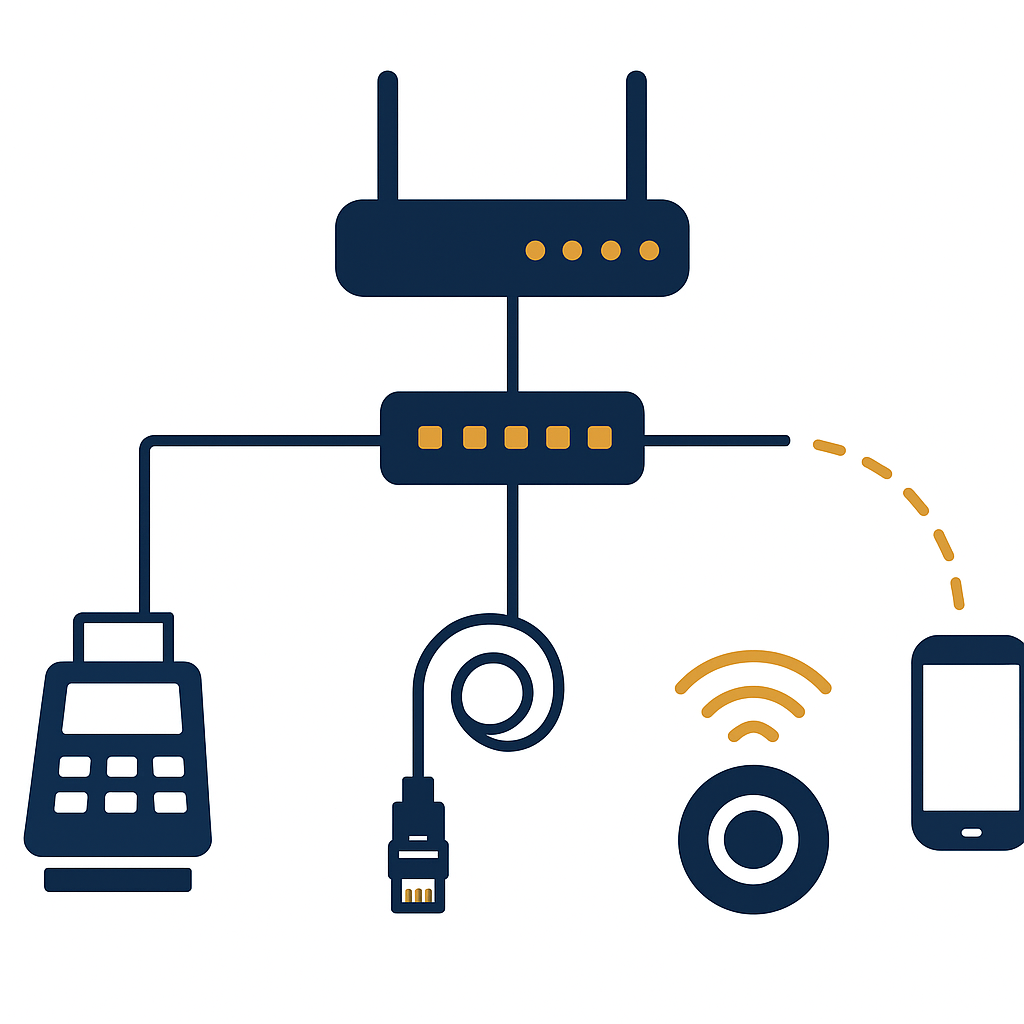
A properly designed F&B in-store network is not just "installing Wi-Fi for guests." It is a layered infrastructure: guest Wi-Fi sits on a separate range, POS terminals and kitchen printers sit on another range, and the connection back to headquarters goes through a separate encrypted path. When these three flows overlap, a failure in one flow brings the entire system to a halt.
With the VietPOS model installed on the company's own server, the server is hosted at headquarters, and stores in the chain connect back via VPN. Sales data resides on the company's own machine, independent of external services. This places higher demands on the in-store network at each store: the connection must be stable, there must be a backup plan, and when connectivity is lost, the system must alert immediately.
Why must guest Wi-Fi be separated from the POS network?
Related products


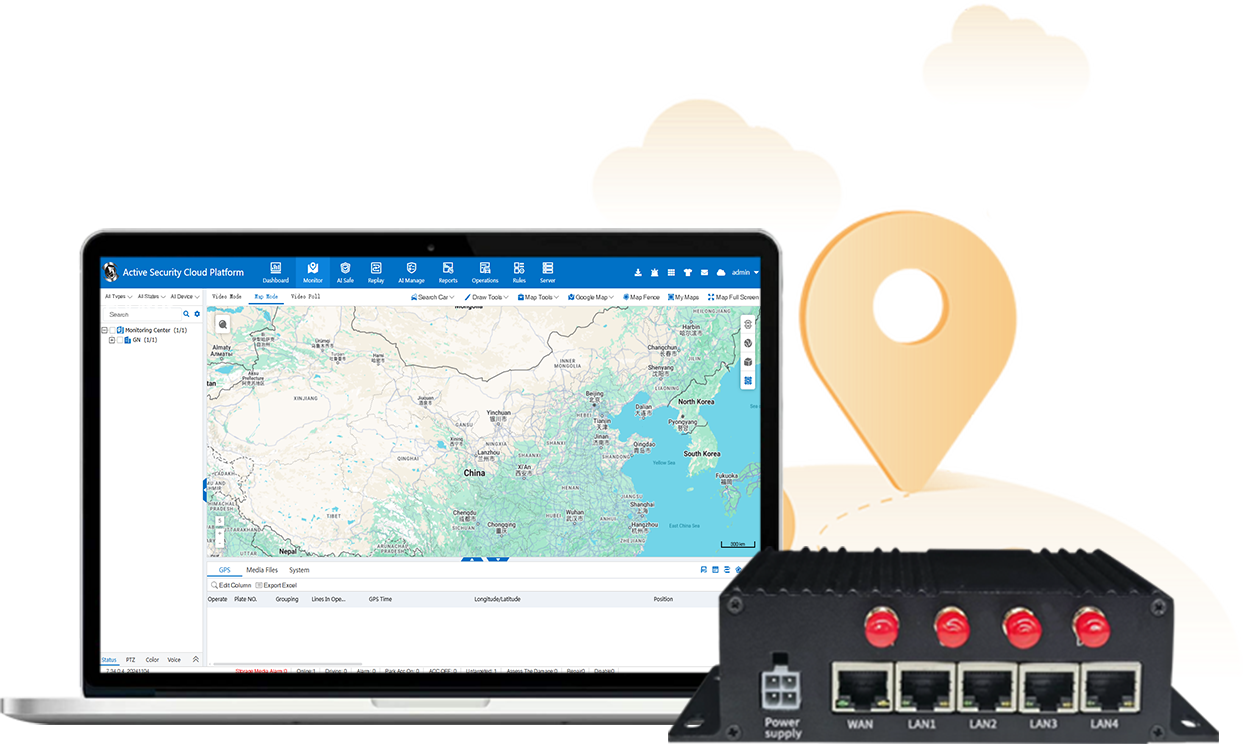


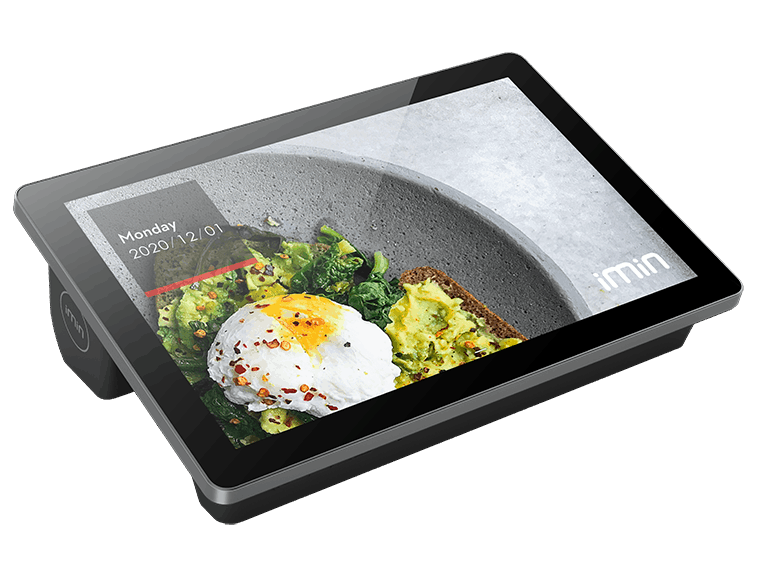

Guest Wi-Fi and the POS network have completely different traffic characteristics. Guests use Wi-Fi to watch videos, download photos, and livestream — high bandwidth, no need for absolute stability. POS terminals and kitchen printers need low bandwidth but low latency and continuous connectivity. When sharing one network, guest traffic will consume bandwidth and congest POS packets, causing slow bill printing and stalled payment confirmations.
Three common consequences of not segmenting the network:
- POS terminals respond slowly during peak hours: when guests arrive in large numbers and guest Wi-Fi is heavily loaded, the POS takes 5-15 seconds to confirm a transaction.
- Kitchen printers receive commands late or lose commands: print jobs are pushed into a queue, dishes come out late, and guests complain.
- Security risk: guests connected to the same network range can access internal devices if there is no isolation layer.
The solution is to divide the network into VLANs (virtual local area networks) on the same physical infrastructure, or more simply, to use a router with the function of separating guest Wi-Fi and internal Wi-Fi. For medium-sized F&B outlets, the most practical approach is to configure 2 separate SSIDs: one for guests, one for operational devices.
Standard in-store network diagram for the counter and kitchen
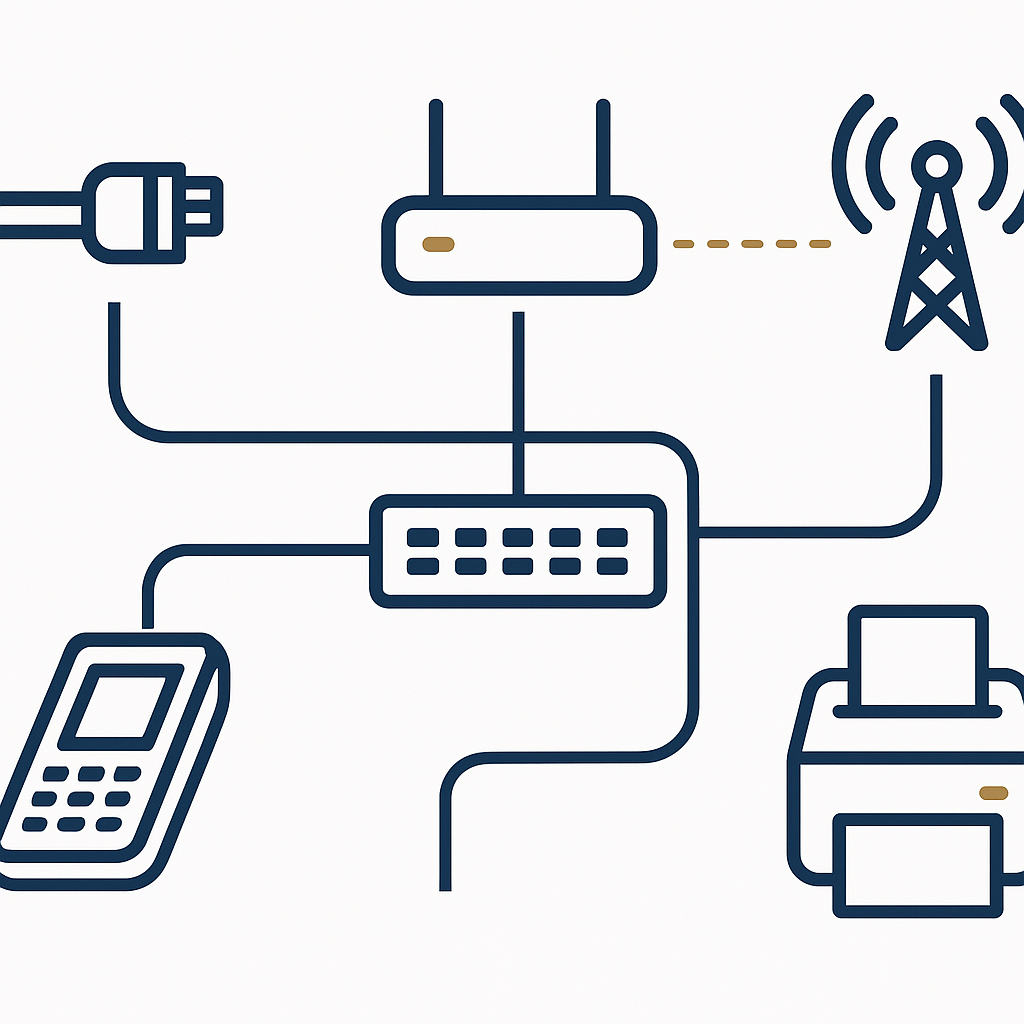
A practical F&B in-store network diagram consists of: a main router receiving the internet line, a switch distributing ports for the cashier counter, kitchen, guest Wi-Fi access point, and cameras. POS terminals and kitchen printers should use fixed LAN cabling, not Wi-Fi. The guest Wi-Fi access point is placed in the guest seating area with a separate SSID. The connection back to the company headquarters goes through a VPN on the main router.
- Main router: receives the fiber cable from the ISP, has a backup 4G WAN port. Configure a VPN client to connect back to the server at headquarters. See more Router with 2 fiber lines + 4G backup for F&B chains.
- Counter switch: placed in the cashier area, connecting the POS terminal, bill printer, and cash drawer. Choose an 8-16 port switch with PoE if IP cameras will be added later.
- Kitchen switch: placed in the kitchen area, connecting the LAN kitchen printer and kitchen display screen (KDS). Run a separate LAN cable from the main switch to the kitchen switch; do not share the cable with the counter.
- Guest Wi-Fi access point: placed in the guest seating area, broadcasting a separate SSID, with bandwidth limits per device. See more LAN kitchen printer for restaurant chains: standardizing kitchen and bill printing devices.
- VPN connection back to headquarters: configured on the main router, encrypting all data between the store and the server hosted at the company headquarters. Do not expose the server port to the internet.
For stores with an area of 30-80m², one main router + one 8-port switch + one access point is sufficient. For stores of 100-200m² with a separate kitchen, the counter switch and kitchen switch should be separated into two devices to make fault isolation easier.
Choosing switches for the counter and kitchen: which criteria matter?
Switches for F&B outlets do not need expensive industrial switches, but must have 3 factors: Gigabit ports (1000Mbps) so there is no congestion when printing bills and syncing data, VLAN functionality to separate the guest network and internal network, and PoE power if IP cameras or access points will be added later. An 8-16 port switch is a common choice for medium-sized stores.
| Criterion | Why it matters | Practical example |
|---|---|---|
| Gigabit ports | Ensures bill printing and data syncing are not congested | 8-port Gigabit switch for the cashier counter |
| VLAN support | Separates guest Wi-Fi from the POS network | VLAN 10 for guests, VLAN 20 for POS, VLAN 30 for cameras |
| PoE | Powers access points and IP cameras over the network cable | Ceiling-mounted guest Wi-Fi access point, no separate power outlet needed |
| Spare port count | Expands for additional printers, kitchen displays, card readers | 16-port switch for a store with 2 POS terminals and 2 kitchen printers |
| Stable power | Prevents the switch from hanging when power fluctuates | Combine with UPS for restaurant POS terminals: choosing capacity & backup time |
For the cashier counter, the switch should be placed in a lockable technical cabinet to avoid impact and dust. For the kitchen, the switch should be placed outside the cooking area to avoid heat and grease.
How to run network cabling for the counter and kitchen
Network cabling for the counter and kitchen should use CAT6 network cable run in plastic conduit or plastic trunking, avoiding running alongside power cables to limit interference. Each important device (POS terminal, kitchen printer) should have its own LAN cable back to the switch, not shared with other devices. Cable ends should be properly crimped and labeled for easy inspection during incidents.
- LAN cable for POS terminals: run from the counter position to the counter switch, no longer than 90m. If the counter is far from the switch, use an additional intermediate switch.
- LAN cable for kitchen printers: run from the kitchen position to the kitchen switch. If the kitchen printer is placed deep inside the kitchen, run the cable in plastic trunking to avoid grease.
- Cable for guest Wi-Fi access point: run from the ceiling or AP location to the main switch. If using PoE, one network cable is sufficient.
- Cable labels: label both ends of the cable according to the diagram (POS-01, PRINTER-BEP-01, AP-KHACH-01) so technical staff can resolve incidents quickly.
For stores with existing cabling, it can be reused but the cable quality should be rechecked. Old CAT5 cable may only achieve 100Mbps, insufficient for data syncing and bill printing needs. See more Checklist for opening a restaurant branch: POS terminals, kitchen printers, network, connectivity.
Server hosted at the company headquarters: why is it important for the in-store network?
With the VietPOS model installed on the company's own server, the server is hosted at headquarters, and sales data resides on the company's own machine. Stores in the chain connect back to this server via VPN. This model helps the company control data and remain independent of external services, but requires the in-store network at each store to be stable and have a backup plan.
Three principles when operating this model:
- Server hosted at headquarters: choose a computer to act as the server with appropriate configuration, use an SSD, stable power supply, and place it in a well-ventilated location. See more Choosing a computer as a POS server for restaurant chains: configuration, SSD, power, location.
- Store connection back to headquarters via VPN: do not expose the server port to the internet. VPN encrypts all data between the store and headquarters, reducing the risk of attack. See more VPN connecting stores to the headquarters server: why F&B chains should not expose the server port to the internet.
- Failures must be immediately visible: design the system so that when connectivity is lost, the POS terminal or kitchen printer clearly reports an error, not silently hanging. Staff must know immediately to handle it, not assume it has been saved/printed to the kitchen.
The principle "failures must be immediately visible" is the difference between a professional system and an amateur system. If the POS terminal loses connection but still displays as if it is operating, staff may continue taking orders, only discovering at the end of the day that data was not saved. With the server hosted at headquarters model, when the VPN connection is lost, the POS terminal must display a clear warning so staff can switch to a manual process or check the connection line.
Common mistakes when building an in-store network for F&B
Sharing one Wi-Fi for guests and POS terminals: guests download videos, POS terminals get congested, bill printing is slow during peak hours.
- Sharing one Wi-Fi for guests and POS terminals: guests download videos, POS terminals get congested, bill printing is slow during peak hours.
- Using Wi-Fi for kitchen printers: unstable Wi-Fi causes lost print jobs, dishes come out late, and no one knows why.
- No dedicated switch for the kitchen: kitchen printers and POS terminals share one switch; when one device fails, the whole cluster goes down.
- Exposing the server port to the internet: convenient for remote access but creates a serious security vulnerability.
- No backup connection line: a cut fiber cable halts the entire store with no 4G plan.
Another mistake is not labeling cables and not keeping a network diagram. When an incident occurs, technical staff spend 15-30 minutes just to determine which cable connects where. For stores with many devices, labeling and keeping a diagram significantly reduces incident resolution time.
Frequently asked questions
How is an in-store network for F&B outlets different from a home Wi-Fi network?
A home network serves only one traffic flow and does not need segmentation. An F&B in-store network simultaneously serves guest Wi-Fi, POS terminals, kitchen printers, and the connection back to headquarters, so it must separate VLANs, have dedicated switches for the counter and kitchen, and have a backup connection plan. The goal is that POS terminals are not affected when many guests use Wi-Fi.
Do I need a dedicated switch for the kitchen?
You should. The kitchen printer is an important device; if it shares a switch with the cashier counter, when the switch fails both areas stop together. A dedicated kitchen switch helps isolate faults and makes it easier to check when the printer does not receive commands. For small stores, a shared switch can be used but ports should be separated and clearly labeled.
Does the VPN connecting stores to headquarters slow down POS terminals?
VPN encrypts data, but with a stable connection, the added latency is negligible. POS terminals mainly send small transaction data and do not need high bandwidth. What matters is that the connection must be stable and have 4G backup. If the VPN is slow, the cause is usually the internet connection at the store, not the VPN itself.
How do I know the POS terminal has lost connection to the headquarters server?
The system needs to be designed so that failures are immediately visible: the POS terminal displays a warning when the connection is lost, and the kitchen printer reports an error when it does not receive commands. Staff need to be instructed to check the indicator lights on the router, switch, and POS screen. The principle is not to let the system hang silently, causing staff to assume it has been saved/printed to the kitchen.
Cần tư vấn thiết bị/giải pháp cụ thể?
Việt POS phản hồi trong 30 phút · Hotline 4 vùng · Khảo sát miễn phí.
Bài viết cùng chủ đề