Mục lục bài viết (8)
- What is the Zebra ZC300 RFID card printer?
- Technical specifications to know before installation
- Zebra ZC300 RFID card printer installation guide
- Daily usage guide: printing cards to standard
- Glossary and operation summary table
- Common mistakes during installation and usage
- Frequently asked questions
- Deployment in Vietnam: choosing a supplier and consumables
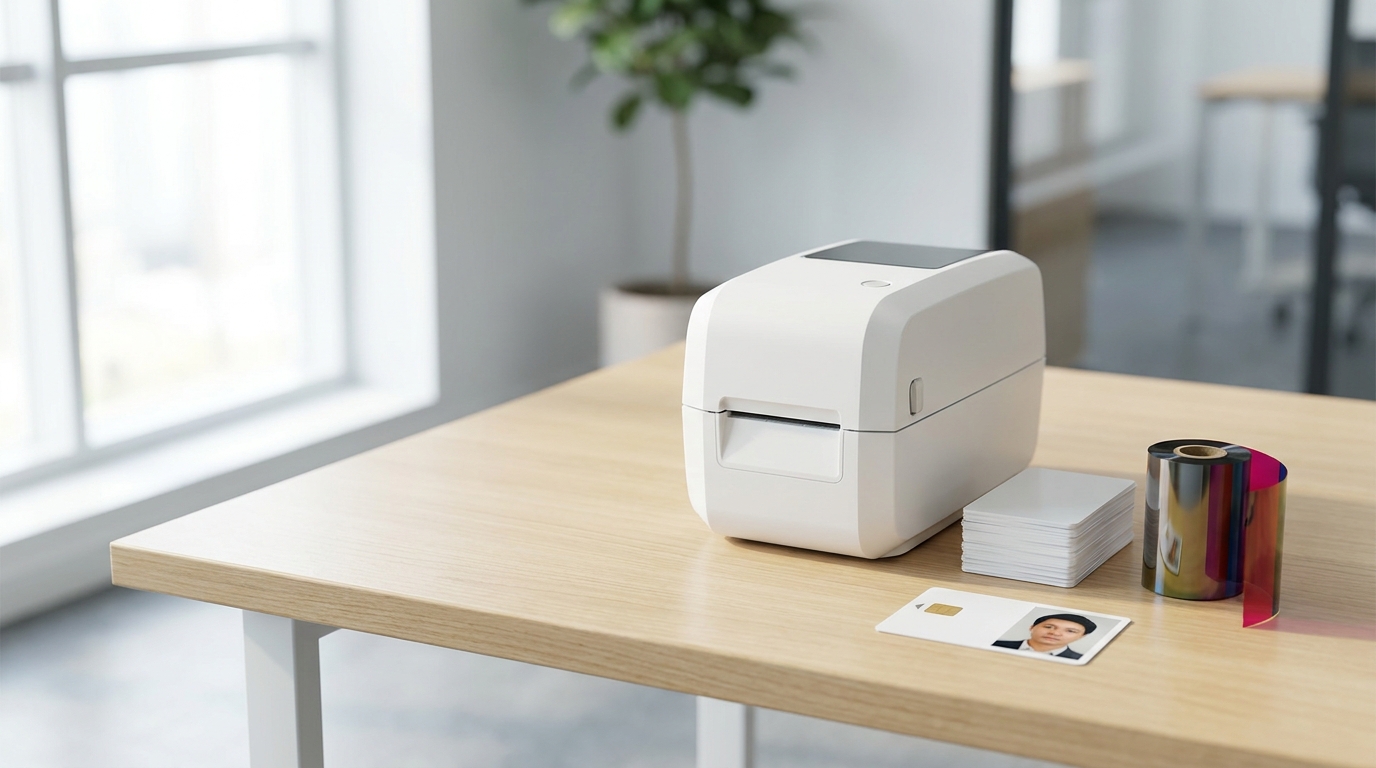
The Zebra ZC300 RFID card printer is a direct-to-card printing device with an integrated punch module and RFID chip data encoding, used to issue employee cards, membership cards, asset cards, and warehouse cards with embedded tags. In Vietnam, this printer line is being deployed internally by retail chains, mini supermarkets, and distribution warehouses to proactively issue cards instead of outsourcing production. The article below guides installation and usage following the actual operational sequence in a warehouse.
The Zebra ZC300 RFID card printer is installed in 5 steps: download the Windows driver from the Zebra website, connect USB 2.0 (or Ethernet 10/100), load the ribbon in the correct orientation, load cards into the tray, then configure the RFID encoder in Zebra CardStudio. The printer prints single-sided color at 200 cph, mono at 900 cph; dual-sided color at 140 cph, mono at 450 cph. Each ribbon roll prints approximately 300 color cards or 2000 mono cards.
Table of contents
- What is the Zebra ZC300 RFID card printer?
- Technical specifications to know before installation
- Zebra ZC300 RFID card printer installation guide
- Daily usage guide: printing cards to standard
- Glossary and operation summary table
- Common mistakes during installation and usage
- Frequently asked questions
- Deployment in Vietnam: choosing a supplier and consumables
What is the Zebra ZC300 RFID card printer?
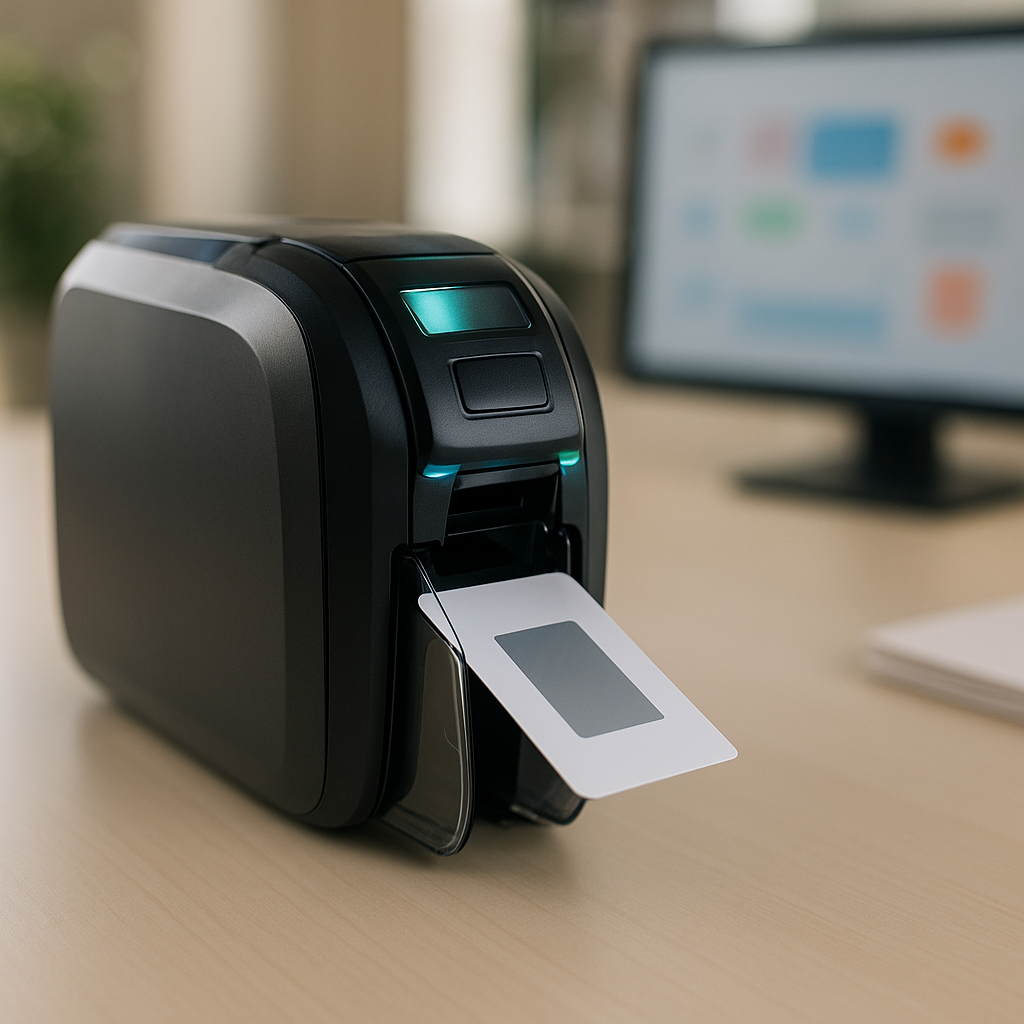
The Zebra ZC300 RFID card printer is a CR80 standard plastic card printer that prints directly onto the card surface and can encode data onto the RFID chip embedded in the card. The printer supports single-sided and dual-sided printing, with a maximum speed of 900 cph monochrome (single-sided) and 200 cph color, standard USB 2.0 connectivity plus optional Ethernet 10/100 and Wi-Fi 802.11ac MFi.
The difference compared to a regular card printer lies in the encoder assembly: after printing the surface, the printer automatically encodes data onto the card's RFID chip in the same cycle. For businesses issuing 2,000-10,000 cards/year, in-house printing shortens the time from 5-7 days (outsourced production) to 15-30 minutes for each batch of 50-100 cards.
Technical specifications to know before installation
Related products

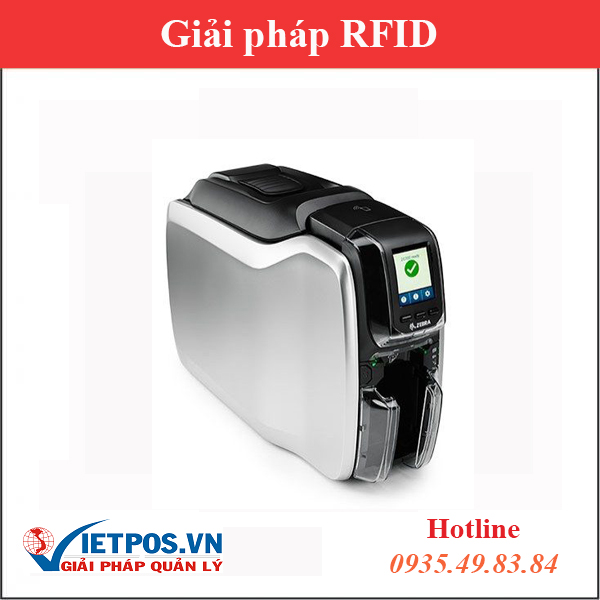
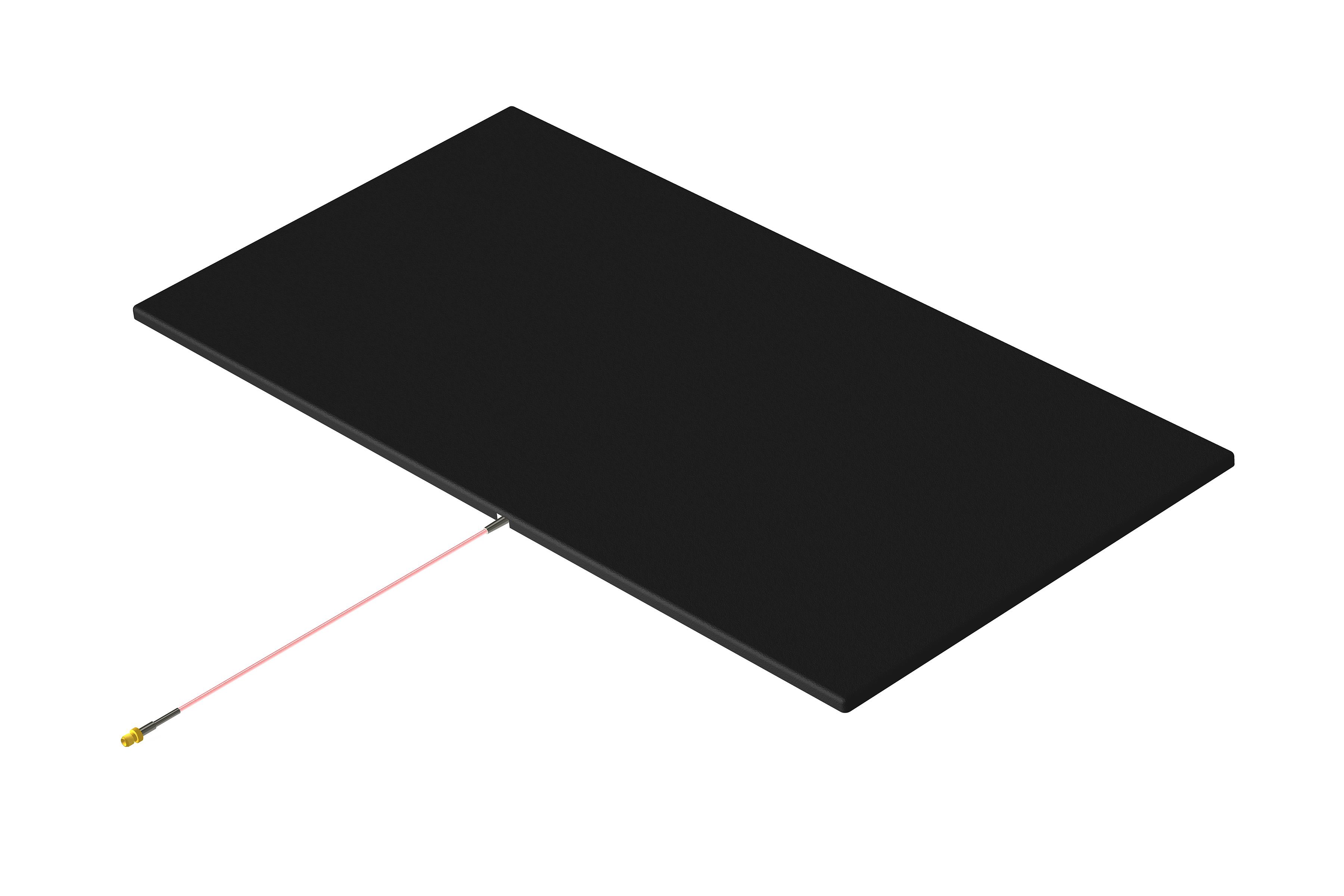

Before installation, you need to know 4 groups of specifications: print speed (single-sided 200 cph color, 900 cph mono; dual-sided 140 cph color, 450 cph mono), ribbon capacity (300 color cards or 2000 mono cards per roll), communication (USB 2.0 standard, optional Ethernet 10/100 and Wi-Fi 802.11ac MFi), and encoding options (MIFARE ISO 14443 A&B, ISO 7816 smart cards, contact station, third-party contactless encoder).
| Item | Specification | Operational meaning |
|---|---|---|
| Print technology | Direct-to-card, single-sided and dual-sided printing | No outer laminate layer needed |
| Single-sided print speed | Color 200 cph · Mono 900 cph | 100 color cards take about 30 minutes |
| Dual-sided print speed | Color 140 cph · Mono 450 cph | Back-side printing is about 30% slower |
| Maximum ribbon | Color 300 cards · Mono 2000 cards/roll | Order consumables quarterly, not monthly |
| Communication | USB 2.0, optional Ethernet 10/100 and 802.11ac MFi | USB for 1 computer, LAN for shared printers |
| Encoding | MIFARE ISO 14443 A&B, ISO 7816, third-party encoder | Encode RFID chip in the same print cycle |
If your business already has a Zebra barcode printer for the warehouse, you can also refer to Zebra ZT411 300dpi Barcode Printer: Outstanding Features for Warehouses to synchronize the label and card ecosystem.
Zebra ZC300 RFID card printer installation guide
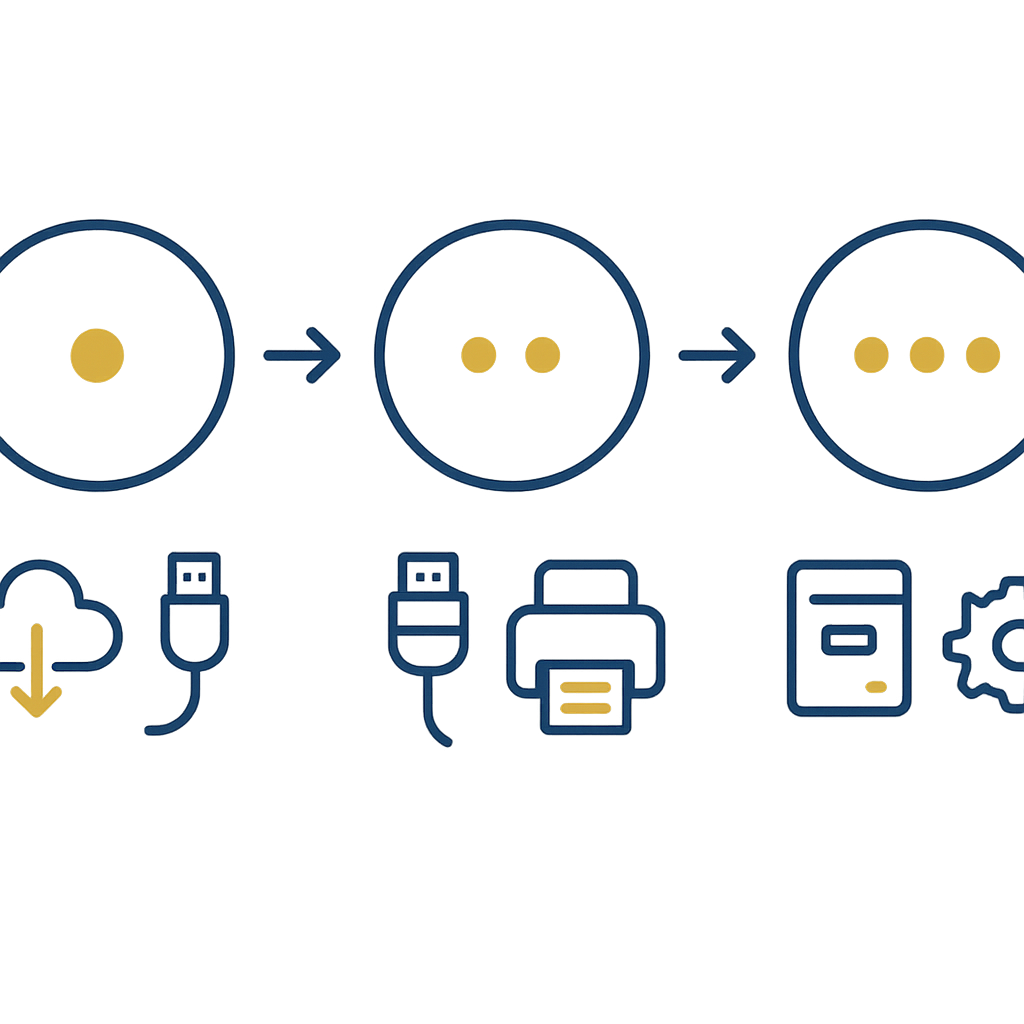
The installation process consists of 5 sequential steps: download the genuine driver from the Zebra website, connect the USB 2.0 or Ethernet 10/100 cable, load the ribbon in the correct orientation, load cards into the tray and align, then configure the RFID encoder in Zebra CardStudio software. Do not skip the firmware update step because older versions may not recognize third-party encoders.
Steps 1-2: Download the driver and connect the device
- Go to the Zebra support page, download the ZC300 Series driver for Windows 10/11 (64-bit version).
- Install the driver in "Run as administrator" mode to avoid registry write permission errors.
- Connect the USB 2.0 cable to the rear port of the computer (do not use a hub).
- If using LAN, assign a static IP 192.168.x.x to the printer to avoid IP changes on restart.
- Go to Devices and Printers, confirm the printer shows the name "Zebra ZC300" and Ready status.
Steps 3-4: Load ribbon and load cards
- Open the top cover, flip the ribbon spindle release latch.
- Attach the new ribbon roll to the supply spindle, pull the ribbon end through the printhead to the take-up spindle.
- Check the ribbon orientation: glossy side facing down toward the printhead, matte side facing up.
- Arrange cards in the input tray, flat side facing up, do not stack beyond the max line.
- Push the tray in until you hear a "click" locking it in place.
Step 5: Configure the RFID encoder
- Open Zebra CardStudio, select Printer > Encoding Options.
- Select the chip type: MIFARE Classic, MIFARE DESFire, or ISO 14443 A/B depending on the card.
- Enter the sector and data write key (default FF FF FF FF FF FF for new cards).
- Run a test with 3-5 sample cards, verify data with a handheld RFID reader.
- Save the configuration profile for reuse in the next batch.
For handheld operations when checking cards, you can also use the iData RS200 Wearable Barcode Scanner: A Solution to Boost Warehouse Productivity to quickly cross-check card codes against the employee list.
Daily usage guide: printing cards to standard
During daily operation, 4 principles must be followed: start the printer 2-3 minutes before printing the first batch, do not change ribbon mid-batch, check the first 3 and last 3 cards of each batch, and clean the printhead with a dedicated pen after every 200-300 cards. These operations help reduce the defective card rate from 5-8% to below 2%.
- Before printing: check printhead temperature, ribbon tension, remaining cards in the tray.
- During printing: do not open the printer cover, do not pull out the card tray — this easily causes alignment deviation.
- After printing: let cards cool for 30-60 seconds before stacking them, to avoid ink smudging.
- End of day: shut down the printer properly, close the dust cover.
For businesses that need to print warehouse labels in parallel, refer to Zebra ZD421 203dpi and 300dpi Barcode Printer: Which Version to Choose? to allocate the right device for each task.
Glossary and operation summary table
The table below summarizes the 7 most important terms and operations when operating the Zebra ZC300 RFID card printer, with specific examples for business owners to quickly cross-reference when training new employees.
| Term | Definition | Example |
|---|---|---|
| Direct-to-card | Printing directly onto the card surface, without an intermediate layer | Printing employee photos on the front of the card |
| Ribbon | Print ink roll, consisting of YMCK or mono strips | Color ribbon prints about 300 cards |
| RFID encoder | Module that writes data to the chip inside the card | Writing employee ID to MIFARE Classic |
| ISO 14443 A&B | RFID communication standard at 13.56 MHz frequency | Time attendance cards, membership cards |
| ISO 7816 | Contact smart card standard | Bank cards, insurance cards |
| Contact station | Connection point to read/write chips outside the print cycle | Re-checking data after printing |
| cph | Cards per hour — number of cards printed per hour | 200 cph color single-sided |
Common mistakes during installation and usage
The 5 most common mistakes are loading the ribbon in the wrong orientation, using an old driver that does not support the encoder, printing continuously without cleaning the printhead, changing ribbon mid-batch, and skipping the card test step before mass printing. Each of these errors can damage 20-50 cards per occurrence, equivalent to 200,000-500,000 VND in cost per incident.
- Loading ribbon in the wrong orientation: prints blank cards or only faint streaks — check that the glossy side faces down toward the printhead.
- Old driver: the printer receives print commands but cannot encode RFID — update the latest driver from the Zebra website.
- Not cleaning the printhead: after 200-300 cards, vertical white streaks appear — use a dedicated pen to clean weekly.
- Changing ribbon mid-batch: color deviation between cards in the same batch — only change when the batch is done or the ribbon runs out.
- Skipping the card test: mass printing without checking RFID data — easily damages the entire batch of 50-100 cards.
Frequently asked questions
How many cards can the Zebra ZC300 RFID card printer print per ribbon roll?
With YMCK color ribbon, each roll prints a maximum of about 300 single-sided cards. With black mono ribbon, each roll prints about 2,000 cards. The actual number may be 5-10% lower if the card has a large print area or a dark background image.
Do I need a separate driver for the RFID module?
No. The ZC300 Series driver already includes the RFID encoder control module. However, you need to configure the chip type and write key in Zebra CardStudio. If using a third-party encoder, you need to install the driver from that encoder's manufacturer.
What types of cards does the Zebra ZC300 RFID card printer support?
The printer supports CR80 size PVC plastic cards (85.6 x 54 mm), thickness 0.76-1.0 mm. With RFID, the printer can encode MIFARE ISO 14443 A&B chips, ISO 7816 smart cards, and some third-party contactless encoder types depending on the ordered configuration.
Should I print single-sided or dual-sided for employee cards?
For internal employee cards, single-sided printing is sufficient, with ribbon costs 30-40% lower. For customer membership cards or cards with terms of use, dual-sided printing should be chosen to hold additional information. Dual-sided speed is 140 cph color, 450 cph mono.
When should I use Ethernet instead of USB?
When there are 2 or more computers sending print commands, or when the printer is placed more than 3 meters from the computer. Ethernet 10/100 helps assign a static IP, avoiding connection drops on restart. USB 2.0 is suitable for a 1 computer — 1 printer model at the reception desk or HR department.
Deployment in Vietnam: choosing a supplier and consumables
When deploying in Vietnam, businesses should choose a supplier with local ribbon and blank card inventory, technical support within 24-48 hours, and experience configuring RFID encoders for common chip types. Unavailable consumables are the number 1 cause of the printer stopping for 3-7 days waiting for parts.
For businesses deploying multiple locations, you can also refer to Where to Buy Genuine Zebra GC420T Barcode Printers? to synchronize the consumable supply for both card printers and label printers. At the same time, standardize the card issuance process, log employees receiving cards, and perform periodic checks every 3-6 months.
Need advice on configuring the Zebra ZC300 RFID card printer to suit your business's card issuance scale? Call hotline 0935 498 384 or email info@vietpos.vn — the Việt POS technical team supports needs assessment, quotes for ribbon/blank card consumables, and RFID encoder configuration based on the chip type in use.
Cần tư vấn thiết bị/giải pháp cụ thể?
Việt POS phản hồi trong 30 phút · Hotline 4 vùng · Khảo sát miễn phí.
Bài viết cùng chủ đề