Mục lục bài viết (10)
- What is WMS/POS Barcode Scanner Integration?
- Why is it necessary to integrate barcode scanners with WMS/POS?
- Common Barcode Scanner Types in WMS/POS
- Communication Standards and Scanner Connection Drivers
- How to Integrate Scanners with WMS/POS: 5 Steps
- Barcode Scanner Communication Standard Comparison Table
- Common Integration Errors and How to Fix Them
- Case study: Lá Me Supermarket Chain Increases Checkout Speed by 40% After Integration
- Common Mistakes When Integrating WMS/POS Scanners
- Frequently Asked Questions about WMS/POS Scanner Integration
Barcode scanners are a solution for integrating terminal devices (barcode scanners) into warehouse management (WMS) and point-of-sale (POS) software systems, enabling automatic product data entry, real-time inventory control, and increased transaction processing speed. In Vietnam, this technology is being widely deployed in retail chains, mini-supermarkets, pharmacies, and distribution warehouses to optimize operations and reduce data errors to below 1%.
What is WMS/POS Barcode Scanner Integration?
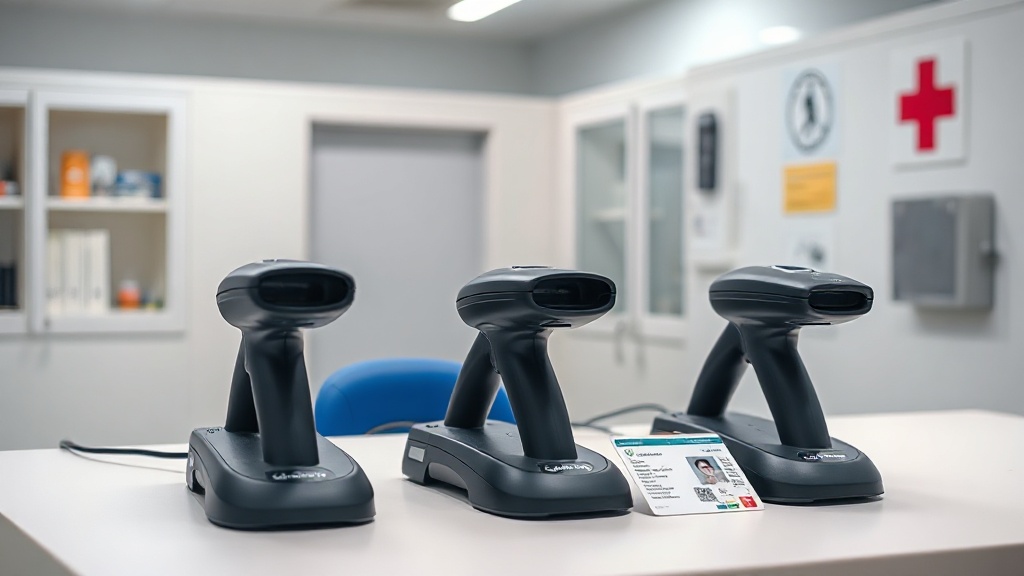
WMS/POS barcode scanner integration is the process of connecting a scanning device (scanner) with warehouse management or point-of-sale software via data transmission protocols (USB, RS232, Bluetooth, or LAN), allowing the scanner to send barcode data directly into the system database without manual entry.
Why is it necessary to integrate barcode scanners with WMS/POS?
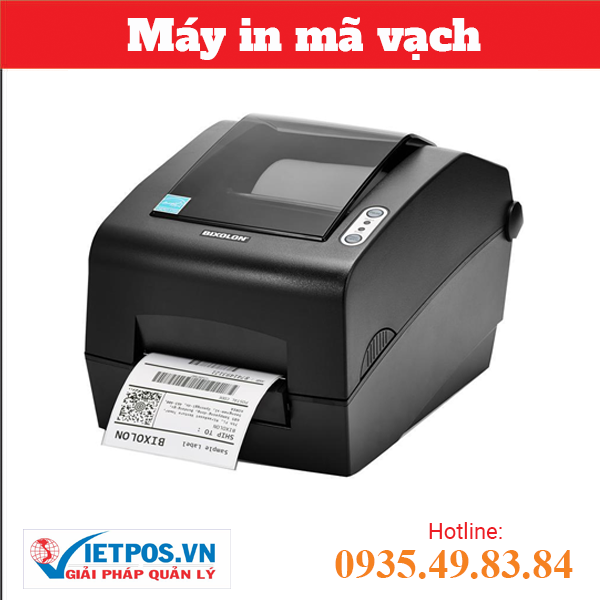

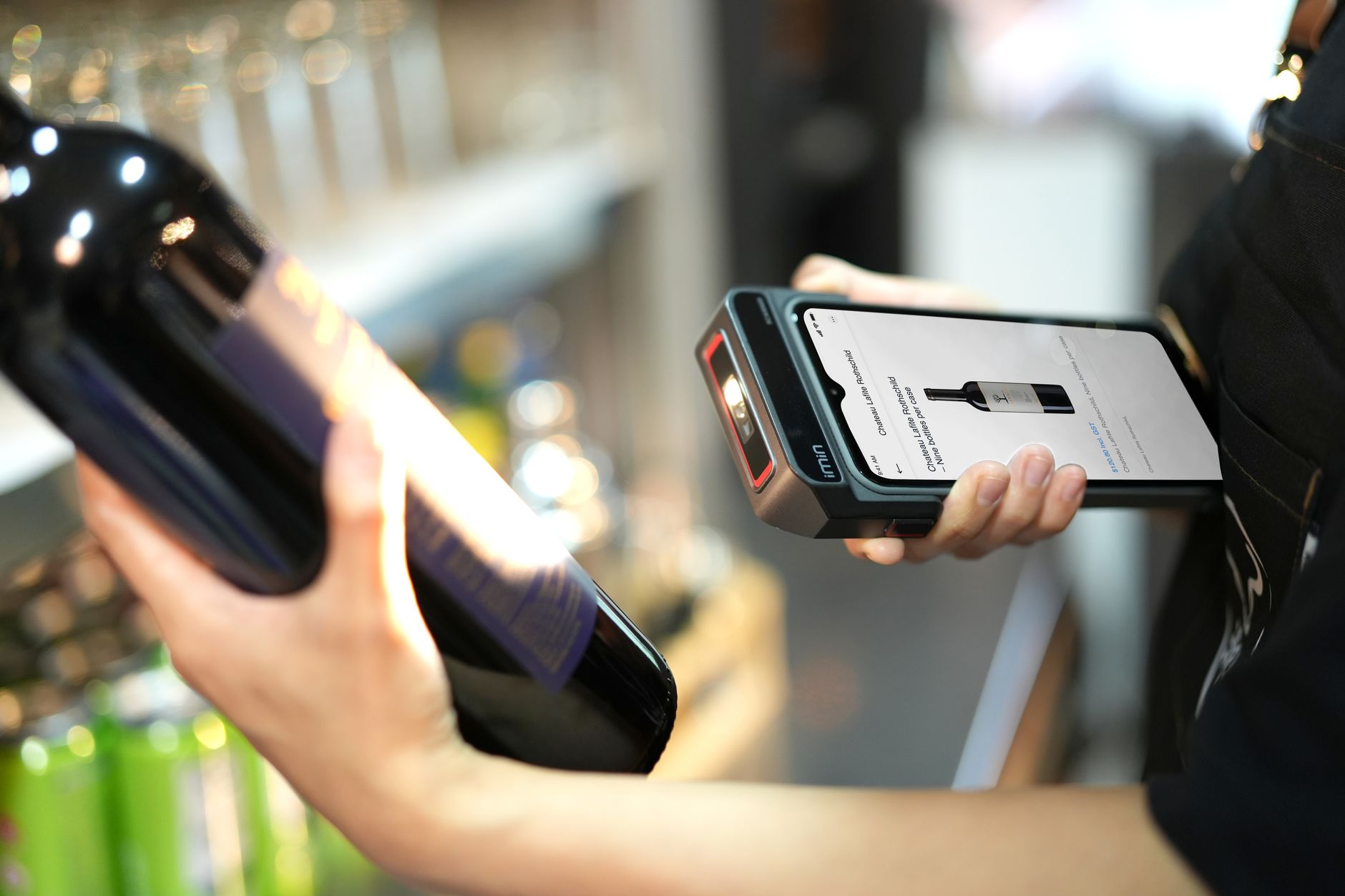
Without integration, employees must scan barcodes and then manually record or copy-paste data into the system — which is time-consuming, prone to errors, and makes real-time inventory control difficult. Proper integration offers 4 main benefits:
Bạn đang tìm sản phẩm cho chủ đề này?
Việt POS phân phối chính hãng — bảo hành 24-36 tháng, hỗ trợ kỹ thuật 24/7.

Zebex Z3151 Barcode Scanner (Reads 2D PDF 417 Codes)
SKU: Z3151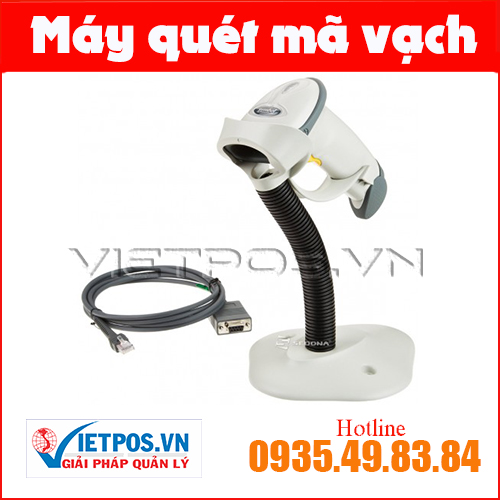
Zebra Symbol-LS2208 Barcode Scanner
SKU: ZEBRA SYMBOL LS2208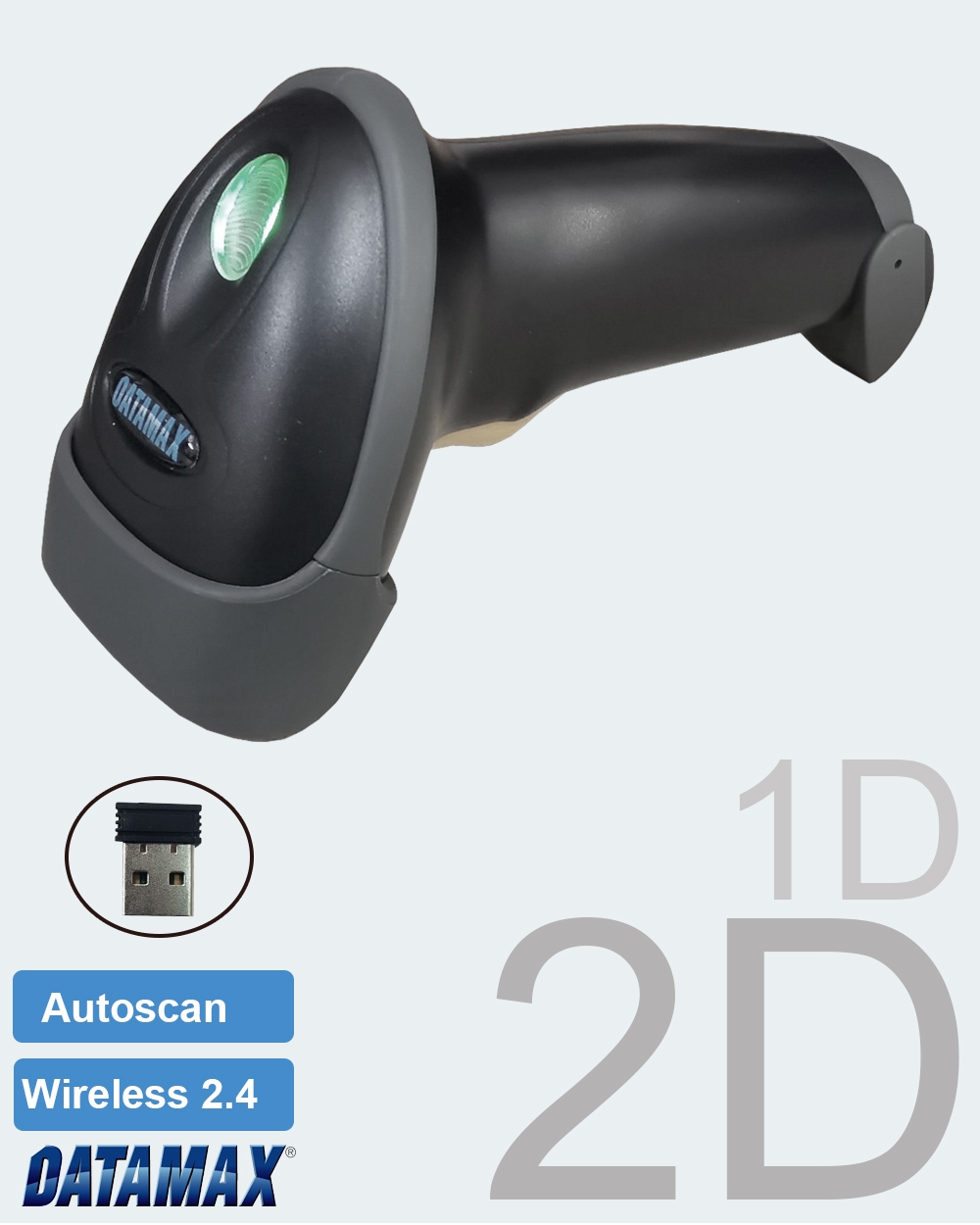
Datamax DT2208W Barcode Scanner – Affordable, Versatile 2D Scanner for All Retail Models
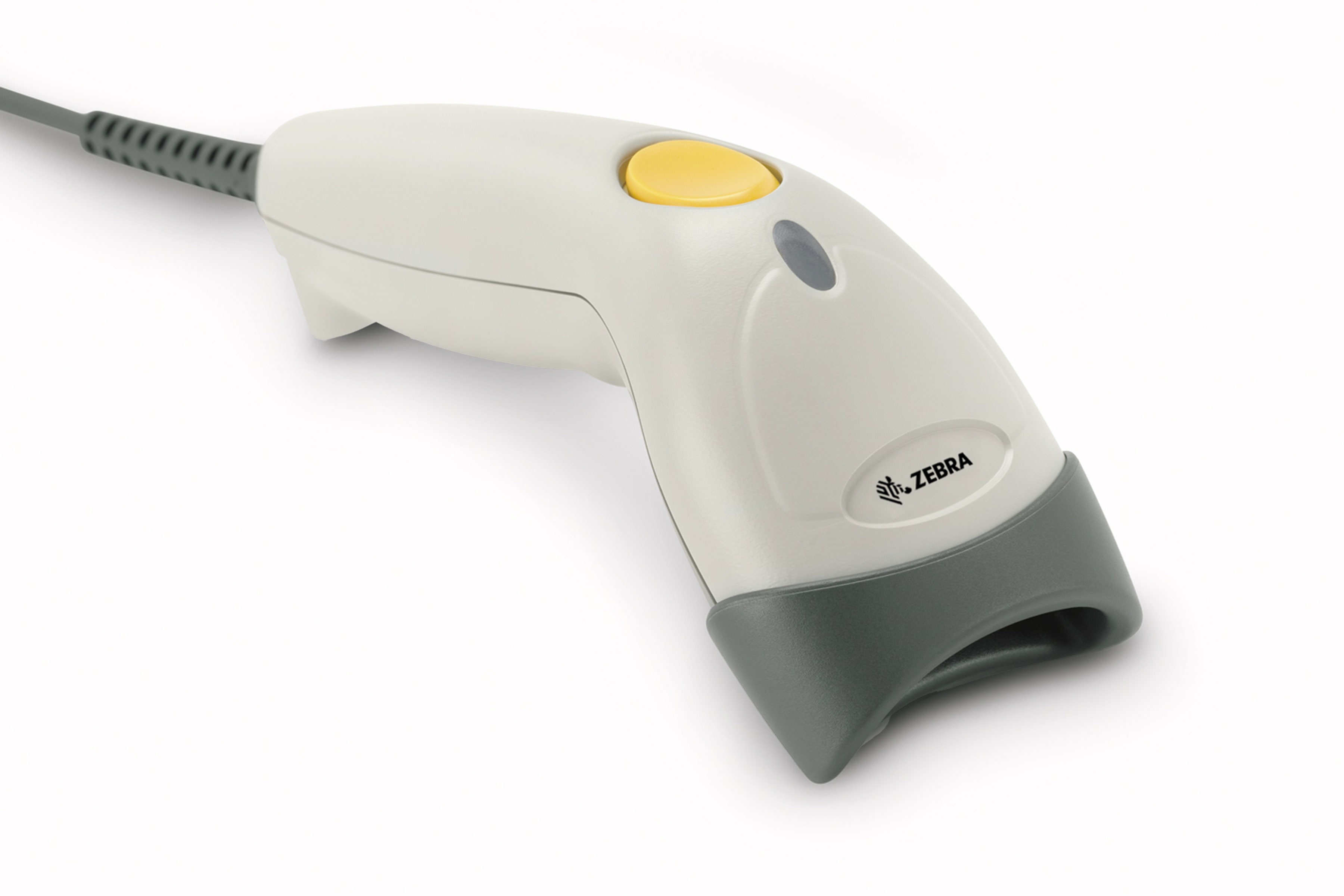
Zebra LS1203 Barcode Scanner — Corded 1D Scanner for POS
- Reduce data errors: From 3-5% to below 1% because data is sent directly from the device.
- Increase processing speed: Each transaction is shortened from 1-2 minutes to 10-15 seconds.
- Real-time inventory control: Instantly know the remaining stock after each sale or warehouse receipt.
- Reduce labor costs: One employee can process 2-3 times more transactions compared to manual methods.
Common Barcode Scanner Types in WMS/POS
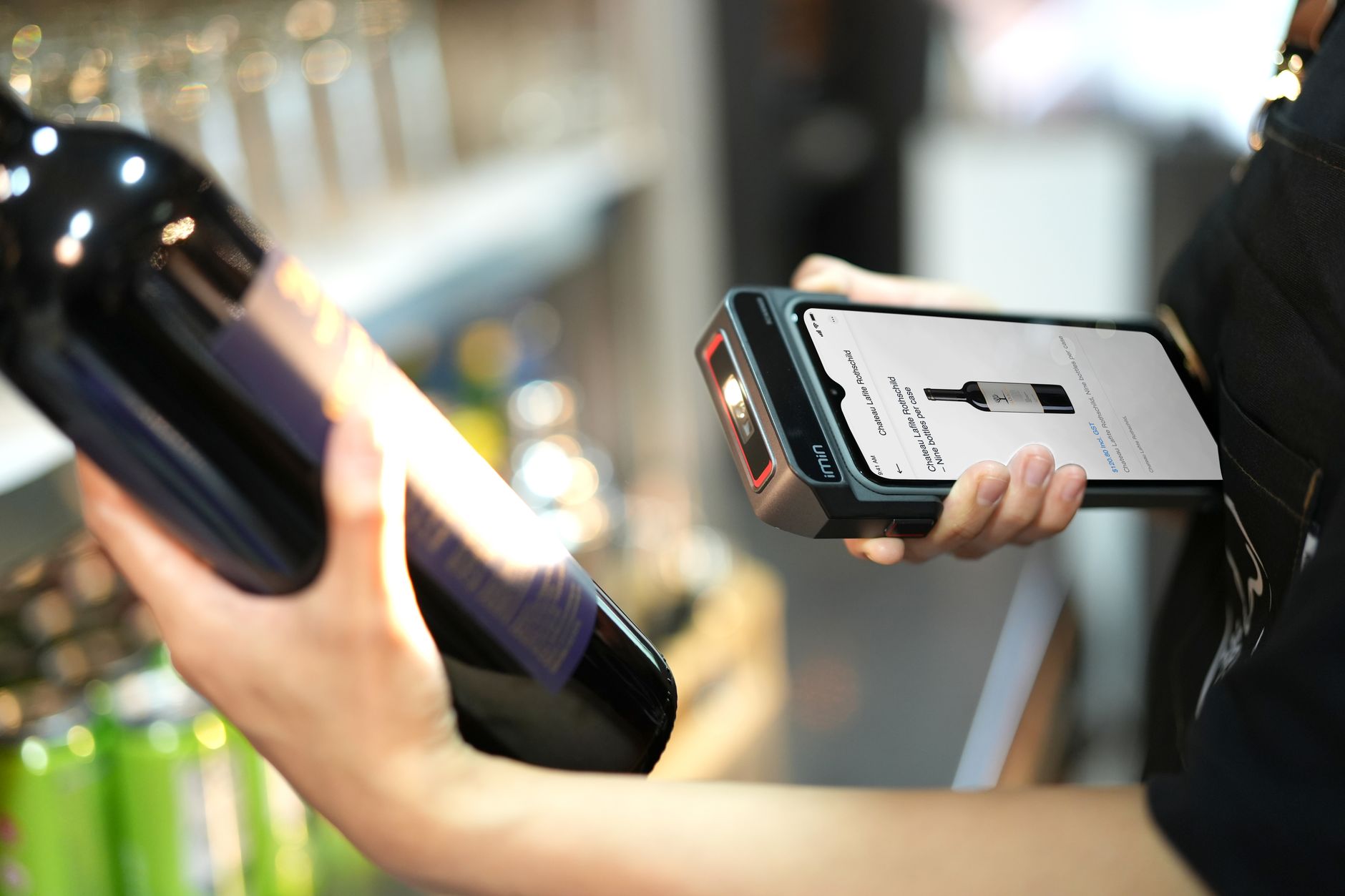
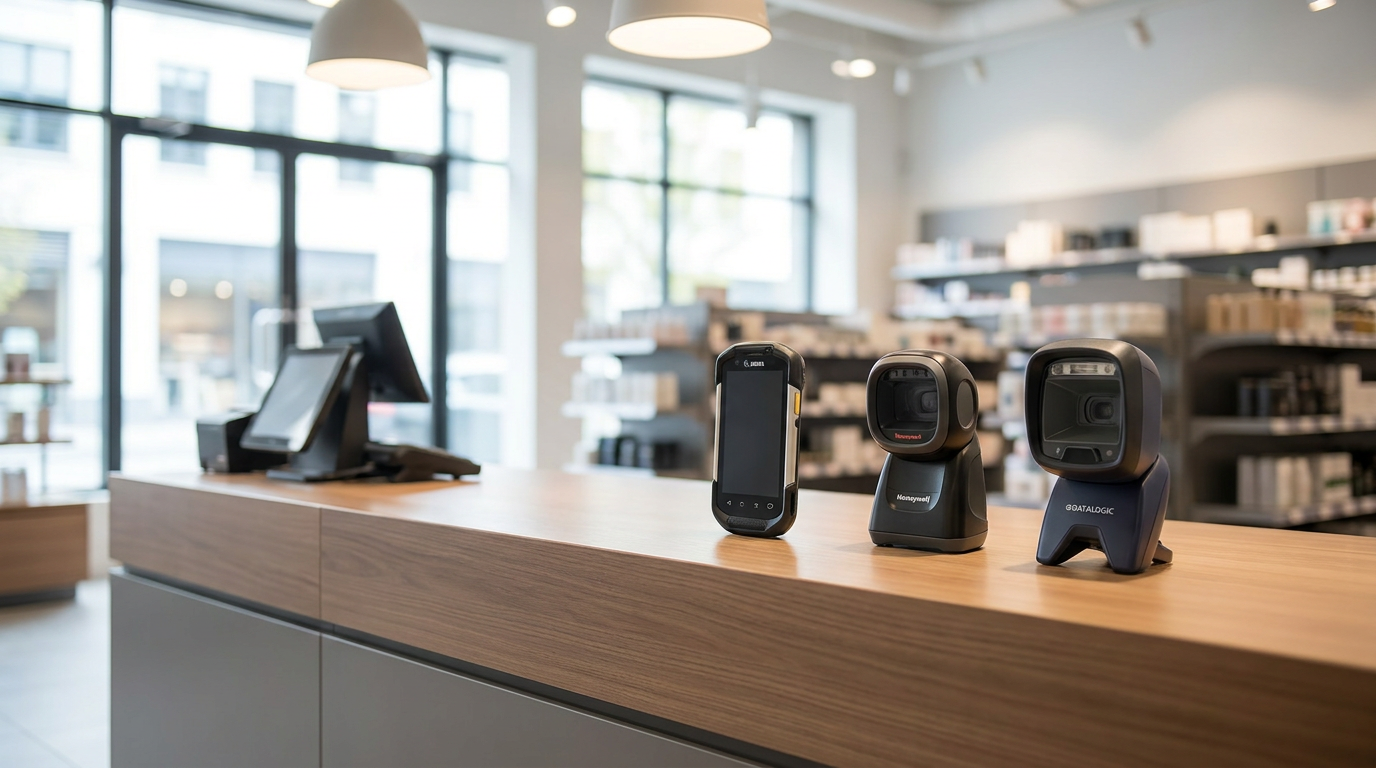
The market offers various scanner types with different technologies and price points. Choosing the right type depends on store size, transaction volume, and working environment (counter, warehouse, or both).
- Laser Scanner: Scans 1D barcodes from 15-30cm, suitable for retail counters. Price 1.5-3 million VND. Examples: Zebra DS3678, Symbol LS2208.
- 2D Imager: Scans 1D/2D barcodes (QR code, Data Matrix), 5-50cm range, more flexible. Price 2-5 million VND. Examples: Honeywell Voyager, Datalogic Magellan.
- Wireless Scanner: Connects via Bluetooth to mobile POS devices, used in warehouses or large stores. Price 3-8 million VND. Examples: Motorola LI4278, Chainway C70.
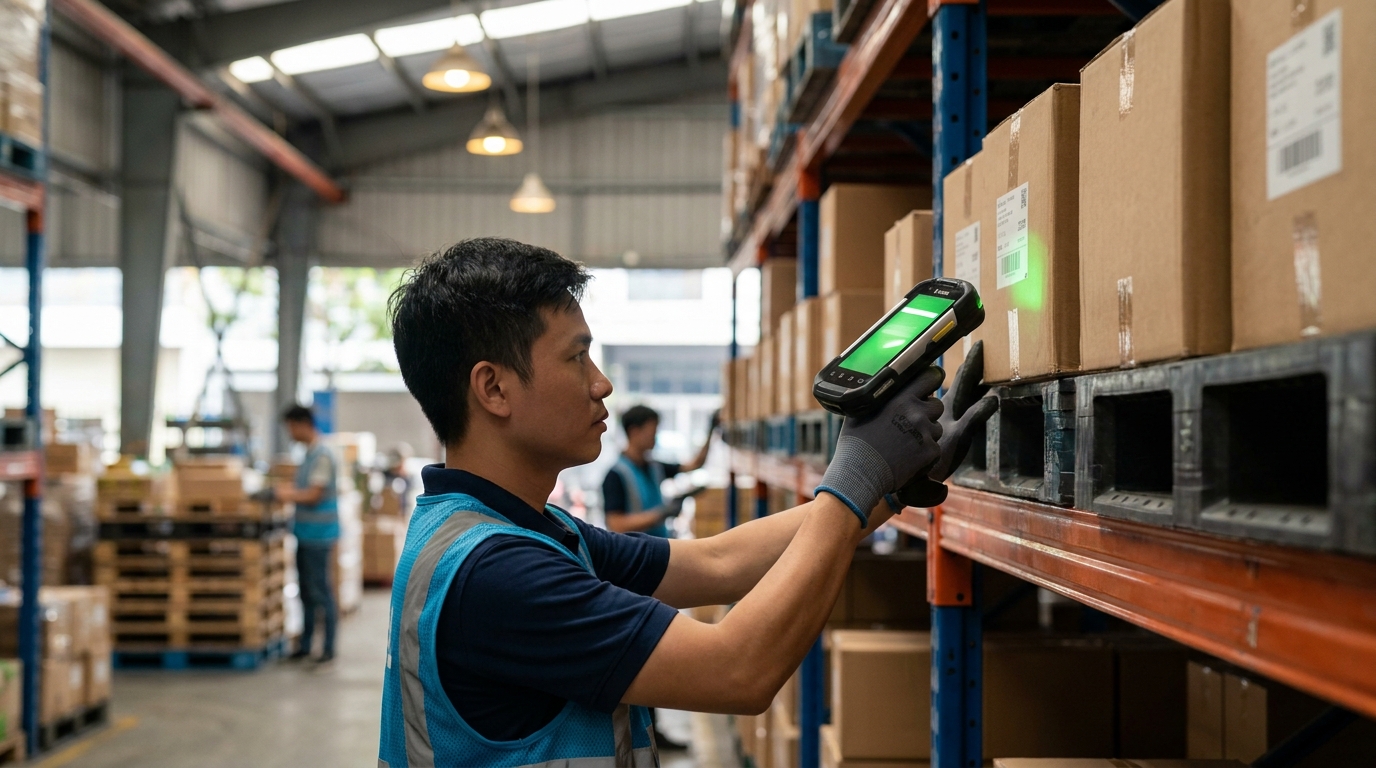
- Wearable Scanner: Worn on the wrist or finger, optimized for warehouses with high volume of inbound/outbound goods. Price 4-10 million VND. Examples: Honeywell 8680i, Zebra WT6000.
Communication Standards and Scanner Connection Drivers
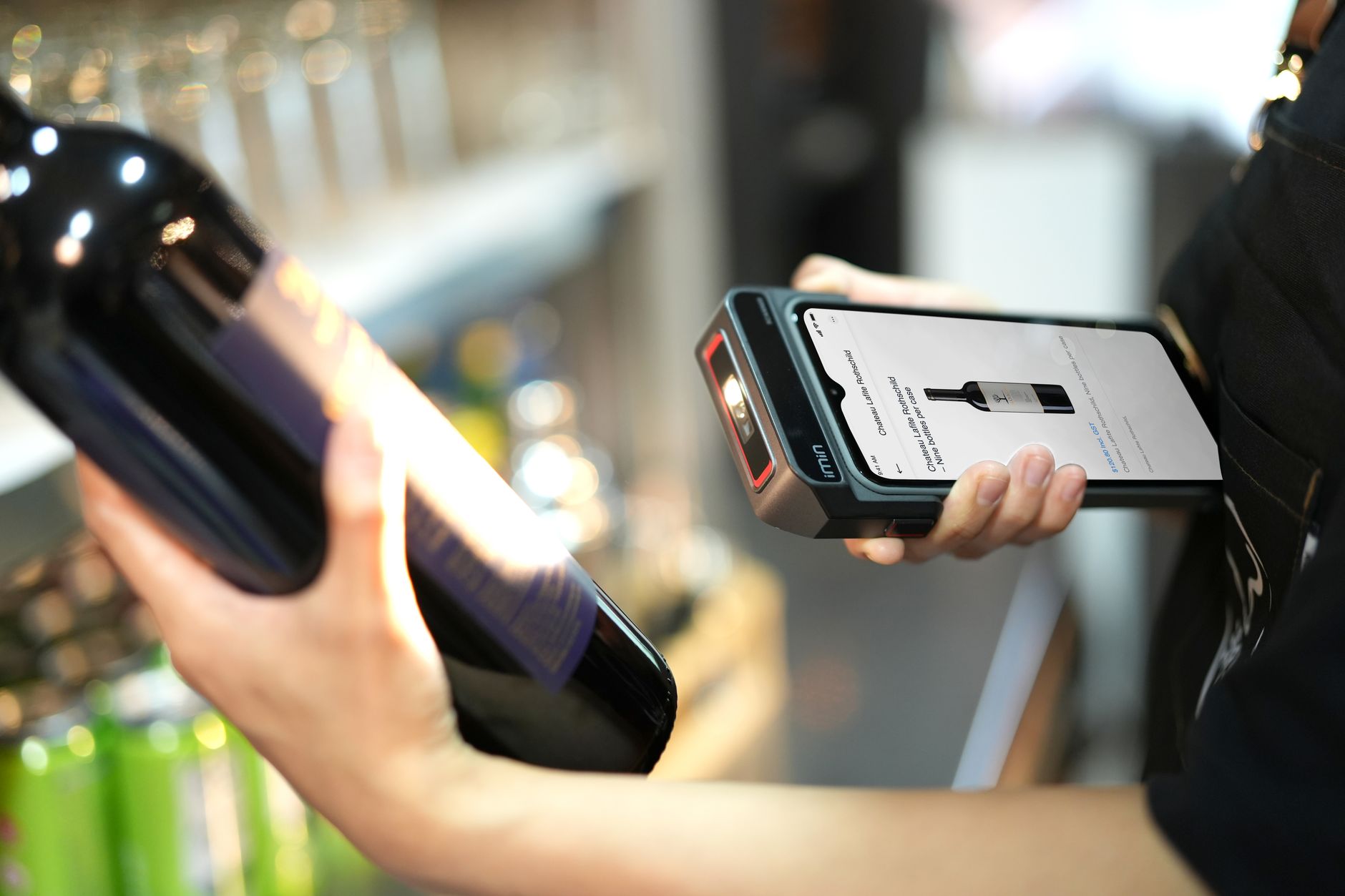
For the scanner to transmit data in the correct format to WMS/POS, the communication standard (protocol) must be configured and appropriate drivers installed. Common communication standards include USB, RS232, Bluetooth, and Ethernet.
- USB (Universal Serial Bus): The most common standard, plug-and-play on Windows/Mac/Linux. Scanners are automatically recognized as keyboards. Suitable for store counters.
- RS232 (Serial Port): Older standard, requires a serial cable and separate driver installation. Often used for legacy POS systems or industrial equipment. Transmission speed: 9600-115200 baud.
- Bluetooth: Wireless connection, suitable for mobile handheld scanners. Requires initial pairing, then connects automatically. Range: 5-10 meters.
- Ethernet (LAN): Network connection, allowing multiple scanners to share one POS system. Fast, stable speed, suitable for large supermarkets.
To install drivers, you need to know the scanner model (e.g., Zebra DS3678, Bixolon SLP-TX403), find the driver on the manufacturer's website, download it, run the .exe or .msi file, then connect the scanner via USB/Serial/Bluetooth. The WMS/POS software will automatically recognize the device.
How to Integrate Scanners with WMS/POS: 5 Steps
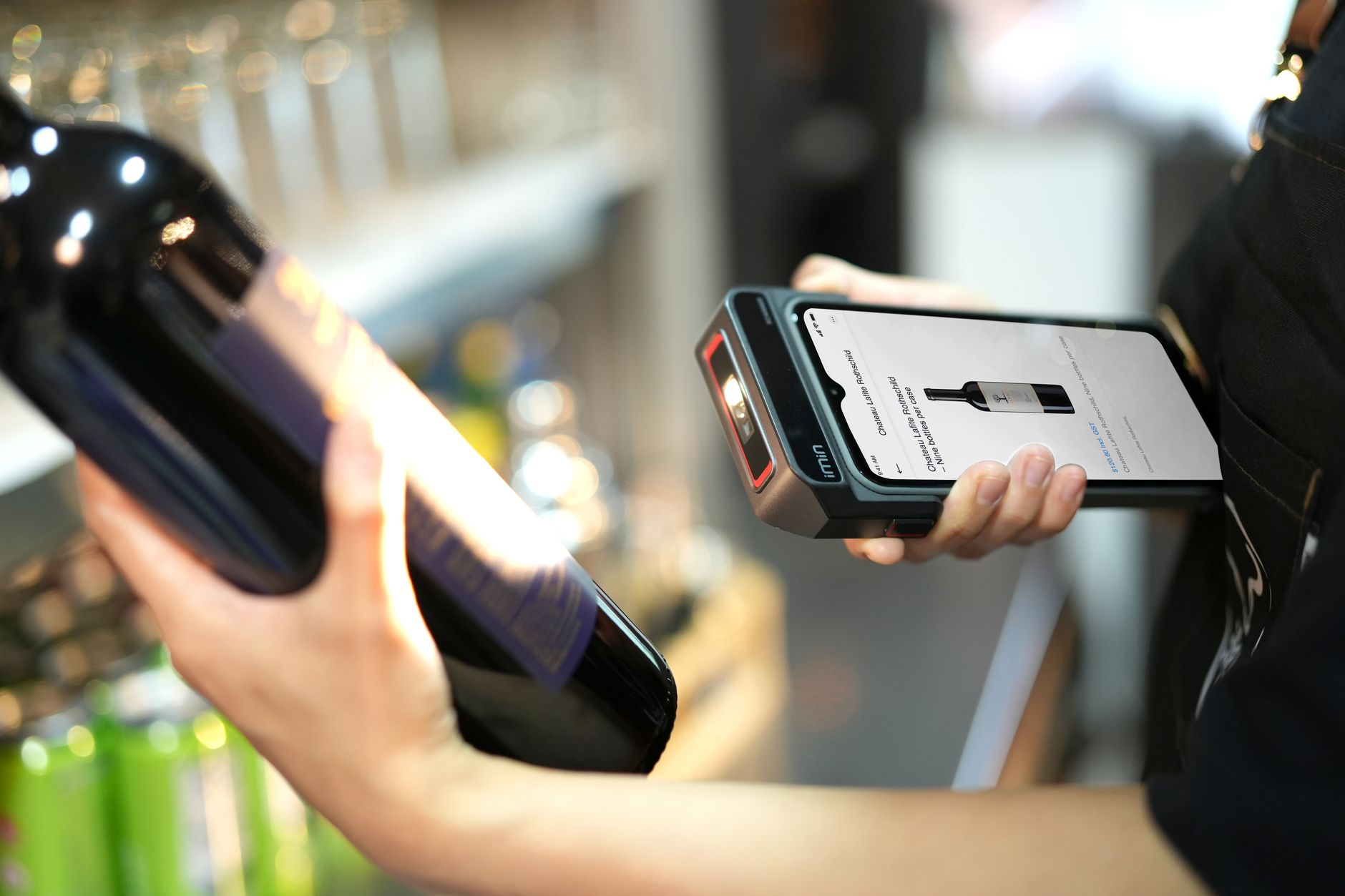
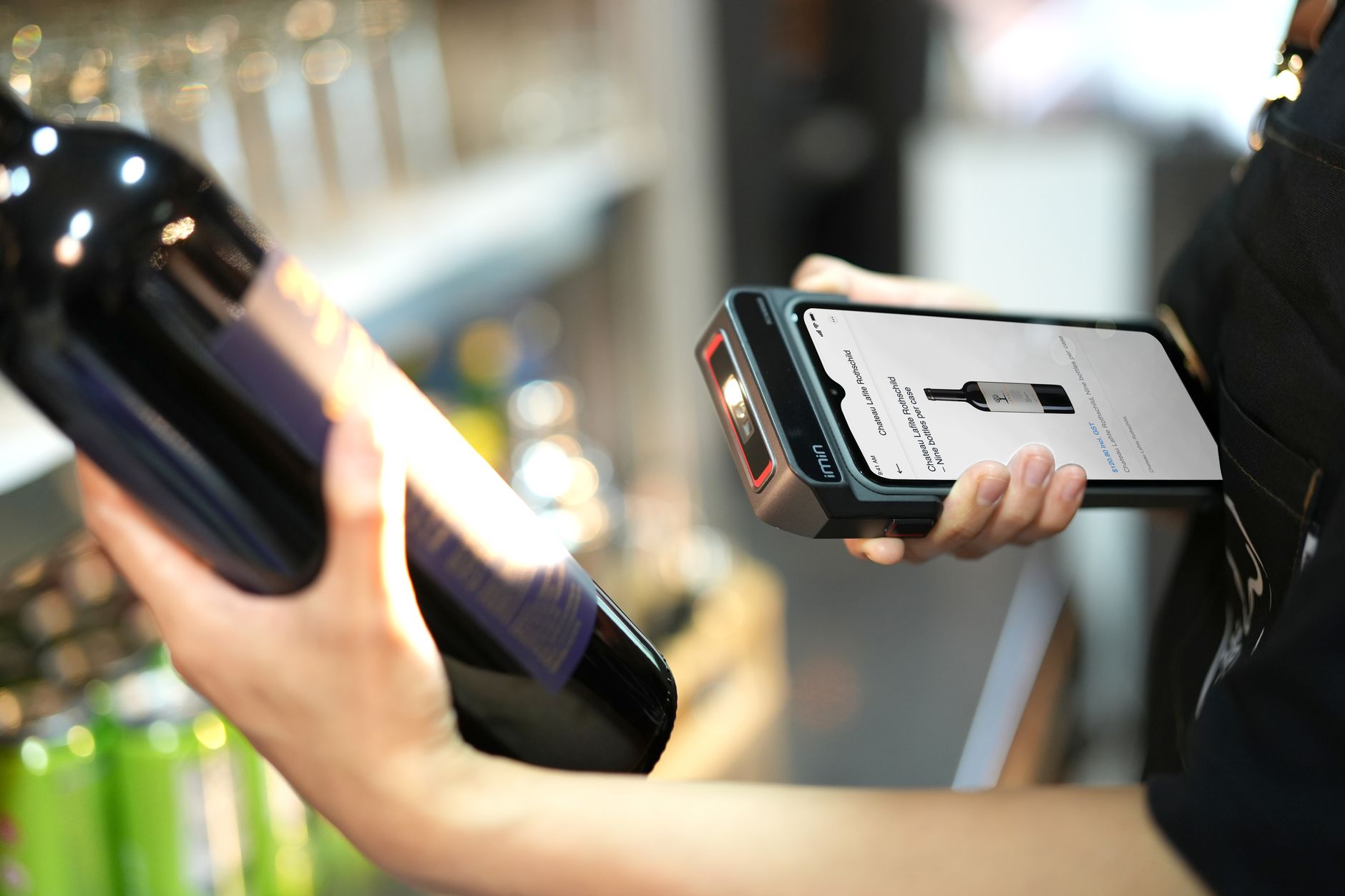
The typical integration process takes 2-3 days from device selection to stable operation. Here are 5 detailed steps:
- Choose the right scanner: Determine the barcode type (1D or 2D), scanning distance, and working environment. If using standard GS1 barcodes (8-13 digits), a laser scanner is sufficient. If using QR codes or Data Matrix, a 2D imager must be chosen.
- Install drivers and connect hardware: Download drivers from the manufacturer's website, install them on the computer/POS machine. Connect the scanner via USB/RS232/Bluetooth. Check Device Manager (Windows) to see if the device is recognized.
- Configure data standard: Open the WMS/POS software, go to "Devices" or "Configuration," select the connection port (COM3, USB001, etc.), baud rate (9600 or 115200), and data format (ASCII, HEX). The software usually has a drag-and-drop interface for selection.
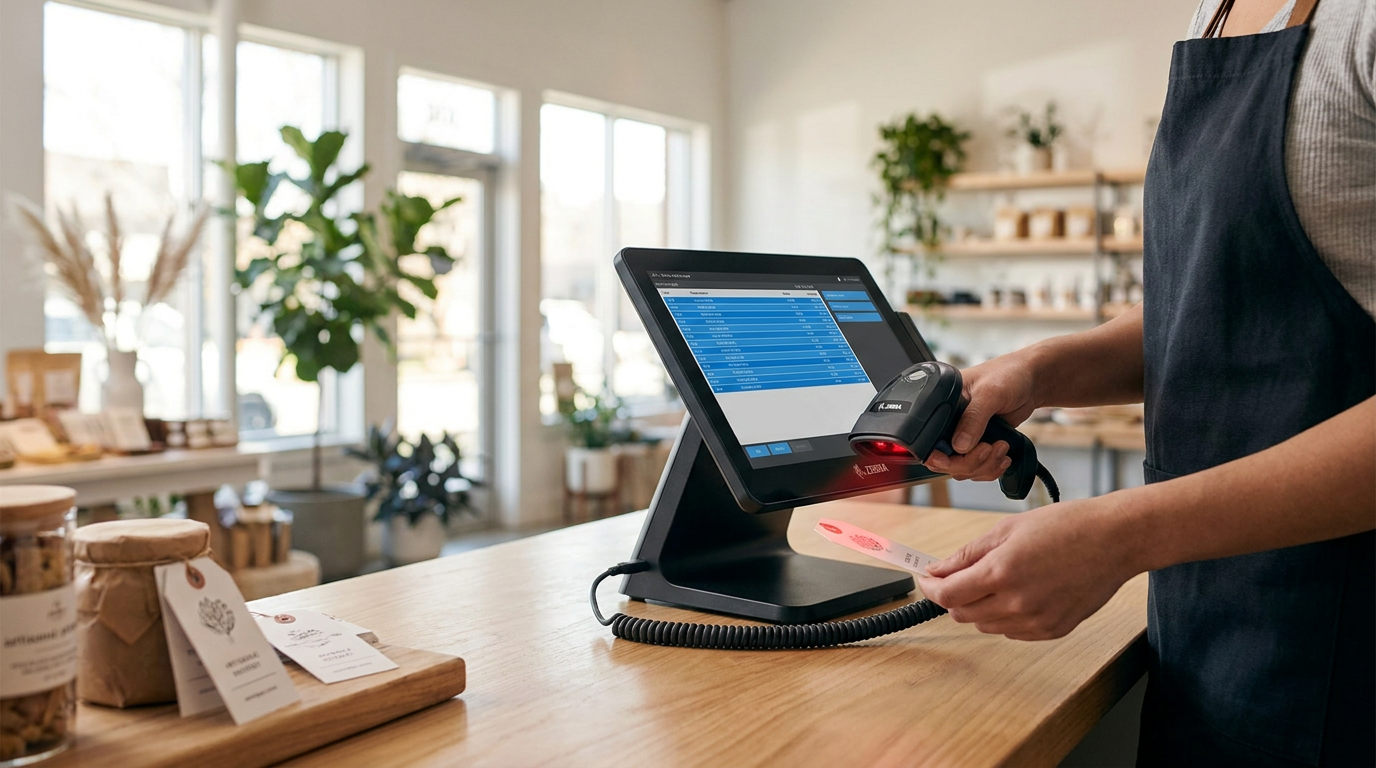
- Test connection: Scan a test barcode (e.g., a test product barcode). The data should appear in the "Product Code" or "Barcode" field of the software within 1-2 seconds. If not, recheck the driver and port configuration.
- Train staff and operate: Instruct staff on how to scan products correctly, handle scanning errors (e.g., failed scans, unable to scan), and report issues. Run 10-20 test transactions before full implementation.
Barcode Scanner Communication Standard Comparison Table
| Communication Standard | Advantages | Disadvantages | Suitable for |
|---|---|---|---|
| USB | Plug-and-play, high speed, no separate driver needed | Requires cable, maximum distance 5 meters | Retail counters, small shops |
| RS232 | Compatible with older POS machines, high reliability | Slow speed, requires driver installation, maximum cable length 15 meters | Legacy POS systems, industrial warehouses |
| Bluetooth | Wireless, flexible, 5-10 meter range | Battery drains easily, susceptible to signal interference | Mobile scanners, large warehouses |
| Ethernet | Very high speed, supports multiple devices, long distance | High network infrastructure cost, complex configuration required | Large supermarkets, chain stores, distribution warehouses |
Common Integration Errors and How to Fix Them

1. Scanner not recognized in Device Manager: Check if the USB cable is securely connected. Try connecting to a different USB port. Reinstall the driver from the manufacturer's website. If it still fails, the scanner may be faulty or require a special driver.
2. Scanned data displayed in incorrect format (strange characters, wrong numbers): Check the baud rate configuration in the POS software (usually 9600 or 115200). Change the data format from HEX to ASCII or vice versa. Some scanners require enabling/disabling "Prefix" or "Suffix" to add characters to the beginning/end of the data.
3. Scanner scans but POS software does not receive data: Check in the software if the correct connection port is selected (e.g., COM3 instead of COM1). Close all other applications using this port. Restart the POS software. If it still fails, contact the POS vendor for configuration support.
4. Bluetooth scanner continuously loses connection: Check if the scanner battery is sufficient (low battery causes signal loss). Turn off other nearby Bluetooth devices (phones, speakers, etc.) to avoid interference. Re-pair the scanner with the POS machine. Upgrade the scanner firmware if a new version is available.
5. Barcode scanned but product not found in WMS database: Check if the product barcode has been entered into the WMS/POS database. The scanned barcode must match 100% with the code in the database (e.g., GS1 must be first). If using custom barcodes, ensure the scanner is configured to read the correct format (QR code, Code 128, etc.).
Case study: Lá Me Supermarket Chain Increases Checkout Speed by 40% After Integration
The Lá Me mini-supermarket chain (3 branches, Ho Chi Minh City) used old POS machines combined with manual product code entry by staff. Each transaction took 2-3 minutes, and inventory often deviated by 5-10% from the system. After integrating 2 Zebra DS3678 (USB) scanners with Việt POS software, transaction time decreased to 30-40 seconds, inventory accuracy reached 99%, and staff processed 3-4 times more transactions. Integration cost: 6 million VND (2 scanners + installation), ROI within 3-4 months due to reduced labor and inventory errors.
Common Mistakes When Integrating WMS/POS Scanners
Mistake 1 — Choosing cheap scanners without checking compatibility: Some low-cost scanners (under 1 million VND) only support 1D barcodes or lack drivers for Windows 10/11. Before purchasing, ask the vendor if the scanner is compatible with your POS software.
Mistake 2 — Not preparing product data beforehand: Forgetting to enter product barcodes into the WMS/POS database before scanner integration, resulting in the scanner being connected but unable to find products when scanned.
Mistake 3 — Not training staff: Staff do not know how to scan correctly (distance, angle), or how to handle scanning errors, leading to complaints and a high failure rate.
Mistake 4 — Incorrect data standard configuration: Mismatching baud rate or data format between the scanner and POS, causing data to display incorrectly.
Mistake 5 — No maintenance plan: Scanners are electronic devices that require regular cleaning and checking of cables/connections. Neglecting maintenance will reduce device lifespan from 5 years to 2-3 years.
Frequently Asked Questions about WMS/POS Scanner Integration
Q: Tích hợp máy quét mã vạch với WMS/POS mất bao lâu? A: Nếu máy quét và POS đã tương thích, quá trình tích hợp mất 2-4 giờ (cài driver, cấu hình cổng, kiểm tra kết nối). Nếu cần cấu hình phức tạp (Ethernet, API), có thể mất 1-2 ngày. Việt POS cung cấp dịch vụ hỗ trợ tích hợp miễn phí cho khách hàng mua máy quét từ chúng tôi.
Q: Máy quét nào tương thích với mọi phần mềm POS? A: Hầu hết máy quét USB đều tương thích với mọi POS vì chúng được nhận dạng như bàn phím thường. Tuy nhiên, nếu dùng RS232 hoặc Bluetooth, cần kiểm tra phần mềm POS có hỗ trợ cổng kết nối đó không. Liên hệ nhà cung cấp POS để xin danh sách máy quét được khuyến nghị.
Q: Tích hợp máy quét có ảnh hưởng tới bảo mật dữ liệu không? A: Máy quét chỉ đọc mã vạch và gửi dữ liệu tới POS, không truy cập trực tiếp vào database. Tuy nhiên, nếu dùng Bluetooth hoặc Ethernet, cần bật mã hóa dữ liệu (encryption) để tránh bị đánh cắp dữ liệu khi truyền qua mạng. Phần mềm POS hiện đại đều hỗ trợ tính năng này.
Q: Nên chọn máy quét dây hay không dây? A: Máy quét dây (USB) ổn định hơn, không lo pin hết, nhưng hạn chế phạm vi hoạt động. Máy quét không dây (Bluetooth) linh hoạt hơn, nhưng cần kiểm tra pin thường xuyên. Với counter bán lẻ nhỏ, chọn máy quét dây. Với kho hàng hoặc siêu thị lớn, chọn máy quét không dây.
Q: Giá tích hợp máy quét WMS/POS bao nhiêu? A: Chi phí phụ thuộc vào loại máy quét (1.5-10 triệu VNĐ) và độ phức tạp tích hợp (0-3 triệu VNĐ nếu cần lập trình API). Nếu chọn máy quét từ Việt POS, chúng tôi cung cấp dịch vụ tích hợp và hỗ trợ kỹ thuật miễn phí trong 12 tháng đầu.
Q: Sau tích hợp, phải bảo trì máy quét như thế nào? A: Vệ sinh ống kính máy quét hàng tuần bằng khăn mềm. Kiểm tra cáp USB/Serial định kỳ để tránh hỏng. Cập nhật firmware máy quét nếu nhà sản xuất phát hành phiên bản mới. Nếu máy quét không hoạt động, liên hệ nhà cung cấp để sửa chữa hoặc thay thế.
Are you facing difficulties integrating barcode scanners with WMS/POS? The Việt POS technical team is ready to provide free support: driver configuration, connection testing, staff training. Contact 0935 498 384 or info@vietpos.vn for consultation today.
Cần tư vấn thiết bị/giải pháp cụ thể?
Việt POS phản hồi trong 30 phút · Hotline 4 vùng · Khảo sát miễn phí.
Sản phẩm liên quan
Bài viết cùng chủ đề