Mục lục bài viết (7)
- What is printing barcodes from an Excel file?
- Method 1: Using Code39 barcode font in Excel
- Method 2: Using a free Barcode Generator Add-in
- Method 3: Using dedicated barcode printing software (VietPOS Barcode)
- Cost and performance comparison table of the 3 methods
- Common mistakes when printing barcodes from Excel
- Frequently Asked Questions
Printing barcodes from an Excel file is a solution that helps businesses automate the creation of labels for hundreds of products instead of manual data entry. According to actual surveys, retail stores in Vietnam spend an average of 15-25 minutes manually entering product codes for 50-80 items each day. This article compares 3 methods for printing barcodes from Excel — from manual fonts to dedicated software — helping you choose the right solution for your scale and budget.
What is printing barcodes from an Excel file?
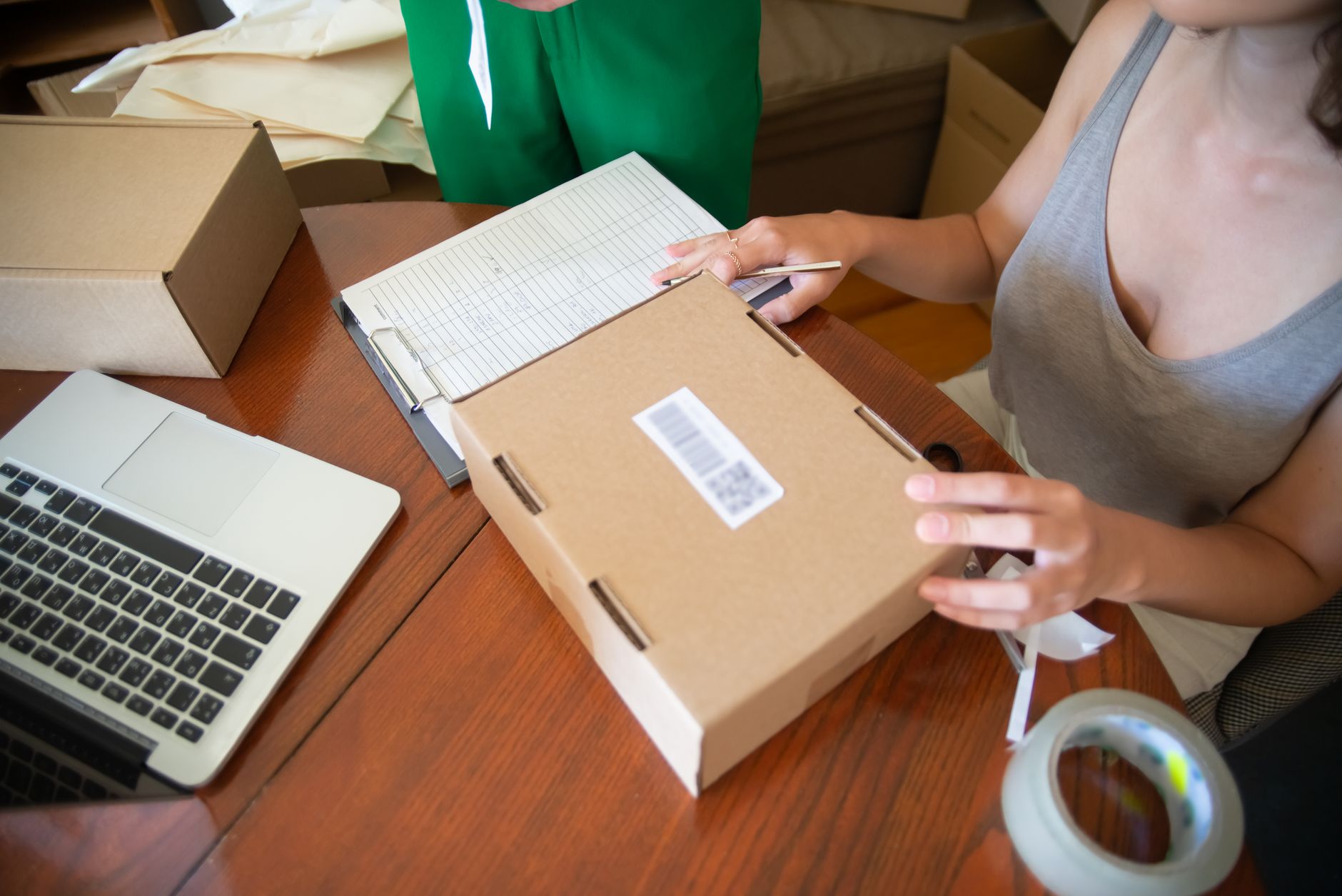
Printing barcodes from an Excel file is the process of using product data (item code, name, price) already available in an Excel spreadsheet to create and print barcode labels in bulk. Instead of typing each code, you simply connect the Excel file to label printing software, and the system automatically generates the barcode and prints it to a barcode printer.
The basic process consists of 3 steps: prepare the Excel file with data columns (product code, item name, unit price), select software or a font to generate the barcode, and print to a label printer. This solution is especially useful for stores with 200 SKUs or more, or those needing to print labels for new batches of goods.
Method 1: Using Code39 barcode font in Excel
Related Products


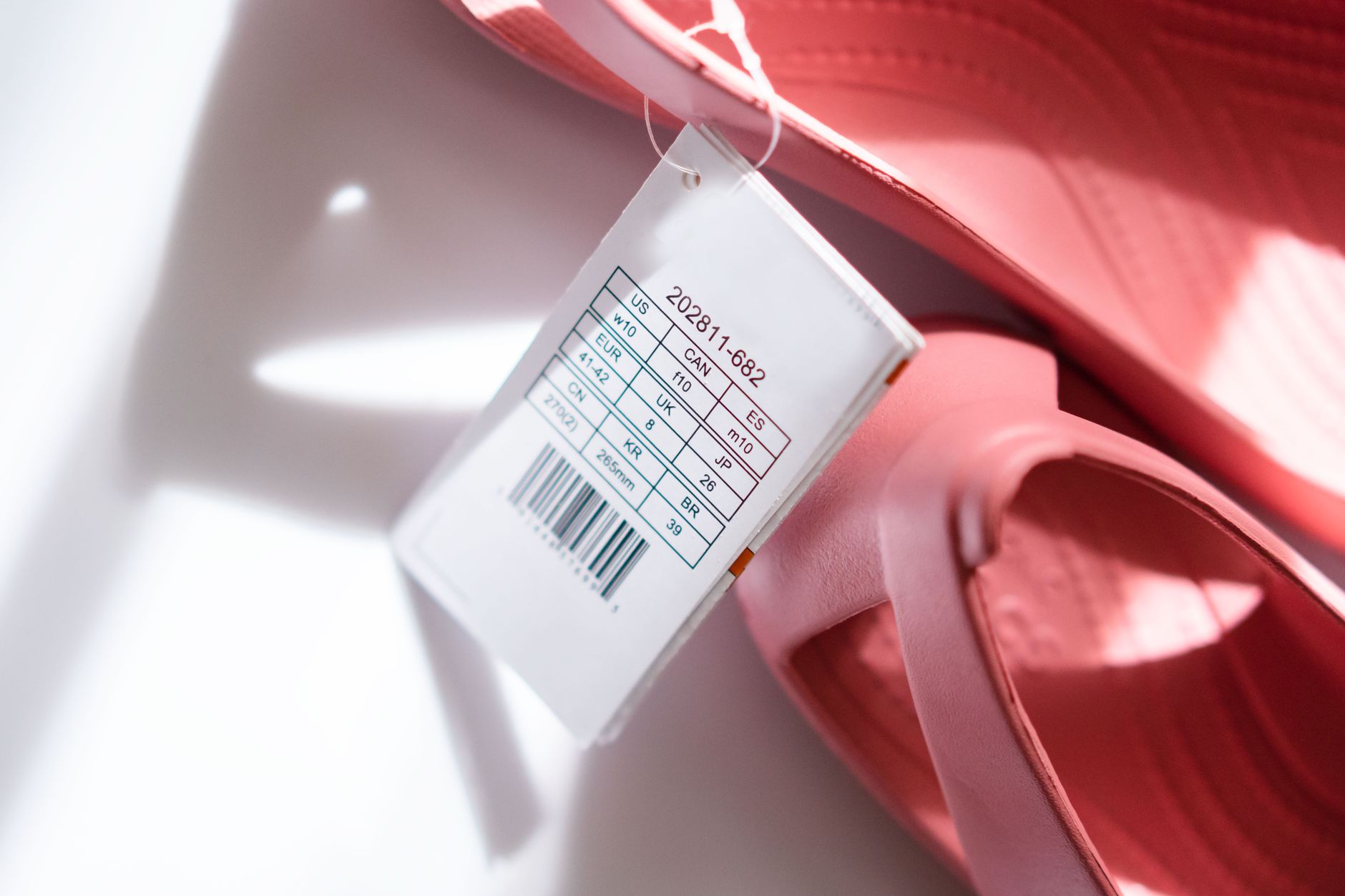
The Code39 barcode font is a special font that converts text characters into 1D barcodes. You install a free font (such as "Free 3 of 9 Extended") on Windows, then enter the formula ="*"&A2&"*" in Excel, change the font to Code39, and print directly. Suitable for printing 5-20 labels, no additional software required.
- Download and install the Code39 font — Find the "Free 3 of 9 Extended" font (or "IDAutomationHC39M") from a reputable site, extract, and install it into the Windows Fonts folder.
- Prepare the data column — In Excel, create column A containing product codes (only accepts uppercase letters, numbers, and the * character).
- Enter the barcode generation formula — In cell B2, enter ="*"&A2&"*" and drag down the entire list. The * character is the start/stop character for Code39.
- Change the font and print — Select the entire column B, change the font to "Free 3 of 9 Extended", adjust the font size to 18-24pt. Print a test on A4 paper to check clarity.
Limitations: Can only create 1D barcodes of the Code39 type; does not support 2D codes (QR), cannot print in bulk with different label sizes, and is prone to errors if the font is not installed correctly.
Method 2: Using a free Barcode Generator Add-in
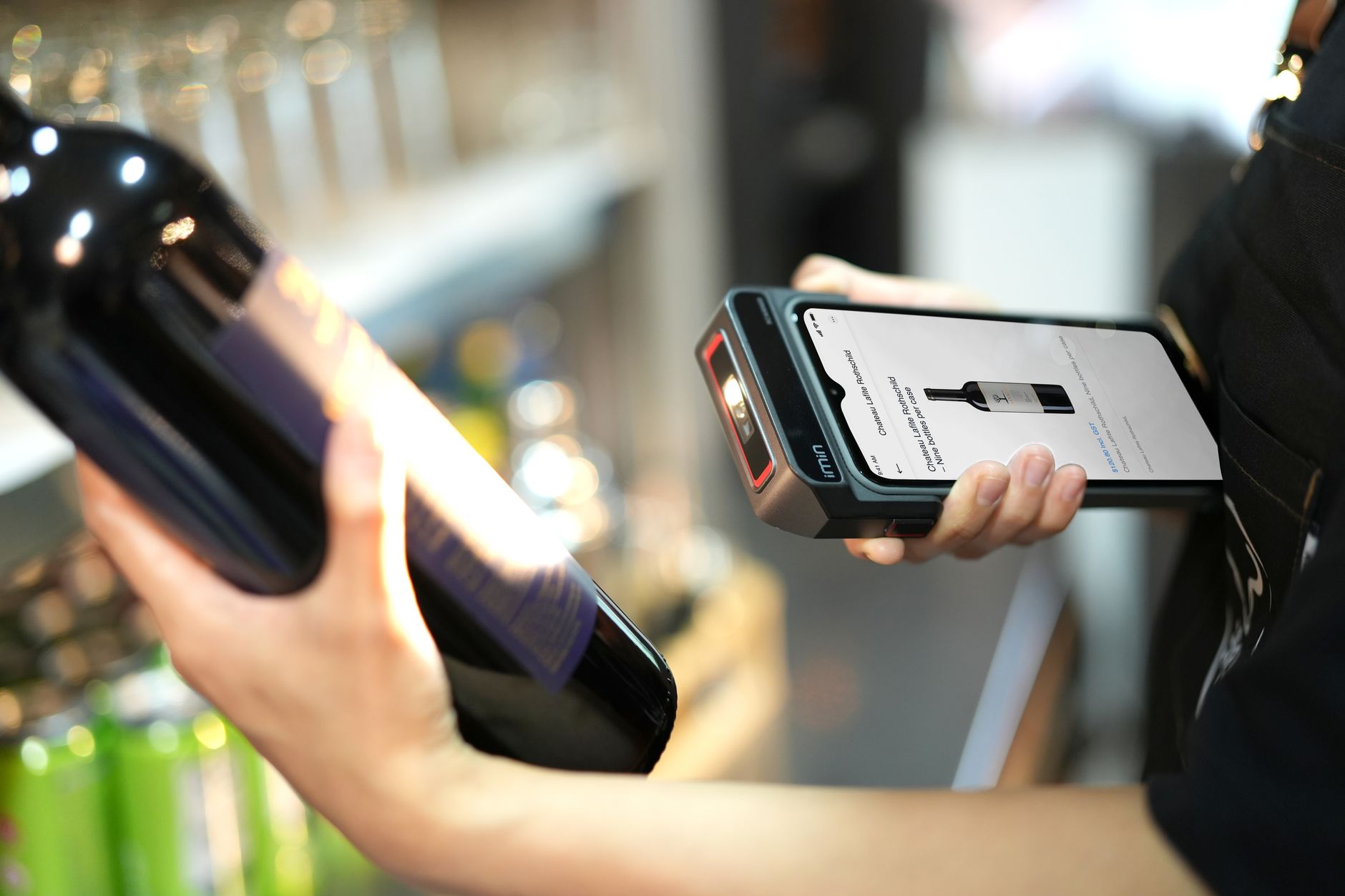
The Barcode Generator add-in is a plugin installed directly into Excel, allowing you to generate barcodes from existing data without needing a separate font. Some free add-ins include "TBarCode Office" (trial version) or "Excel Barcode Add-in" from SourceForge. This method can print 50-200 labels per session.
- Download and install the add-in — Download the .exe file from the TBarCode or Excel Barcode Add-in homepage, install (may require activating a 30-day trial license).
- Open Excel and activate — Go to the "Add-ins" or "Barcode" tab that appears on the ribbon. Enter data in column A (product codes).
- Select the barcode type — Choose Code128, EAN-13, or QR Code as needed. The add-in automatically generates barcode images in column B.
- Print in bulk — Use the "Print Range" function to print labels on A4 decal paper or a dedicated barcode printer.
Note: Free add-ins often limit the number of codes (50-100 codes per session) or insert a watermark. If printing more than 200 labels per day, you should switch to dedicated software.
Method 3: Using dedicated barcode printing software (VietPOS Barcode)
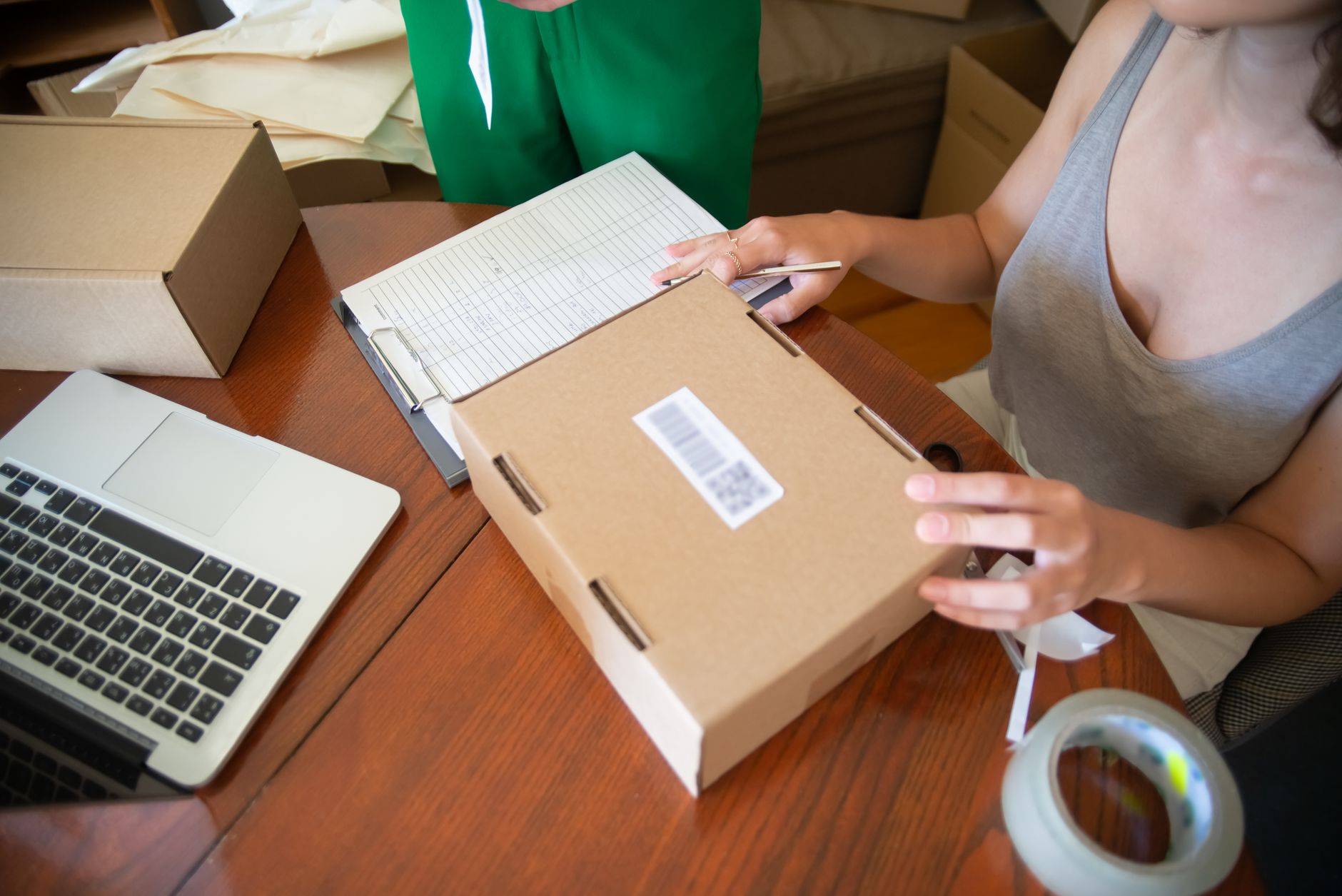
Dedicated barcode printing software like VietPOS Barcode allows direct connection to an Excel file, automatically generates barcodes (Code128, QR, EAN-13, DataMatrix) and prints in bulk to label printers (Zebra, TSC, Xprinter, Bixolon). This solution can print 500-5000 labels per hour, suitable for stores with 500-2000 SKUs.
- Download and install VietPOS Barcode — Access the free VietPOS Barcode barcode printing software download (15MB, installs in 2 minutes).
- Import the Excel file — Select the "Import Data" menu → Browse the Excel file. The software automatically detects columns: Item Code, Product Name, Unit Price, Size.
- Design the label — Drag and drop data fields onto the label template (sizes 50x30mm, 58x40mm, 100x60mm…). Choose font, font size, and barcode position.
- Print in bulk — Select the printer (USB or LAN), number of copies, and click "Print". The system prints each label sequentially without manual intervention.
Advantages: Unlimited printing quantity, supports multiple barcode standards, saves label templates for reuse, integrates with POS sales software for data synchronization.
Cost and performance comparison table of the 3 methods

| Method | Cost | Maximum print quantity/day | Setup time | Hardware requirements |
|---|---|---|---|---|
| Code39 Font | Free (font download) | 20-30 labels | 10-15 minutes | Standard laser/inkjet printer |
| Barcode Generator Add-in | Free (30 days) or $50-100/year | 50-200 labels | 5-10 minutes | Standard printer or barcode printer |
| VietPOS Barcode | Free (basic version) | 500-2000 labels | 2-5 minutes | Thermal barcode printer (Zebra, TSC, Xprinter) |
The table above shows that for printing needs under 30 labels per day, the Code39 font is sufficient. However, if you manage a store with 300-800 products and need to print labels for weekly stock intake, VietPOS Barcode helps save 80% of the time compared to manual entry.
Common mistakes when printing barcodes from Excel

- Using non-standard barcode fonts — The "3 of 9" font is not GS1 standardized; scanners may not read it. Always use fonts from reputable providers or dedicated software.
- Not checking label size — Printing barcodes that are too small (under 15mm width) makes them unreadable by barcode readers. The minimum size for Code128 is 20x10mm.
- Printing on regular paper instead of decal — Ink on A4 paper smudges easily and is difficult to stick on products. Use thermal decal paper or silver decal for more durable labels.
- Forgetting to sync data with POS — The printed barcode does not match the code in the sales management software, causing errors at checkout. Implementing synchronized POS helps avoid this error.
- Not testing before bulk printing — Print 1-2 test labels and check with a barcode scanner (such as Honeywell, Datalogic) to ensure accurate reading.
Frequently Asked Questions
Do I need a dedicated barcode printer to print from Excel?
Not mandatory. If printing small quantities (under 30 labels/day), you can use a standard laser printer with the Code39 font and A4 decal paper. However, for bulk printing of 200-500 labels, a thermal barcode printer (Zebra ZD421, TSC TE200, Xprinter XP-365B) is 5-10 times faster and produces durable, smudge-free labels.
Is VietPOS Barcode software permanently free?
Yes. The basic version of VietPOS Barcode is permanently free, with no limit on the number of barcodes printed and no watermark. You just need to download it from the VietPOS website and install it. The advanced version (supporting multi-layer label design, database connection) has a fee but is not required for most small and medium-sized stores.
How do I sync barcodes from Excel into sales software?
After printing labels, you import the barcodes into POS software (such as VietPOS) by importing a similar Excel file. The system will automatically assign the barcode to each product. When selling, simply scan the code, and the software displays complete product information.
Can I print QR codes from Excel?
Yes. Both the add-in method and VietPOS Barcode software support QR codes. In the add-in, select the "QR Code" type instead of Code128. VietPOS Barcode allows you to customize QR size (20x20mm to 50x50mm) and embed URLs or product information.
Does printing barcodes from Excel ensure scanning accuracy?
Yes, if you follow the principles: use GS1-standard fonts or software, check the minimum label size, print a test, and scan with a reader. The most common errors are barcodes that are too small or have low contrast (light ink on a dark background). Print on white decal paper with dark black ink.
Need to print barcode labels in bulk from Excel? Call the hotline 0935 498 384 for free consultation on label printing solutions and to receive the download link for VietPOS Barcode software. Or visit the free VietPOS Barcode barcode printing software download to get started.
Cần tư vấn thiết bị/giải pháp cụ thể?
Việt POS phản hồi trong 30 phút · Hotline 4 vùng · Khảo sát miễn phí.
Bài viết cùng chủ đề