Mục lục bài viết (8)
- What is Barcode Printer Installation? Basic Steps You Need to Know
- Step 1: Connect the Barcode Printer to the Computer (USB, LAN, Bluetooth)
- Step 2: Install the Barcode Printer Driver (Windows 10/11)
- Step 3: Set Up Paper Size and Label Dimensions
- Step 4: Connect the Printer to Free Barcode Printing Software
- Summary Table of Barcode Printer Installation Steps
- Common Mistakes When Installing a Barcode Printer
- Frequently Asked Questions
A barcode printer is a specialized label printing device that helps businesses create barcodes (Code128, EAN-13, QR…) for inventory management and sales. Installing a barcode printer and connecting it to free printing software actually consists of only 5-7 basic steps, completed in 15-20 minutes. This article provides a detailed A-Z guide for beginners, requiring no in-depth technical knowledge.
What is Barcode Printer Installation? Basic Steps You Need to Know
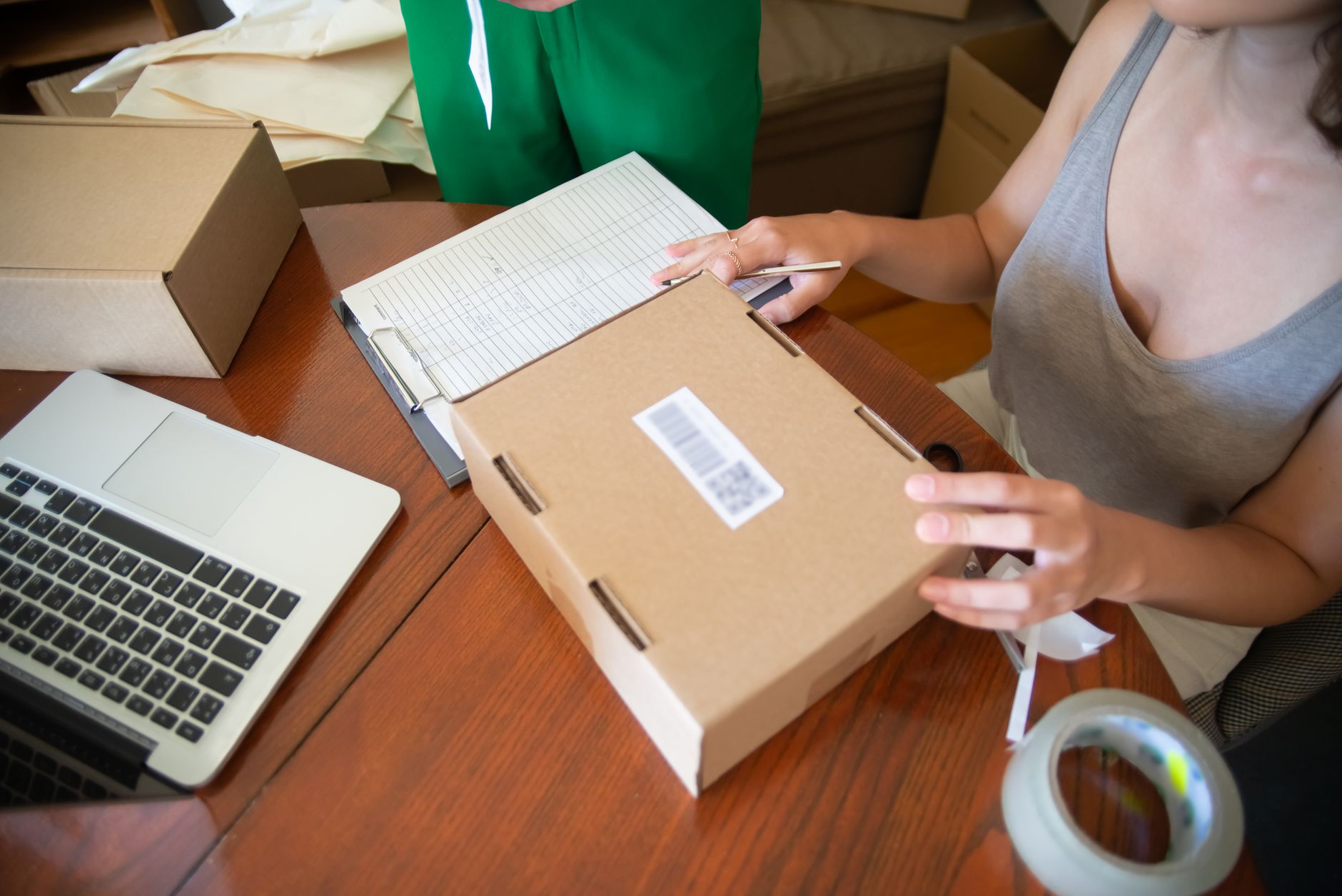
Barcode printer installation is the process of connecting the printing device to a computer (via USB, LAN, or Bluetooth), installing the appropriate driver, setting up the label paper size and format, then connecting to barcode printing software to create and print labels. The standard process includes 4 stages: hardware connection, driver installation, label size configuration, and test printing.
Step 1: Connect the Barcode Printer to the Computer (USB, LAN, Bluetooth)
Related Products


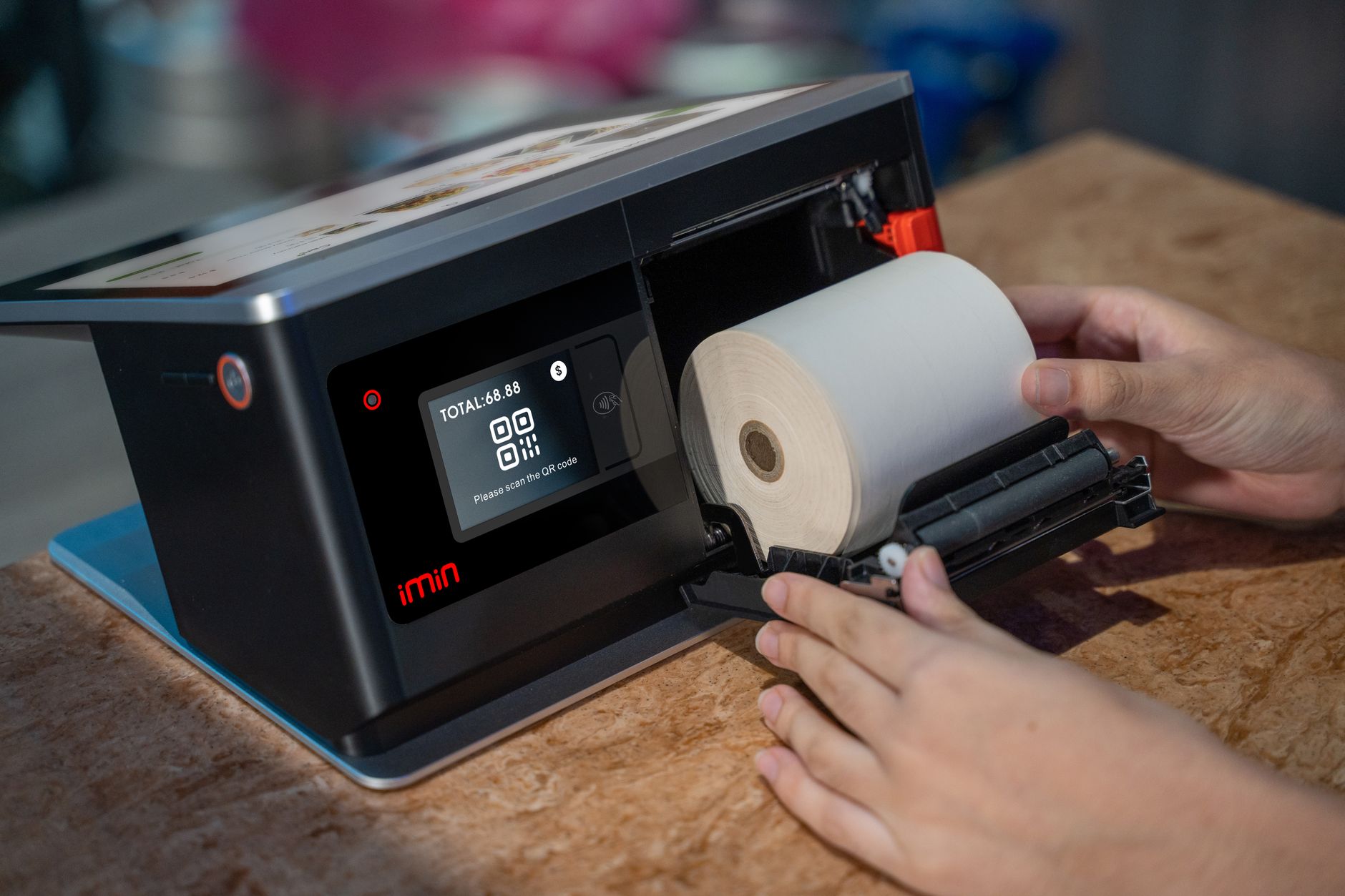
Depending on the type of barcode printer (desktop or industrial), you will connect via USB port (most common), LAN (shared network), or Bluetooth (wireless connection). Plug in the power cable and data cable before turning on the printer. Windows will automatically detect the new device within seconds.
- USB Connection: Plug the USB cable into the computer and printer. Turn on the printer power. Windows displays the "Installing device driver" notification.
- LAN Connection: Connect the network cable from the printer to the switch/router. Access the printer menu to view the IP address, then add the printer via IP in Windows.
- Bluetooth Connection: Turn on Bluetooth on the printer and computer. Pair the devices, Windows automatically installs the basic driver.
Note: For Zebra, TSC, Xprinter, Bixolon barcode printers — always use genuine cables to avoid detection errors.
Step 2: Install the Barcode Printer Driver (Windows 10/11)
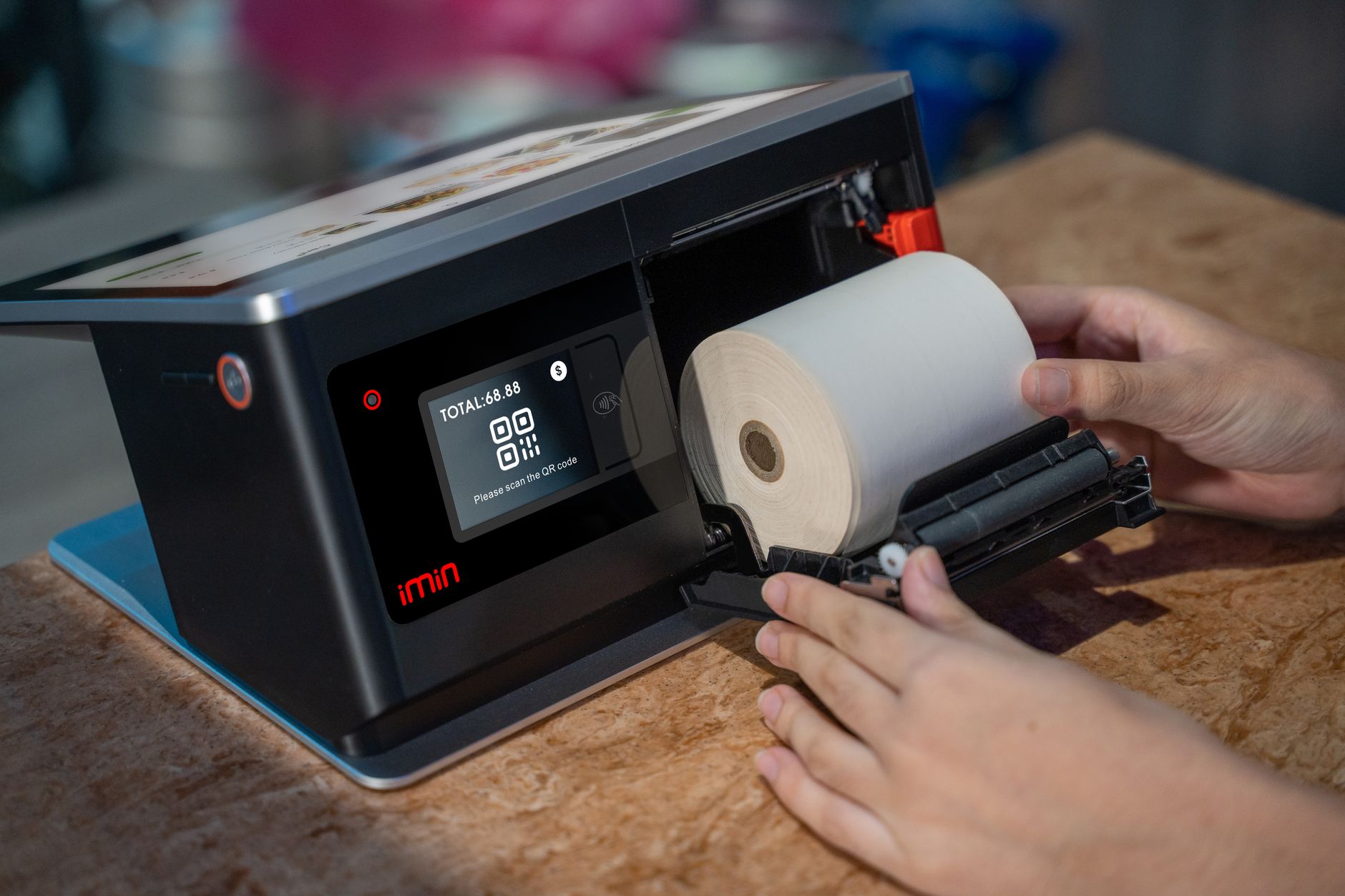
The driver is software that allows the computer to communicate with the printer. You can download the driver from the manufacturer's website (Zebra, TSC, Xprinter) or use the driver on the included CD. Install the driver first, then connect the printer so Windows recognizes the correct model.
- Access the manufacturer's support page (e.g., Zebra.com/support, TSCprinters.com) or download from the link provided by Việt POS.
- Select the correct printer model (e.g., Zebra ZD421, TSC TE200, Xprinter XP-420B).
- Download the .exe or .msi file, double-click to run. Select the language (English) and click Next until complete.
- Select the connection port (USB001, LPT1, or IP if using LAN).
- Print a test page to verify: go to Devices & Printers → right-click the printer → Printer Properties → Print Test Page.
Step 3: Set Up Paper Size and Label Dimensions
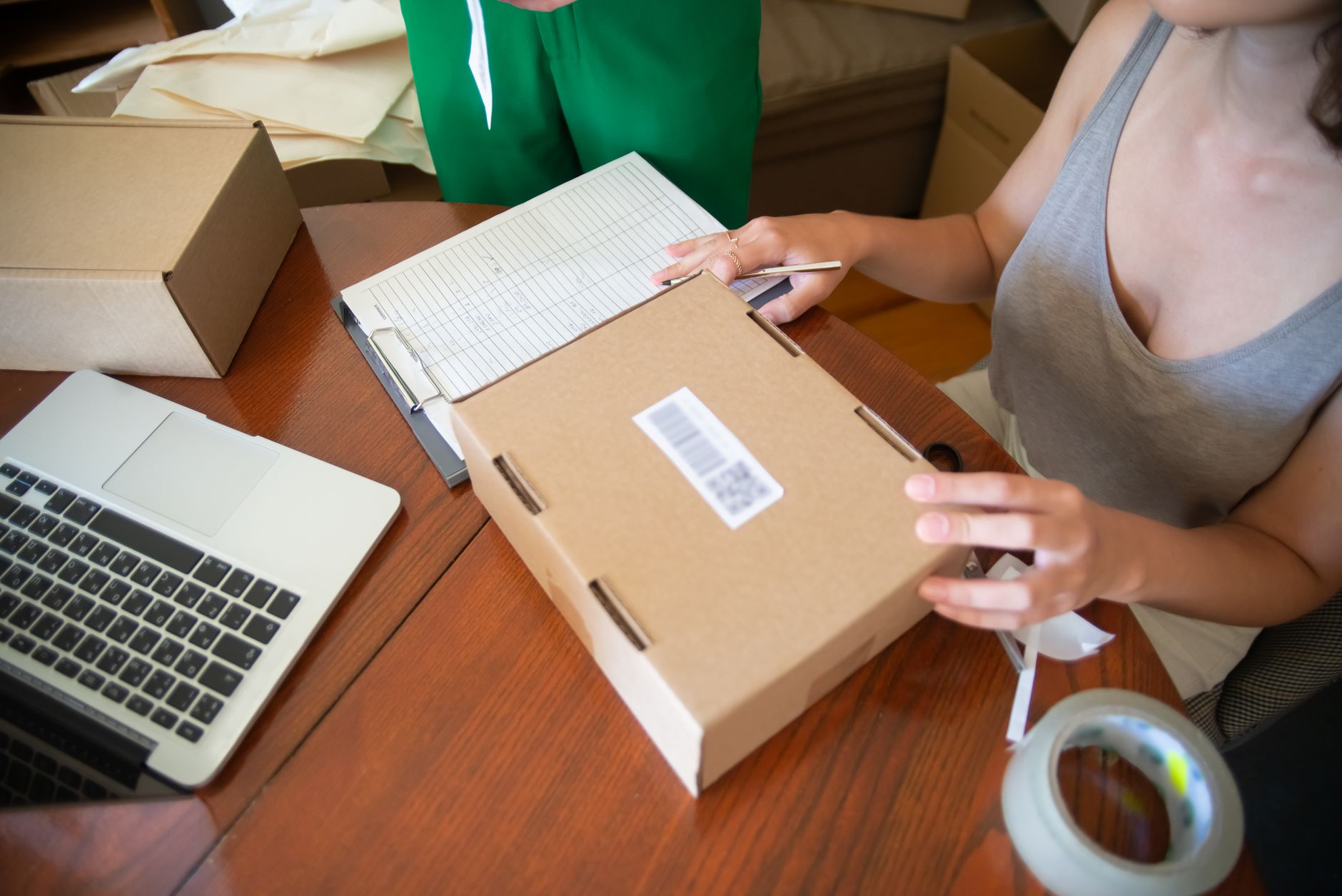
The paper size must match the actual label dimensions. For example: 50x30mm labels, 100x60mm labels. Incorrect setup will result in misaligned printing or printing between labels. You configure this in Printer Preferences (printer properties).
- Go to Devices & Printers → right-click the printer → Printing Preferences.
- Select the "Page Setup" or "Media" tab.
- Enter the label dimensions: Width (mm) x Height (mm). Example: Width=50, Height=30.
- Select "Continuous" (roll paper) or "Labels" depending on the paper type.
- Click Apply/OK.
Tip: If printing labels with pre-existing gaps between them, select "Gap Detection" mode for automatic alignment.
Step 4: Connect the Printer to Free Barcode Printing Software
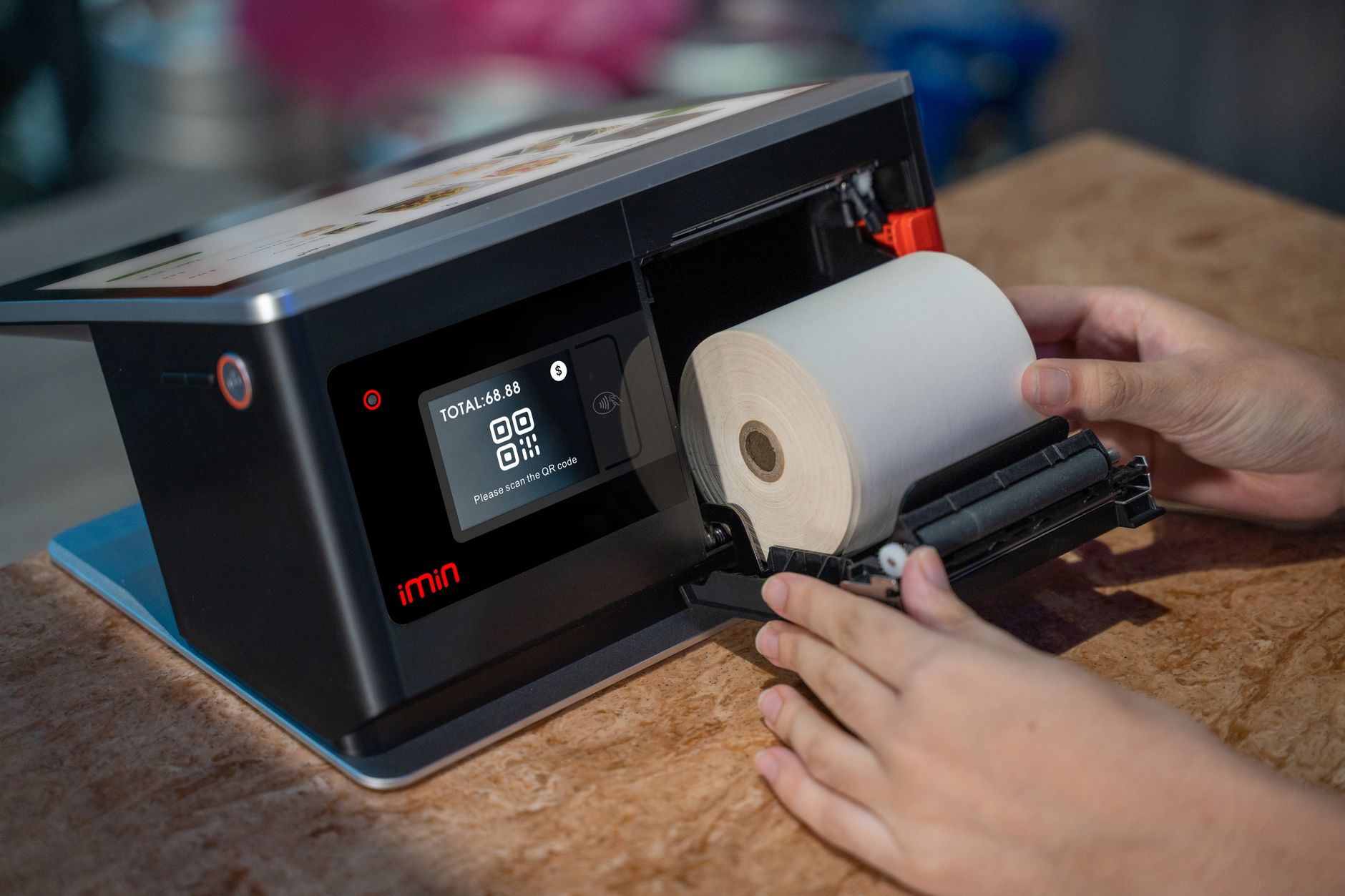
After installing the driver, you need software to design and print labels. Free software like VietPOS Barcode allows you to create barcodes, QR Codes, import data from Excel, and print in bulk without design skills. Download and install in 5 minutes.
- Download the free VietPOS Barcode barcode printing software from the Việt POS website.
- Run the installer, select the folder (default).
- Open the software → go to the "Printer" menu → select the installed printer model (e.g., Zebra ZD421).
- Design the label: choose paper size, add barcode (Code128), text, logo image.
- Import data from Excel or enter manually → click "Print".
Suggestion: VietPOS Barcode supports printing price labels, product labels, shipping labels — suitable for retail shops, mini supermarkets, and warehouses.
Summary Table of Barcode Printer Installation Steps
| Step | Action | Note |
|---|---|---|
| 1. Hardware Connection | Plug in power cable + data cable (USB/LAN) | Turn on power before plugging in USB |
| 2. Driver Installation | Download and run the driver file from the manufacturer | Select the correct printer model |
| 3. Paper Size Setup | Enter label dimensions (mm) in Printing Preferences | Measure the actual label before entering |
| 4. Software Connection | Select the printer in the software (VietPOS Barcode) | Test print before bulk printing |
Common Mistakes When Installing a Barcode Printer
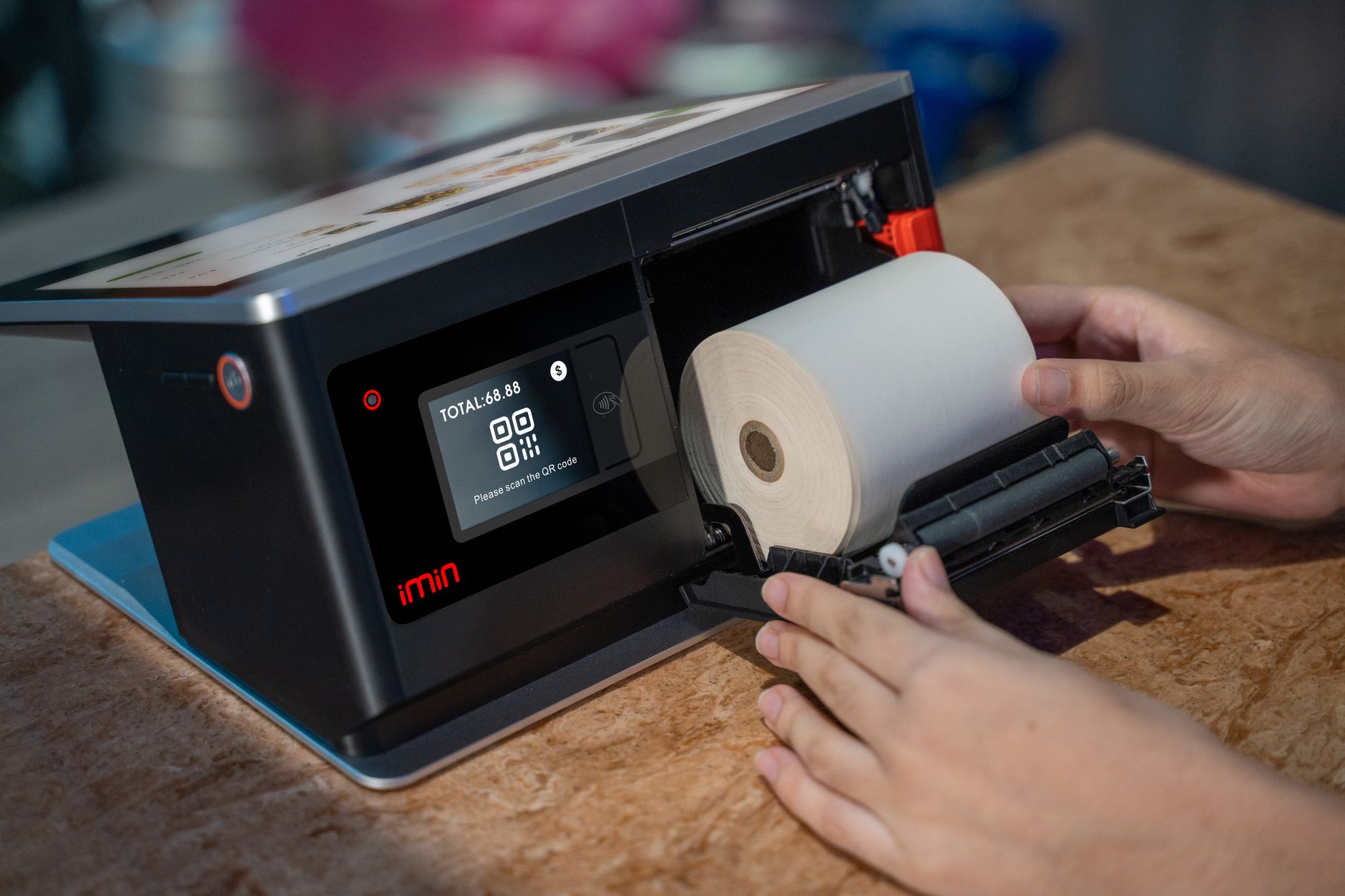
- Choosing the wrong driver: Using a driver for a different model leads to printing errors. Always download the correct model driver from the manufacturer's website.
- Not setting up paper size: Windows defaults to A4 — printing 50x30mm labels will be misaligned. Configure label dimensions in Printer Preferences.
- Plugging in USB before installing the driver: Windows assigns a generic driver causing loss of functionality. Install the driver first, then plug in USB.
- Skipping the test page print: Test printing helps detect connection or driver errors early on.
- Using low-quality USB cables: Cables longer than 3m or non-genuine ones easily cause connection loss.
Frequently Asked Questions
How do I know if the barcode printer driver is installed correctly?
Go to Devices & Printers → check if the printer has a green checkmark icon. If there is a yellow exclamation mark, the driver is wrong or not installed. A successful test page print means the driver is correct.
Can I use a barcode printer with Excel software?
Yes. VietPOS Barcode software allows importing data from Excel files (columns for product code, name, price) and printing in bulk automatically, without manually typing each label.
Can a barcode printer print on A4 paper?
No. Specialized barcode printers only print on label rolls (decal) or thermal roll paper. If you need to print A4, you must use a regular laser/inkjet printer.
How to fix the "Printer not found" error in the software?
Check: 1) Is the printer powered on? 2) Is the USB/LAN cable securely connected? 3) Is the driver installed correctly? 4) In the software, select the correct printer name from the dropdown. If the error persists, restart both the computer and printer.
Where can I buy a reliable barcode printer?
Việt POS supplies genuine barcode printers from Zebra, TSC, Xprinter, Bixolon, HPRT — with 12-24 month warranty and remote installation support. Contact the hotline below for consultation.
Want to install a barcode printer quickly yourself? Download the free VietPOS Barcode barcode printing software now — supports label printing and connects to all popular printer models. Need technical support? Call the hotline 0935 498 384 for detailed guidance.
Cần tư vấn thiết bị/giải pháp cụ thể?
Việt POS phản hồi trong 30 phút · Hotline 4 vùng · Khảo sát miễn phí.
Bài viết cùng chủ đề