Mục lục bài viết (8)
- What is 123RFID Desktop software?
- Installing 123RFID Desktop on Windows: 5 steps
- Configuring Zebra RFID readers via 123RFID Desktop
- Summary table of key configuration parameters
- Common mistakes when using 123RFID Desktop
- When should you combine 123RFID Desktop with an SDK?
- Frequently asked questions
- Conclusion
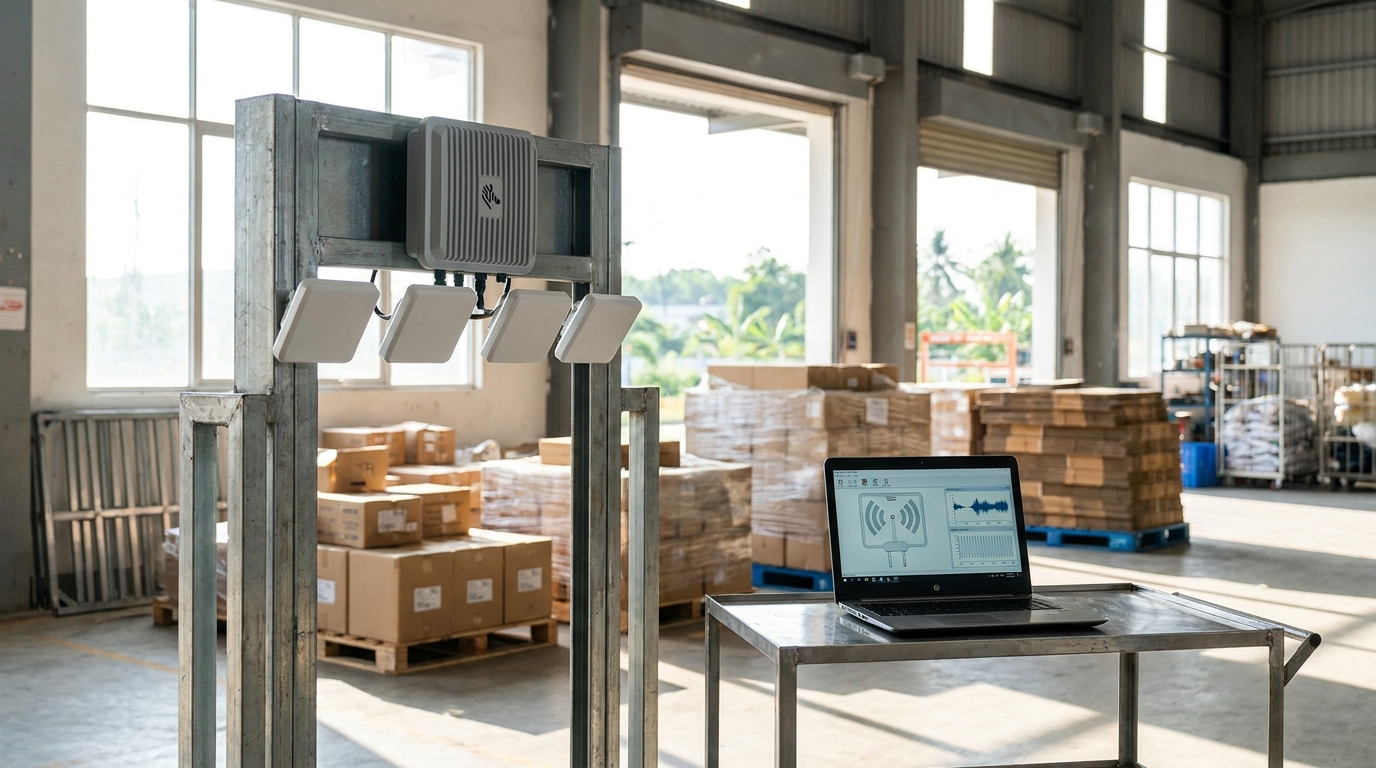
123RFID Desktop software is Zebra's free configuration tool for fixed UHF RFID readers (FX7500, FX9600), allowing you to set up connections, RF power, antenna read zones, and tag filters without writing a single line of code. In Vietnam, this software is widely used in RFID projects for 500-5,000m² distribution warehouses, mini supermarkets, and retail chains looking to raise inventory accuracy to 95-99%. This article walks through installation and real-world configuration step by step.
123RFID Desktop is Zebra's free software for configuring fixed UHF RFID readers (FX7500, FX9600) through a drag-and-drop interface, no programming required. After installing on Windows and connecting the reader over LAN, users can set RF power, antenna read zones, duplicate tag filtering, and EPC writing in 3-5 basic steps. Suitable for RFID deployments in warehouses, supermarkets, and retail chains in Vietnam.
Table of Contents
- What is 123RFID Desktop software?
- Installing 123RFID Desktop on Windows: 5 steps
- Configuring Zebra RFID readers via 123RFID Desktop
- Summary table of key configuration parameters
- Common mistakes when using 123RFID Desktop
- When should you combine 123RFID Desktop with an SDK?
- Frequently asked questions
- Conclusion
What is 123RFID Desktop software?
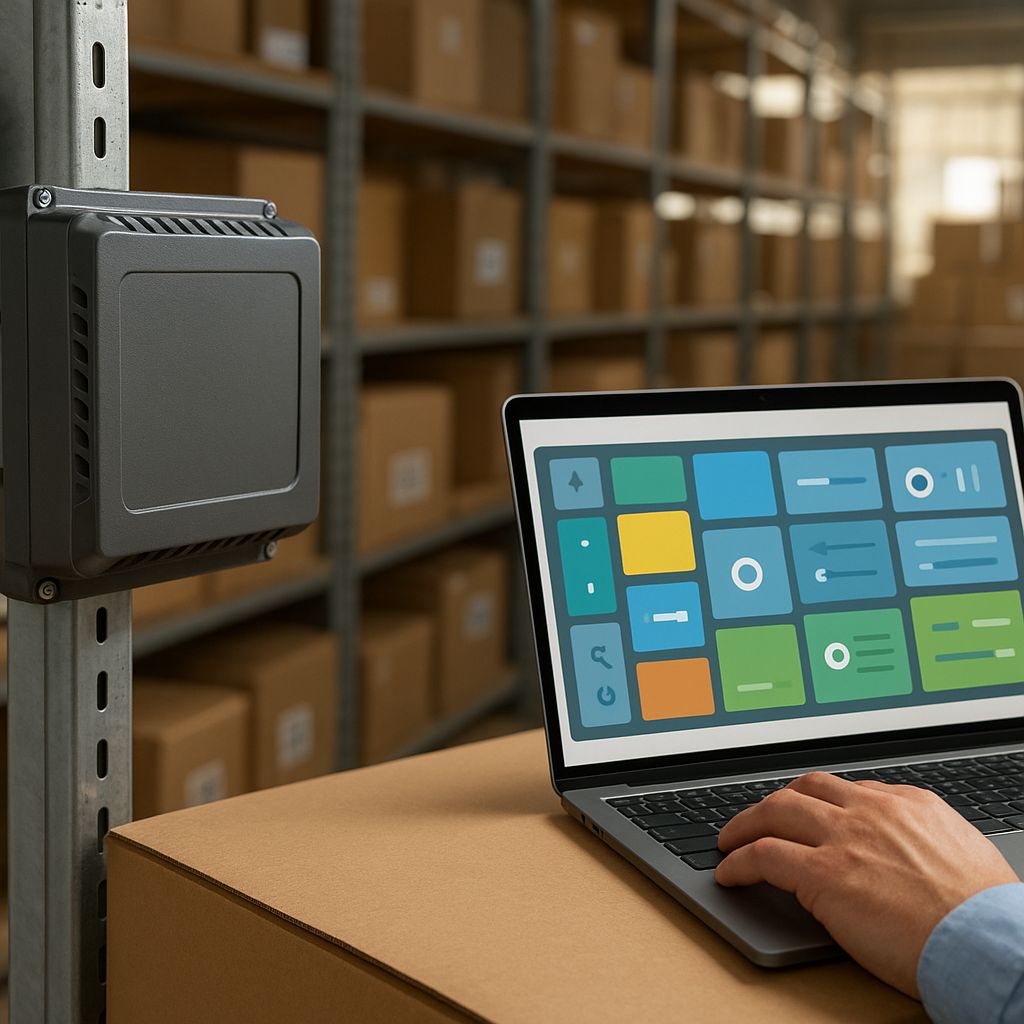
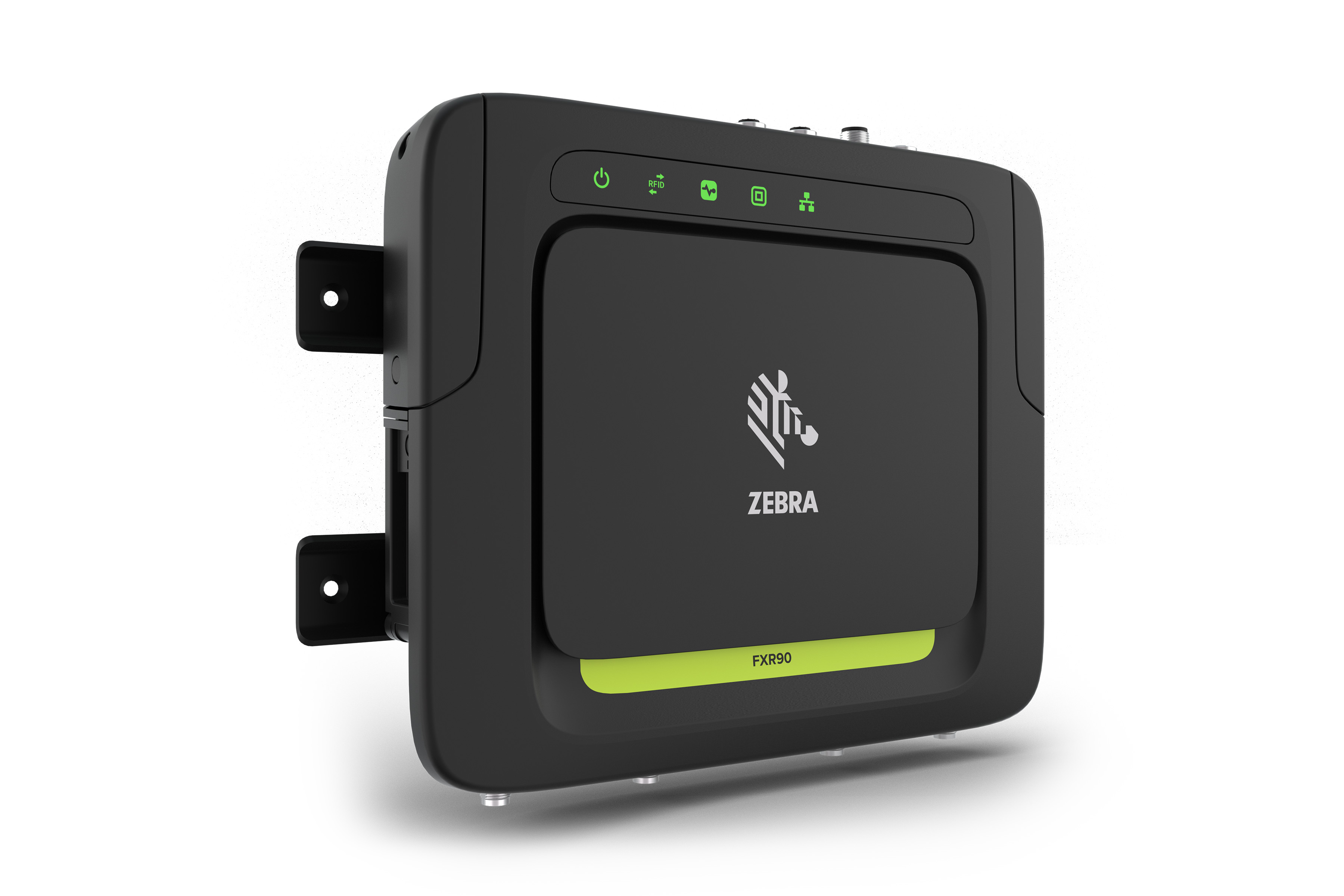
123RFID Desktop is Zebra's free Windows application for configuring, testing, and deploying fixed UHF RFID readers — primarily the FX7500 and FX9600 series. The software replaces complex web interfaces with drag-and-drop operations, letting business owners set up read zones, power, and tag filters right at the warehouse without needing a dedicated technical team.
Previously, to put an RFID reader into operation, businesses had to hire engineers to write scripts on the SDK or use the device's dry web interface. With 123RFID Desktop, the process is reduced to 3-5 basic steps: connect, select antenna, adjust power, filter tags, save configuration. See also Zebra AN660 and AN670 RFID Antennas: Comparing Key Configurations to choose the right antenna before configuring.
Installing 123RFID Desktop on Windows: 5 steps
Related Products
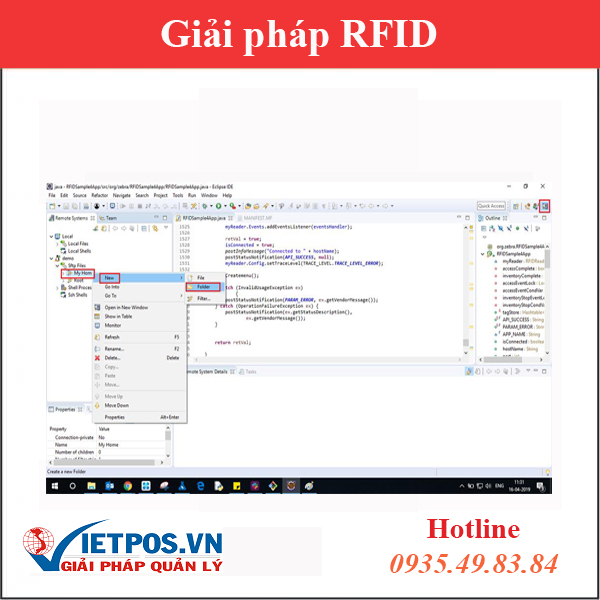
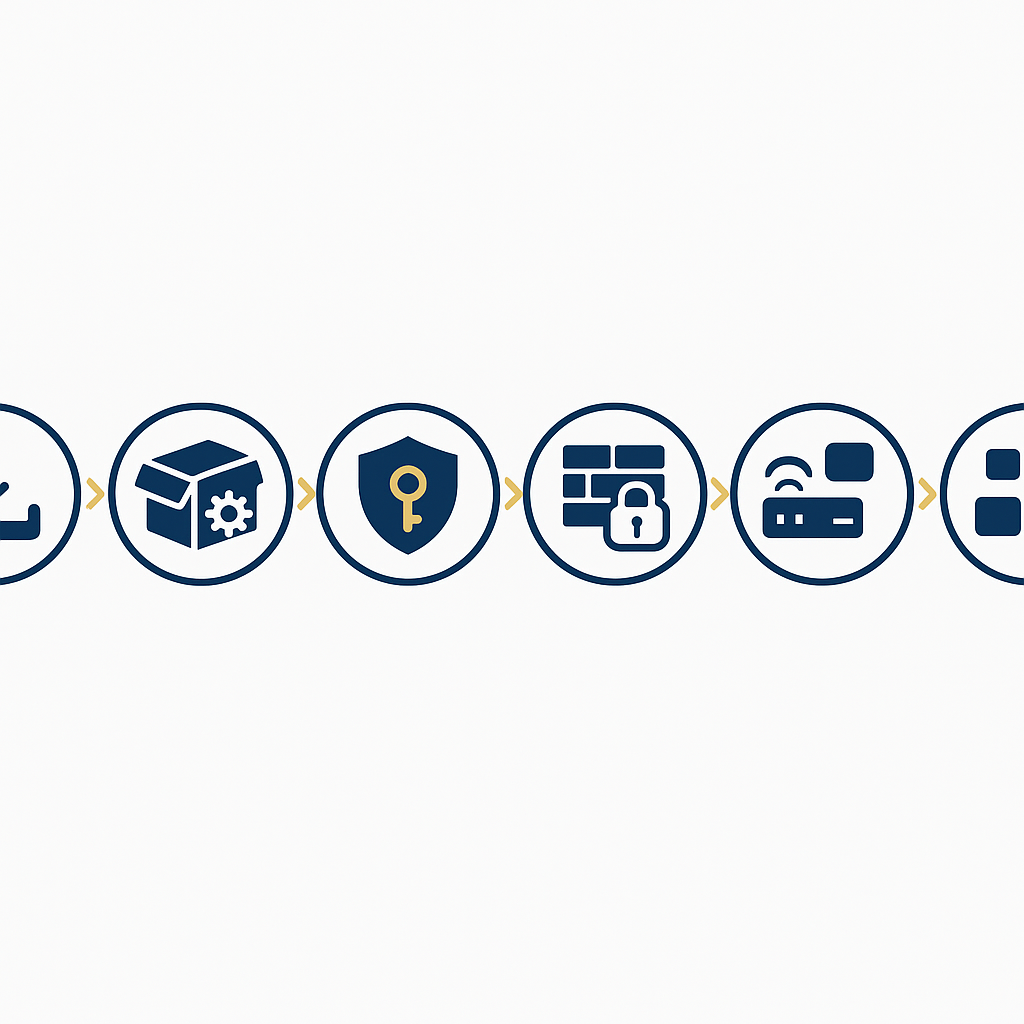
Installing 123RFID Desktop involves 5 steps: download the installer from Zebra's support page, run the .msi file with admin rights, grant firewall permission to the application, connect the reader over LAN, and confirm the device appears in the list. The entire process takes 10-15 minutes for first-time Windows users.
- Download the installer: go to Zebra's Support section, search for "123RFID Desktop", select the latest version (usually 1.0.x or 2.0.x). The file is in .msi format, 80-150MB in size.
- Install: right-click the .msi file → Run as administrator. Windows 7/10/11 64-bit are all supported. Do not install on Windows 32-bit as it will fail to open.
- Grant firewall permission: when Windows prompts, select Allow for both Private and Public network — if skipped, the software will not be able to scan for readers on the LAN.
- Connect the reader: plug a LAN cable from the computer to the same switch as the FX7500/FX9600 reader, or connect directly if there is only 1 device. Ensure the same IP range 192.168.1.x.
- Confirm the device: open 123RFID Desktop → click "Discover Readers" → the device will appear with its IP address and firmware. Click Connect to begin configuring.
Configuring Zebra RFID readers via 123RFID Desktop
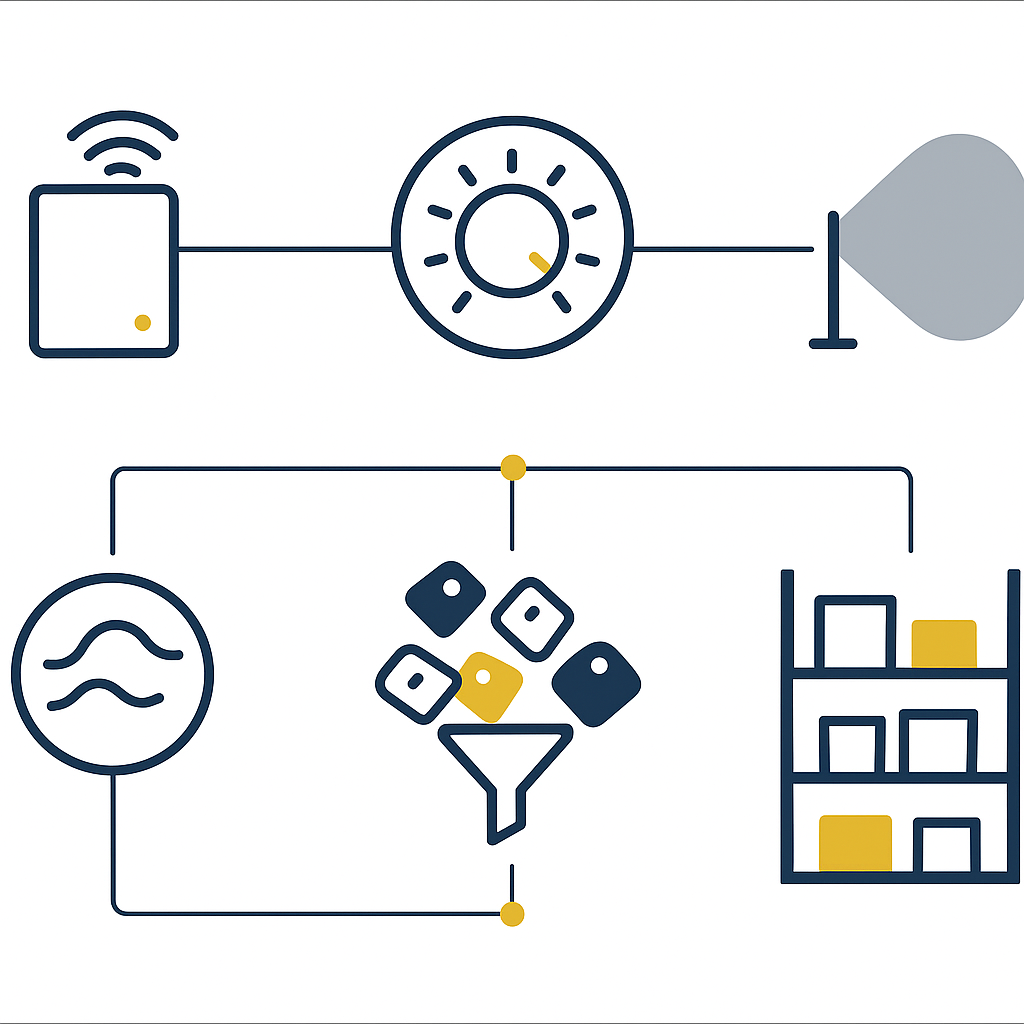
After connecting, configuring Zebra RFID readers via 123RFID Desktop focuses on 4 groups of parameters: RF power (10-30 dBm), antenna read zones (4 independent ports), tag filters (RSSI, EPC prefix), and read mode (Inventory/Write). Each group directly affects read range and inventory accuracy.
Setting RF power by environment
The default power is 30 dBm for the longest read range, but in narrow warehouses or closely spaced shelves, it should be reduced to 20-25 dBm to avoid cross-reading tags between shelf rows. For RFID ports at the dock door, keep 27-30 dBm to cover the full 2-3m door frame. Some environments with lots of metal or liquids (beverages, milk cartons) need 2-3 dBm more to compensate for attenuation.
Configuring 4 independent antenna ports
Both the FX7500 and FX9600 have 4 antenna ports. In 123RFID Desktop, each port can be individually enabled/disabled and set to different power levels. For a 20-30m long warehouse, typically 2 antennas are used on both sides of the entrance, and 2 antennas cover the main shelf rows. If using Effective Cold Storage Management Solution with iData K1 Cold and K8 Cold, you need to choose heat-resistant antennas and reduce power because cold vapor attenuates the signal.
Duplicate tag filter and EPC prefix
In an environment with 500-5,000 tags, the reader can capture the same tag 20-50 times per second. 123RFID Desktop allows you to enable "Unique Tag" mode and set the filter interval (100-2,000ms) to return only 1 record per tag. For warehouses with many SKUs, use the EPC prefix filter to read only tags belonging to the group being counted.
Summary table of key configuration parameters
The table below summarizes the parameters to set in 123RFID Desktop, suggested values for each deployment environment, and real-world examples. This is a quick checklist before going live with an RFID system for a warehouse or retail store.
| Term | Definition | Example / Suggested Value |
|---|---|---|
| Read Power (dBm) | RF transmit power of the reader | Narrow warehouse: 20-25 dBm; Dock door: 27-30 dBm |
| Antenna Port | Antenna connection port (1-4) | Port 1-2: entrance; Port 3-4: shelf rows |
| Filter Time (ms) | Duplicate tag filter interval | Fast inventory: 100-300ms; Continuous read: 800-2,000ms |
| EPC Prefix | EPC code prefix to filter SKU groups | Example: 30E0 = beverage group |
| Inventory Mode | Read mode (Single/Continuous) | Dock door: Continuous; Inventory: Single |
Common mistakes when using 123RFID Desktop
The three most common mistakes when deploying 123RFID Desktop include: leaving RF power at maximum in a narrow warehouse causing cross-reads, not filtering duplicate tags causing data to fluctuate, and skipping the reader firmware update before configuring. All three can be resolved in 5-10 minutes if known in advance.
- Leaving power at 30 dBm in a narrow warehouse: read range exceeds 5-7m, capturing tags from adjacent shelves. Reduce to 20-25 dBm and test each antenna port.
- Not enabling Unique Tag: a tag is recorded 20-50 times per second, data pushed to management software is duplicated. Enable filtering at 100-2,000ms based on goods movement speed.
- Skipping firmware updates: readers running old firmware may not be compatible with the new 123RFID Desktop version, leading to "Reader not found" errors. Update firmware in the Maintenance section before configuring.
- Not setting a static IP for the reader: DHCP changes the IP after reboot causing the software to lose connection. Set a static IP in the 192.168.1.x range for both the reader and the computer.
- Placing antennas in the wrong direction: antennas mounted facing each other can cause cross-interference. Place them at a 45-90° angle or use directional antennas for dock doors.
When should you combine 123RFID Desktop with an SDK?
123RFID Desktop is suitable for initial configuration and basic operation. When you need to integrate tag data into a custom-developed ERP/WMS system, or automate batch EPC writing, businesses should switch to the SDK for programming. The two tools complement each other, they do not replace each other.
For distribution warehouses with 1,000-10,000 tags/day, the reader needs to push realtime data into the warehouse management software. In that case, using the SDK to build a C# application running on Windows 7/10 (64-bit) will be more flexible. See Zebra ZC300 RFID Card Printer: Installation and Usage Guide to complete the tag print-encode cycle before feeding it into the reading system.
Businesses can also combine 123RFID Desktop with handheld devices for rotating inventory. For example, use the iData K3 Pro: Android 14 Barcode Scanner with Integrated DS7500 Technology for staff doing shelf-by-shelf inventory, while fixed readers handle reading at the dock door.
Frequently asked questions
Is 123RFID Desktop free?
Yes. 123RFID Desktop is Zebra's free software, downloaded directly from the official support page. No license required, no limit on the number of connected readers. Additional costs come only from hardware: FX7500/FX9600 readers, antennas, RFID tags, and network cables.
Does 123RFID Desktop run on macOS or Linux?
No. The software only supports Windows 7, Windows 10, and Windows 11 64-bit. If your business uses macOS, you can run Windows virtualized via Parallels or VMware, but device scanning performance on the LAN may be 20-30% slower than a native Windows machine.
The FX9600 reader does not appear in 123RFID Desktop, what should I do?
Check 3 points: (1) the computer and reader must be on the same IP range — use ping to confirm; (2) Windows firewall must allow the application through Private/Public; (3) the reader firmware must be compatible with the 123RFID Desktop version in use. If it still does not appear, reset the reader to factory default and try again.
Can multiple readers be configured at the same time?
Yes. 123RFID Desktop allows you to Discover multiple readers on the same LAN and switch between devices via tabs. However, you should configure each reader sequentially to avoid mixing up antenna configurations between devices. For a system of 5-10 readers, note down the IP and antenna diagram before starting.
What should be prepared before installing 123RFID Desktop?
Prepare: a Windows 7/10/11 64-bit computer, LAN cable, network switch, FX7500/FX9600 reader with updated firmware, antennas and RF cables, plus 3-5 sample tags to test read range. Allow 30-45 minutes for the first configuration to test all 4 antenna ports.
Conclusion
123RFID Desktop shortens Zebra RFID reader deployment time from several days to 1-2 hours for basic configuration. For warehouses, supermarkets, or retail chains in Vietnam, this is a tool you should use before deciding to invest in an SDK or outsource. If you need advice on choosing readers, antennas, and tags suitable for your warehouse scale, contact Việt POS via hotline 0935 498 384 or email info@vietpos.vn for survey and quotation support.
Need advice on deploying RFID for a warehouse or retail chain? Call now 0935 498 384 — the Việt POS technical team supports survey, configuration, and handover within 24-72 hours.
Cần tư vấn thiết bị/giải pháp cụ thể?
Việt POS phản hồi trong 30 phút · Hotline 4 vùng · Khảo sát miễn phí.
Bài viết cùng chủ đề