Mục lục bài viết (8)
- #What is the Tawa PRP 085 - Xprinter Q80i printer and what is it used for?
- #Steps to install Tawa PRP 085 - Xprinter Q80i driver on Windows?
- #How to connect Tawa PRP 085 - Xprinter Q80i via USB, Serial, Ethernet?
- #How to configure receipt printing on POS software with Tawa PRP 085 - Xprinter Q80i?
- #Is Tawa PRP 085 - Xprinter Q80i compatible with Linux, Mac?
- #Common installation issues and how to fix them?
- Related products
- Related articles
The Tawa PRP 085 - Xprinter Q80i thermal receipt printer is a standard bill printing solution for retail stores, restaurants, and fashion shops across Vietnam. This series is favored for its fast printing speed (150-200mm/s), high durability, and low operating costs. However, for stable operation and optimal performance, proper driver installation and connection are crucial first steps.
What is the Tawa PRP 085 - Xprinter Q80i printer and what is it used for?
The Tawa PRP 085 - Xprinter Q80i is an 80mm thermal receipt printer specifically designed for retail and food service environments. It uses thermal printing technology, requiring no ink, only specialized thermal paper. Printing speeds reach 150-200mm/s, allowing for fast printing of receipts, bills, and labels even during peak hours.
Key applications for this printer series include: printing sales receipts, printing payment bills at restaurants/cafes, printing warehouse price tags, and printing delivery slips. The printer supports USB, Serial (RS-232), and Ethernet connections, with some models also offering Bluetooth, enabling easy integration with modern POS systems.
Steps to install Tawa PRP 085 - Xprinter Q80i driver on Windows?
Driver installation is the first step for the receipt printer to function. The installation process on Windows includes the following steps:
Bạn đang tìm sản phẩm cho chủ đề này?
Việt POS phân phối chính hãng — bảo hành 24-36 tháng, hỗ trợ kỹ thuật 24/7.
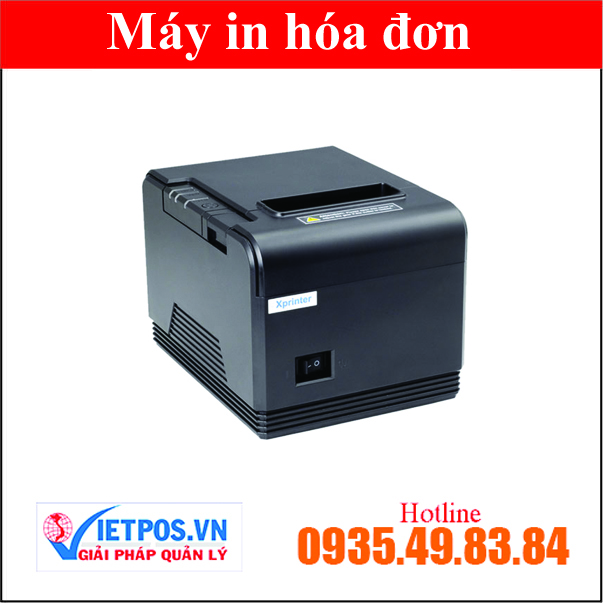
Xprinter Q80I Thermal Receipt Printer, genuine product
SKU: Xprinter Q80I
TAWA Mini PRP-085BT Bluetooth Bill Printer
SKU: PRP-085BT
Genuine Xprinter K58 Thermal Receipt Printer
SKU: XP-K58
Xprinter XP-C230H Thermal Receipt Printer (USB)
SKU: XP C230H(USB)Are you looking for products on this topic?
Việt POS is an authorized distributor — 24-36 month warranty, 24/7 technical support.
Step 1: Download official driver — Download the driver file from the manufacturer's website or contact Việt POS for the installation file. Ensure you download the correct driver version for your printer model (PRP 085 or Q80i) and Windows operating system (32-bit or 64-bit).
Step 2: Connect the printer to the computer — Use a USB or Serial cable depending on the printer's connection port. If using Serial, you will need an RS-232 cable and an adapter if your computer does not have a Serial port.
Step 3: Run the driver installation file — Open the .exe or .msi file, select 'Install' or 'Next', choose the default installation path, and wait for the process to complete. Windows will automatically detect the printer.
Step 4: Check in Device Manager — Open Device Manager (devmgmt.msc), find 'Printers' or 'Ports', and confirm that the printer has been detected. If there is a yellow exclamation mark, update the driver again.
Step 5: Set as default printer — Go to Settings → Devices → Printers & scanners, select Tawa PRP 085 or Xprinter Q80i, and set it as the default printer.
How to connect Tawa PRP 085 - Xprinter Q80i via USB, Serial, Ethernet?
The Tawa PRP 085 - Xprinter Q80i receipt printer supports three main connection types, each with its own advantages and disadvantages:
| Connection Type | Advantages | Disadvantages | When to use |
|---|---|---|---|
| USB | Fast setup, plug-and-play, compatible with most computers | Limited distance (max 5m), requires quality USB cable | Small shops, computer near printer |
| Serial (RS-232) | Long distance (20-30m), stable, less interference | More complex setup, only older computers have Serial ports | Warehouses, large stores, computer far from printer |
| Ethernet | Network connection, share printer with multiple computers, long distance | Requires IP configuration, stable network required | Chain stores, central POS systems |
To connect via USB: Plug the USB cable into the USB port of the printer and computer, and wait for Windows to automatically install the driver. To connect via Serial: Plug the RS-232 cable into the printer's Serial port, use a USB-to-Serial adapter if the computer does not have a Serial port, and install the Serial port driver. To connect via Ethernet: Plug the network cable into the printer's Ethernet port, configure a static IP or DHCP, and add the printer to the network via its IP address.
How to configure receipt printing on POS software with Tawa PRP 085 - Xprinter Q80i?
After installing the driver and connecting the printer, the next step is to configure the POS software to recognize the printer. The configuration process depends on the POS software used by the business, but the general steps include:
Step 1: Open POS software — Log in to the POS system, access the 'Settings' or 'Configuration' section.
Step 2: Select printing device — Find 'Printer' or 'Output Device', select Tawa PRP 085 or Xprinter Q80i from the list.
Step 3: Configure paper format — Select paper size (usually 80mm), print width, number of lines per receipt. Ensure settings match the actual thermal paper size.
Step 4: Test print sample — Print a sample receipt to check print quality, alignment, and darkness. Adjust settings if necessary.
Step 5: Save settings — Save all configurations to ensure the printer is remembered for subsequent prints.
Is Tawa PRP 085 - Xprinter Q80i compatible with Linux, Mac?
The Tawa PRP 085 - Xprinter Q80i supports both Linux and Mac, but compatibility and installation differ from Windows. On Linux, the printer is recognized via CUPS (Common Unix Printing System), requiring a dedicated Linux driver. On Mac, the printer is also supported via CUPS, but macOS drivers need to be downloaded from the manufacturer. Việt POS provides technical support to guide installation on different operating systems.
Common installation issues and how to fix them?
During the installation and use of Tawa PRP 085 - Xprinter Q80i, some common issues may occur:
Printer not recognized after driver installation — Check USB/Serial connection, try re-plugging the cable, update the driver to the latest version, restart the computer.
Printing is misaligned, faded, or not printing — Check if there is enough thermal paper, clean the print head with 70% alcohol, adjust print darkness in driver settings, check printer connection.
Printer freezes or slows down — Reduce print speed, check computer memory, update driver, restart the printer.
Connection port error — If using Serial, check the correct COM port in Device Manager, install USB-to-Serial driver if needed. If using Ethernet, check the printer's IP, ping to confirm network connectivity.
To minimize issues, use genuine thermal paper, perform regular printer maintenance (clean print head, check rollers), and update drivers frequently. If the problem persists, contact Việt POS technical support team for direct assistance.
Việt POS provides comprehensive installation, configuration, and maintenance services for receipt printers. We have experience deploying Tawa PRP 085 - Xprinter Q80i at over 500-1000+ retail stores, restaurants, and fashion shops across Vietnam. Contact hotline 0935 498 384 or the nearest office for detailed consultation.
Need specific equipment/solution consultation?
Việt POS responds within 30 minutes · 4 regional hotlines · Free survey.
Related products
Related articles

Cần tư vấn thiết bị/giải pháp cụ thể?
Việt POS phản hồi trong 30 phút · Hotline 4 vùng · Khảo sát miễn phí.
Bài viết cùng chủ đề