Mục lục bài viết (9)
- #What is the Godex G500 printer and what is it used for?
- #How to correctly replace the Godex G500 print media roll?
- #How often should the Godex G500 printhead be cleaned?
- #How to inspect and maintain the Godex G500 printer roller?
- #How to configure the driver and connect the Godex G500 printer to a computer?
- #Where to find genuine replacement accessories for the Godex G500 printer?
- #Common issues when using the Godex G500 printer and how to fix them?
- Related products
- Related articles
The Godex G500 printer is widely adopted by retail chains, restaurants, and fashion shops in Vietnam due to its high durability and low operating costs. However, to ensure stable operation and quality printing, regular maintenance is essential. This article provides detailed instructions for basic operations that warehouse staff or store managers can perform.
What is the Godex G500 printer and what is it used for?
Godex G500 is a mid-range industrial barcode printer, utilizing direct thermal printing technology. It prints at a resolution of 300 dpi, with a speed of 150 mm/second, supporting media rolls from 50-108 mm wide. Its primary applications include printing product labels, order barcodes, retail price tags, and warehouse inventory labels.
Based on Việt POS's experience deploying in 30-50 retail businesses, the Godex G500 printer reduces printing costs by 20-30% compared to inkjet printers, as it does not require ink replacement. The printhead's lifespan is 2-3 years with proper maintenance.
How to correctly replace the Godex G500 print media roll?
Changing print media is a daily operation. The steps are:
Bạn đang tìm sản phẩm cho chủ đề này?
Việt POS phân phối chính hãng — bảo hành 24-36 tháng, hỗ trợ kỹ thuật 24/7.
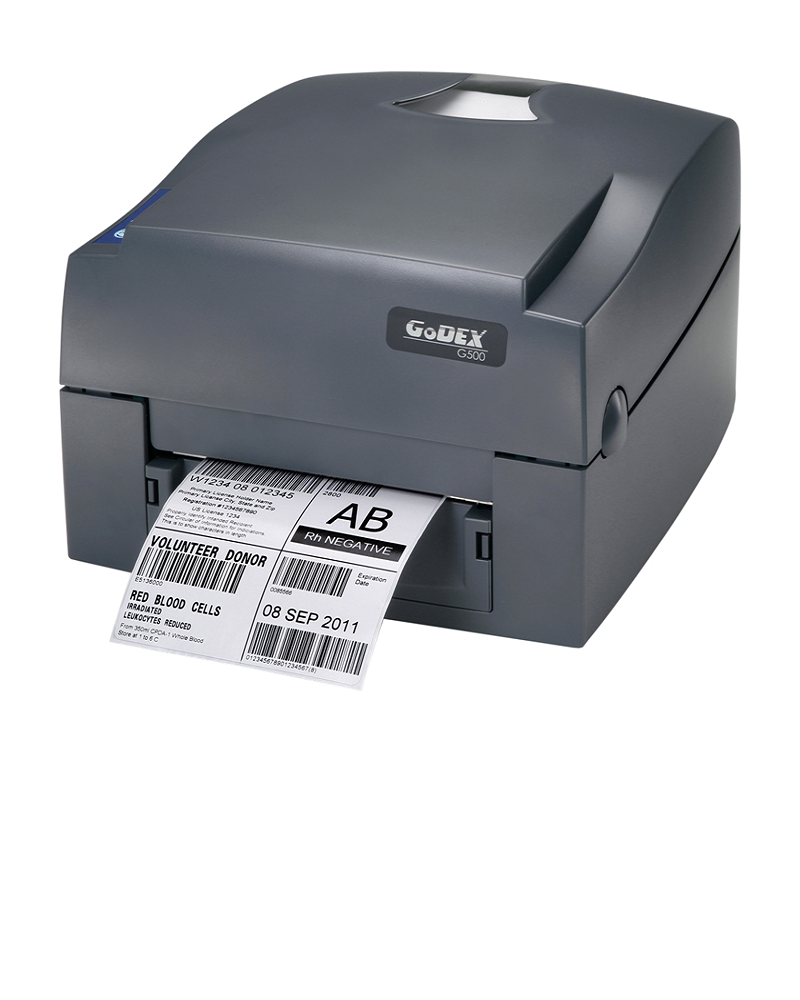
Godex G500 Barcode Printer
SKU: G500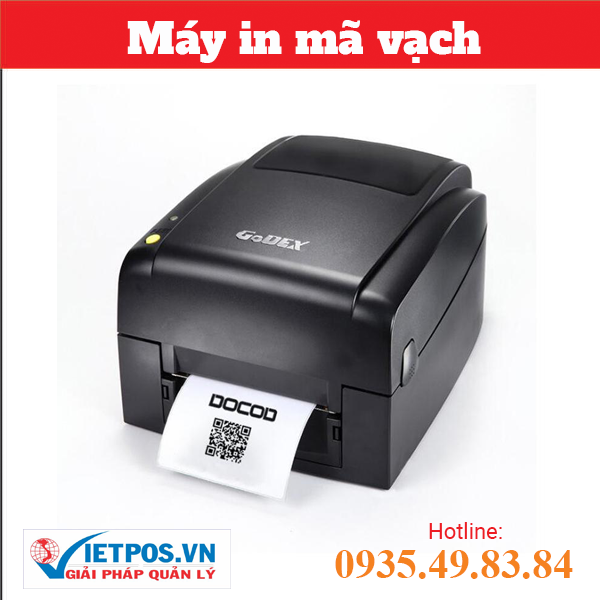
Godex EZ120 Barcode Printer
SKU: EZ120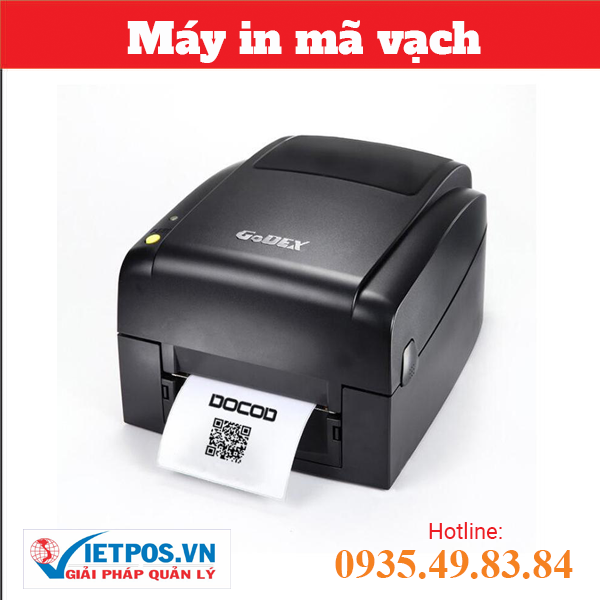
Godex EZ130 Barcode Printer
SKU: EZ130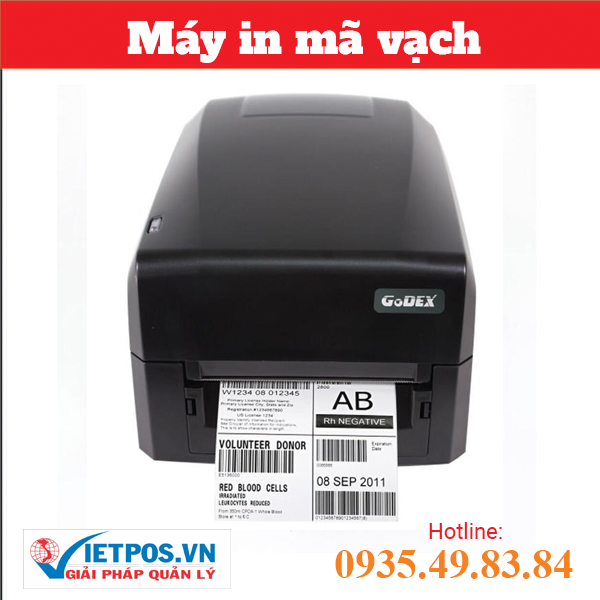
Godex GE300-USB Barcode Printer
SKU: GE300-USBAre you looking for products related to this topic?
Việt POS is an authorized distributor — 24-36 month warranty, 24/7 technical support.
- Turn off the printer, open the top cover.
- Press the release button (on the left) to open the old media roll holder frame.
- Remove the old media roll, check for any leftover paper (if any, remove completely).
- Place the new media roll into the frame, aligning it straight with the printing direction.
- Close the frame, ensuring the media roll is not misaligned.
- Turn on the printer, print 1-2 test labels to check alignment.
Note: Use genuine Godex print media or standard 80 gsm thermal paper. Low-quality paper can obstruct the roller and reduce printhead lifespan.
How often should the Godex G500 printhead be cleaned?
Printhead cleaning is the most crucial step to maintain print quality. Recommendation: clean every 2-4 weeks or when faded prints or white lines appear on labels.
Cleaning steps:
- Turn off the printer, wait for the printhead to cool down (5-10 minutes).
- Open the top cover, press the release button to open the media holder frame.
- Use a cotton swab or a clean, lint-free cloth dipped in 70% alcohol to gently wipe the printhead from left to right.
- Wipe 3-5 times until no dirt remains.
- Wait for the alcohol to evaporate (2-3 minutes), then close the frame and turn on the printer.
- Print 5-10 test labels to check quality.
DO NOT use water, soap, or strong detergents — only use 70% alcohol or specialized thermal printhead cleaning solution.
How to inspect and maintain the Godex G500 printer roller?
The roller keeps the print media straight. If the roller is dirty or worn, the paper will skew, leading to uneven printing.
Roller inspection:
- Open the printer cover, observe the roller below the printhead.
- If dusty, gently wipe with a cotton swab and 70% alcohol.
- If the roller is worn (has deep grooves), it needs replacement — contact Việt POS to order genuine accessories.
- Check the roller tension: the paper should not be too loose or too tight. If loose, adjust the tension screws on both sides.
Roller lifespan: 2-3 years depending on usage frequency. Businesses printing 500-1000 labels/day should replace the roller every 18-24 months.
How to configure the driver and connect the Godex G500 printer to a computer?
To operate the Godex G500 printer with sales management or warehouse software, the driver must be installed correctly.
Driver installation steps:
- Download the driver from the Godex website or request it from Việt POS.
- Connect the printer to the computer via USB or Ethernet cable (depending on the model).
- Run the driver installation file, select the connection port (COM or USB).
- After installation, go to Control Panel → Devices and Printers, check if the Godex G500 printer appears.
- Print a test page from the management software to check the connection.
If the printer does not receive print commands, check: if the USB/Ethernet cable is loose, if the driver is installed correctly, if the COM port is correct. Contact Việt POS (0935 498 384) for technical support.
Where to find genuine replacement accessories for the Godex G500 printer?
Việt POS supplies a full range of genuine Godex G500 accessories:
| Accessory | Function | Replacement Cycle |
|---|---|---|
| Thermal Head | Generates heat for printing on paper | 2-3 years |
| Roller | Keeps paper straight, prevents skewing | 2-3 years |
| Print Media Roll | Barcode labels, product labels | Daily |
| USB/Ethernet Cable | Connects to computer | When damaged |
Order accessories from Việt POS: hotline 0935 498 384 (HCM), 0932 555 260 (technical), or the nearest branch (ĐN: 0905 999 656, CT: 0931 777 527, HN: 0937 845 333). Delivery in 1-2 days, 12-month warranty.
In addition to the Godex G500, Việt POS also offers other barcode printer models such as Godex HD830i (higher 600 dpi resolution), Godex EZ130 (affordable for startups), or Godex DT2x (combined thermal + inkjet printing). Refer to our comprehensive sales management solutions to integrate printers with POS systems.
Common issues when using the Godex G500 printer and how to fix them?
Below are common issues and their solutions:
- Faded prints, white lines: Clean the printhead immediately. If still faded, replace the thermal head.
- Paper skewed, not straight: Check the roller, adjust tension. If the roller is worn, replace it.
- Printer not receiving print commands: Check the driver, USB/Ethernet cable, COM port. Restart the computer and printer.
- Printer making strange noises: Turn off the printer, check for torn paper inside. If found, remove it. If the noise persists, contact technical support.
- Media roll not rotating: Check if the media roll is aligned correctly. If it is, the motor might be faulty — send for warranty service.
To prevent issues, perform regular maintenance: clean the printhead every 2-4 weeks, check the roller monthly, and replace accessories according to recommended cycles. Việt POS offers a 12-month warranty and extended maintenance services for businesses.
Need specific equipment/solution consultation?
Việt POS responds within 30 minutes · 4 regional hotlines · Free survey.
Related products
Related articles

Cần tư vấn thiết bị/giải pháp cụ thể?
Việt POS phản hồi trong 30 phút · Hotline 4 vùng · Khảo sát miễn phí.
Bài viết cùng chủ đề