Mục lục bài viết (8)
- #What are the technical specifications of the Xprinter 350B printer?
- #How to install the Xprinter 350B printer driver on Windows?
- #How to connect the Xprinter 350B printer via LAN?
- #Common errors when using the Xprinter 350B printer and how to fix them?
- #Routine maintenance for the Xprinter 350B printer to extend its lifespan?
- #Which industries is the Xprinter 350B printer suitable for?
- Related products
- Related articles
The Xprinter 350B printer is a thermal barcode printing device designed for retail, warehouse, and logistics businesses that need to print labels and barcodes in bulk with high quality and long-lasting durability. With a printing speed of 100-150mm/s and a resolution of 203 DPI, the Xprinter 350B printer meets the printing needs of 500-5000 labels/day for small and medium-sized businesses.
What are the technical specifications of the Xprinter 350B printer?
The Xprinter 350B printer features industry-standard technical specifications: 203 DPI resolution, a maximum print width of 104mm, and a printing speed of 100-150mm/s depending on the configuration mode. It supports USB, LAN (Ethernet), and Serial connections, allowing for easy integration into existing warehouse or sales management systems.
The device uses thermal paper rolls 80mm or 110mm wide, with a roll capacity of up to 300m, reducing the frequency of paper changes. The 8MB internal memory allows for custom font and logo storage, supporting 1D barcodes (Code128, EAN, UPC) and 2D QR codes.
How to install the Xprinter 350B printer driver on Windows?
To install the Xprinter 350B printer driver, first connect the printer to the computer via a USB or LAN cable. Download the driver from the Xprinter homepage or contact Việt POS to receive the official driver file. Run the installation file, select the XP-350B model, and follow the on-screen instructions.
Bạn đang tìm sản phẩm cho chủ đề này?
Việt POS phân phối chính hãng — bảo hành 24-36 tháng, hỗ trợ kỹ thuật 24/7.

Genuine Xprinter K58 Thermal Receipt Printer
SKU: XP-K58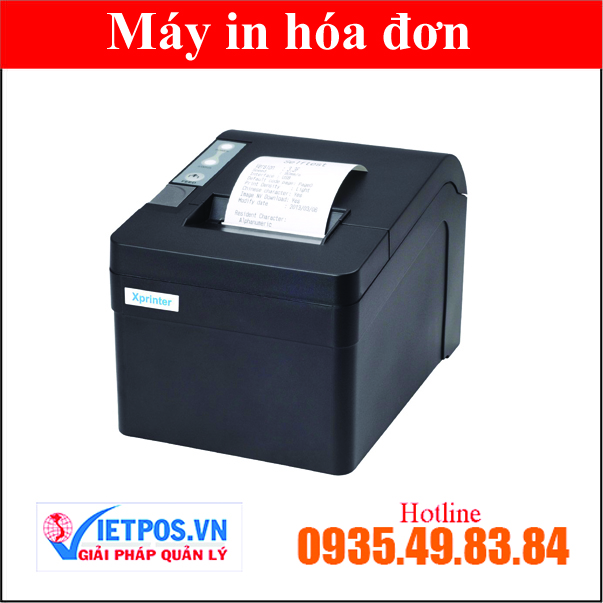
Xprinter T58K Printer
SKU: Xp-T58K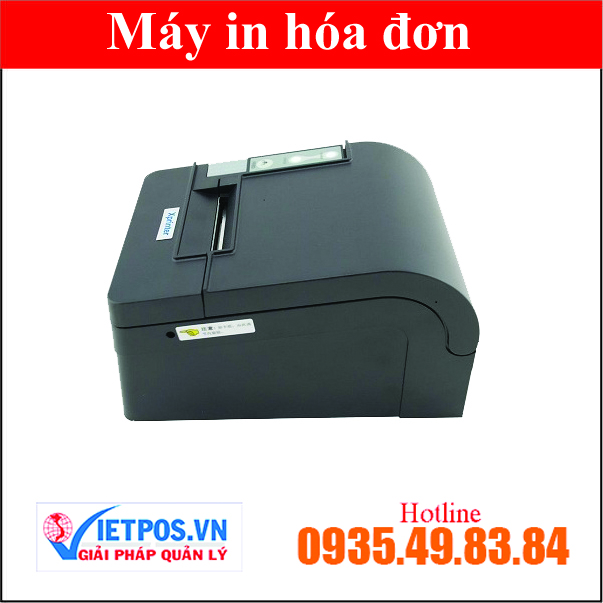
Xprinter T58KC Mini Thermal Printer
SKU: XP-T58KC
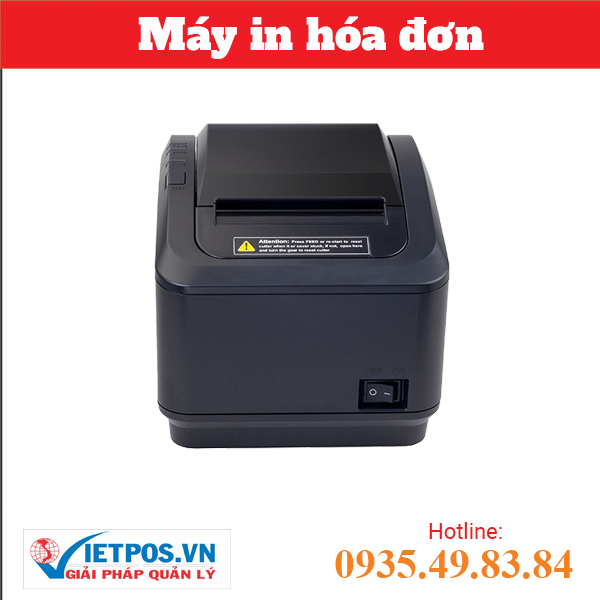
Genuine Xprinter 80I/Q800 Receipt Printer
SKU: XP-80I/Q800Are you looking for products for this topic?
Việt POS officially distributes — 24-36 month warranty, 24/7 technical support.
After installation, go to Devices and Printers (Windows 10/11), find Xprinter 350B in the list, right-click and select Set as default printer. Perform a test print by printing a test page from Printer Properties to check print quality and alignment.
How to connect the Xprinter 350B printer via LAN?
Connecting the Xprinter 350B printer via LAN allows sharing the device with multiple computers on the same local network. First, plug an Ethernet cable into the printer's LAN port and the router. Press the Menu button on the printer, go to Network Settings, select DHCP or enter a static IP (e.g., 192.168.1.100).
On the computer, go to Devices and Printers, select Add a printer, find Xprinter 350B in the network list or enter the IP address directly. Install the driver when prompted. Test the connection by printing from any computer on the network.
Common errors when using the Xprinter 350B printer and how to fix them?
The most common errors are the printer not recognizing paper or paper jams. Check if the paper roll is correctly positioned and if the cutter head is damaged. If paper is jammed, turn off the printer, open the top cover, gently remove the paper, and restart.
If the printer does not print after driver installation, check the USB/LAN connection, restart the printer and computer. If it still doesn't work, uninstall the old driver, download a new driver from Việt POS, and reinstall. Print quality errors (faint, horizontal lines) are often due to a dirty print head — use an alcohol swab to gently clean the print head according to the instructions in the manual.
| Error | Cause | Solution |
|---|---|---|
| Printer not recognizing paper | Paper not positioned correctly or dirty sensor | Check paper position, clean sensor with an alcohol swab |
| Slow printing or stopping midway | Driver error or full computer memory | Restart printer, delete temporary files on computer |
| Faint print quality, horizontal lines | Dirty print head or empty paper roll | Clean print head, replace with a new paper roll |
Routine maintenance for the Xprinter 350B printer to extend its lifespan?
Routine maintenance helps the Xprinter 350B printer operate stably and extends its lifespan to 3-5 years. Weekly, wipe the outer casing with a soft cloth, and check if the paper roll is sufficient. Monthly, clean the print head with a 70% alcohol swab according to instructions, and check that the paper sensor is not dirty.
Quarterly, check the paper feed rollers, and clean the roller if necessary. Avoid placing the printer in humid areas, high temperatures above 40°C, or low temperatures below 5°C. If the printer is not used for a long time, turn off the power, remove the paper roll, and store it in a dry place.
Which industries is the Xprinter 350B printer suitable for?
The Xprinter 350B printer is widely used in retail (supermarkets, convenience stores), logistics (printing shipping labels, product barcodes), warehouses (inventory management), restaurants (printing order labels), and manufacturing (printing product labels). With a printing speed of 100-150mm/s, it is suitable for businesses printing 500-5000 labels/day.
Businesses such as Lá Me (retail chain), Tân Phát (logistics), Đồi Cát (warehouse) have implemented the Xprinter 350B printer to optimize their barcode printing processes. If Vietnamese businesses need a professional barcode printing solution, Việt POS's warehouse management solution combined with the Xprinter 350B printer will bring high efficiency.
To learn more about other barcode printers, you can refer to Việt POS's barcode printer catalog. Additionally, the smart retail solution also integrates the Xprinter 350B printer to optimize sales processes and inventory management.
Need advice on specific equipment/solutions?
Việt POS responds within 30 minutes · 4-region hotline · Free survey.
Related products
Related articles

Cần tư vấn thiết bị/giải pháp cụ thể?
Việt POS phản hồi trong 30 phút · Hotline 4 vùng · Khảo sát miễn phí.
Bài viết cùng chủ đề