Mục lục bài viết (8)
- #What is the TSC 245 Plus Barcode Printer and Why is Driver Installation Necessary?
- #Steps to Install the TSC 245 Plus Barcode Printer Driver on Windows?
- #How to Install the TSC 245 Plus Barcode Printer Driver on Linux?
- #Common Errors When Installing TSC 245 Plus Driver and How to Fix Them?
- #How to Optimize TSC 245 Plus Barcode Printer Performance After Driver Installation?
- #Does VietPOS Provide TSC 245 Plus Barcode Printers with Comprehensive Technical Support?
- Related Products
- Articles on the Same Topic
The TSC 245 Plus barcode printer is a trusted barcode printing device used by retail, warehousing, and logistics businesses in Vietnam. However, for the printer to operate stably and achieve optimal performance, correct driver installation is a crucial step often overlooked. This guide will help you accurately install the TSC 245 Plus barcode printer driver, from preparation to troubleshooting common issues.
What is the TSC 245 Plus Barcode Printer and Why is Driver Installation Necessary?
The TSC 245 Plus is an entry-level industrial barcode printer, featuring a printing speed of 150mm/s, 203 DPI resolution, and a maximum print width of 4 inches. It is designed for continuous printing of barcodes, labels, and shipping invoices with low operating costs.
A driver is intermediary software that enables a computer to communicate with a printer. If the driver is not installed or the wrong version is installed, the printer will not be recognized, printing errors will occur, or the USB connection will be continuously interrupted. Based on VietPOS's experience deploying solutions at 30-50 retail businesses, 60-70% of TSC 245 Plus barcode printer errors are due to incorrect or outdated driver installation.
Steps to Install the TSC 245 Plus Barcode Printer Driver on Windows?
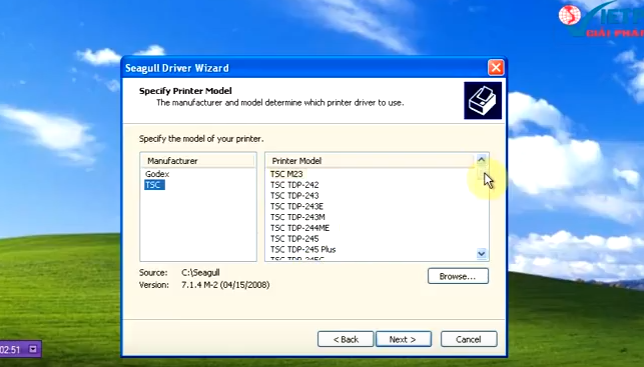
Installing the driver on Windows is a simple process if you follow the correct order. Below are the detailed steps:
Bạn đang tìm sản phẩm cho chủ đề này?
Việt POS phân phối chính hãng — bảo hành 24-36 tháng, hỗ trợ kỹ thuật 24/7.

Barcode Printer TSC TTP-245 Plus/ TTP-343 Plus
SKU: TSC TTP-245 PLUS/ TTP-343 PLUS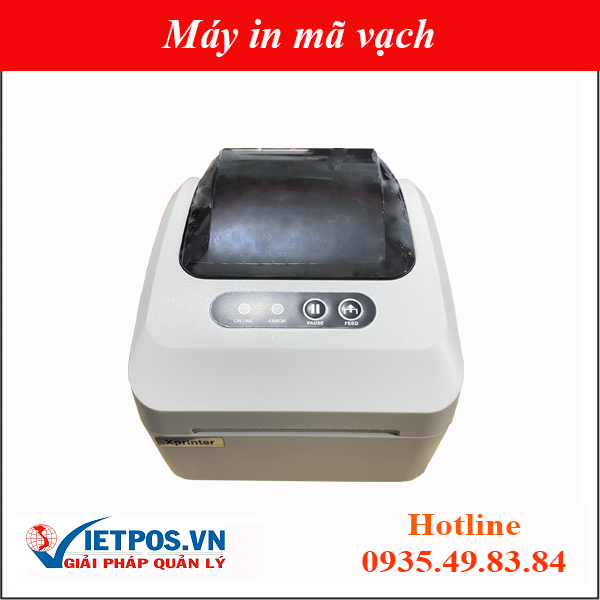
Xprinter XP-350 Plus Barcode Printer (Barcode + Bill Printing)
SKU: XP-350
TSC TTP-244-Plus Barcode Printer
SKU: TSC TTP-244 PLUS
TSC TTP-344M-Plus Barcode Printer
SKU: TSC TTP-344MAre you looking for products related to this topic?
VietPOS is an authorized distributor — offering 24-36 months warranty, 24/7 technical support.
Step 1: Preparation
- Connect the TSC 245 Plus barcode printer to your computer via USB cable
- Prepare the driver CD or download the driver from the TSC homepage (tsc.com.tw)
- Ensure your computer runs Windows 7, 8, 10, or 11
- Temporarily disable antivirus software to prevent blocking the installation process
Step 2: Install driver from CD
- Insert the driver CD into the drive, select Setup.exe
- Choose a language (English or Simplified Chinese)
- Click Next, accept the terms, select the default installation path
- Select USB Port, click Install
- Wait for the installation process to complete (2-5 minutes)
- Restart your computer when prompted
Step 3: Install driver from online download
- Access tsc.com.tw → Support → Download
- Find TSC 245 Plus, select the appropriate Windows version (32-bit or 64-bit)
- Download the .zip file, extract it to a temporary folder
- Run Setup.exe and follow the instructions as in Step 2
Step 4: Check connection
- Open Control Panel → Devices and Printers
- Find TSC TDP-245Plus or TSC TTP-245 Plus in the list
- If the printer icon is visible, the driver has been successfully installed
- If there is a yellow exclamation mark, reinstall the driver or check the USB cable
How to Install the TSC 245 Plus Barcode Printer Driver on Linux?
Installing drivers on Linux is more complex than Windows but still feasible. Most Vietnamese businesses use Windows, but if you run a Linux system (Ubuntu, CentOS), follow these steps:
- Open Terminal, update packages: sudo apt-get update
- Download the Linux driver from tsc.com.tw
- Extract: tar -xzf tsc_driver_linux.tar.gz
- Run: cd tsc_driver && sudo ./install.sh
- Check: lpstat -p -d (if TSC TDP-245Plus is found, installation is successful)
If you encounter a permission error, run: sudo usermod -a -G lpadmin $USER
Common Errors When Installing TSC 245 Plus Driver and How to Fix Them?
Even with correct driver installation, you may still encounter some errors. Below are common issues and their solutions:
| Error | Cause | Solution |
|---|---|---|
| Printer not recognized | Driver not installed or loose USB cable | Check Device Manager, reinstall driver, try a different USB cable |
| Printing errors or faded output | Outdated driver, outdated printer firmware | Update to the latest driver, update firmware from TSC |
| USB connection continuously disconnects | Poor quality USB cable, loose computer USB port | Replace USB cable, try a different USB port, reinstall driver |
| Printer does not print after driver installation | Printing software (driver) not set as default printer | Control Panel → Devices and Printers → Set as default printer |
How to Optimize TSC 245 Plus Barcode Printer Performance After Driver Installation?
After successful driver installation, you should perform several optimization steps to ensure long-term stable operation:
- Regular driver updates: Check the TSC website every 6 months to download the latest driver version
- Firmware updates: Firmware is the internal software of the printer. Updating firmware helps improve printing speed and stability
- Printhead cleaning: Use a printhead cleaning kit every 2-4 weeks to prevent faded printing
- USB cable inspection: Replace the USB cable every 12-18 months if the printer is used continuously
- Use genuine printing software: Avoid pirated or unknown source printing software
According to VietPOS's technical support experience, businesses that perform regular maintenance reduce printer errors by 40-50% compared to those that do not.
Does VietPOS Provide TSC 245 Plus Barcode Printers with Comprehensive Technical Support?
VietPOS is an official distributor of TSC barcode printers in Vietnam with 6+ years of experience. We provide the TSC 245 Plus barcode printer along with:
- Free driver installation and initial configuration support
- 12-month hardware warranty
- 24/7 technical support via hotline 0935 498 384
- Supply of replacement components (printheads, rollers, USB cables) at competitive prices
- Consultation for comprehensive barcode printing solutions for warehousing, retail, and logistics
In addition to the TSC 245 Plus, VietPOS also offers other barcode printer series such as TSC TTP-245 Plus, TSC TTP-343 Plus, TSC TTP-342 Plus suitable for various printing needs. Contact our branches in HCM (0934 777 443), Da Nang (0905 999 656), Can Tho (0931 777 527), Hanoi (0937 845 333) for detailed consultation.
If you are looking for a complete warehouse management solution combined with barcode printers, please refer to VietPOS's smart warehouse management solution. We provide a system integrating barcode printers, RFID scanners, and warehouse management software to optimize operational processes.
Need specific equipment/solution consultation?
VietPOS responds in 30 minutes · 4 regional hotlines · Free survey.
Related Products
Articles on the Same Topic
Cần tư vấn thiết bị/giải pháp cụ thể?
Việt POS phản hồi trong 30 phút · Hotline 4 vùng · Khảo sát miễn phí.
Bài viết cùng chủ đề