Mục lục bài viết (8)
- #What is a Godex printer driver and why is it necessary to install it?
- #Which popular Godex printer models require driver installation?
- #Detailed steps to install Godex printer drivers?
- #How to check if the Godex printer driver is installed correctly?
- #Common errors when installing Godex printer drivers and how to fix them?
- #Why choose Godex printers and Việt POS support services?
- Related products
- Related articles
Godex barcode printers are common devices in warehouses, retail, and logistics businesses in Vietnam. For the printer to operate stably and print accurately, driver installation is a crucial prerequisite. A driver is intermediary software that helps the computer communicate with the printer, controlling printing, cutting, and multi-color printing functions (if available).
What is a Godex printer driver and why is it necessary to install it?
A Godex printer driver is a software program that allows Windows, Mac, or Linux operating systems to recognize and control the printer. Without installing the driver, the computer will not be able to send print commands to the machine, leading to 'device not found' or 'cannot print' errors.
Based on deployment experience in Vietnamese businesses, proper driver installation helps:
- Stable connection via USB or Ethernet
- Optimize printing speed of 100-300mm/s depending on the model
- Support various barcode formats such as Code128, QR, EAN, UPC
- Avoid disconnection errors between print jobs
Which popular Godex printer models require driver installation?
Godex has many barcode printer models, each requiring a corresponding driver. Below are the popular models in Vietnamese businesses:
Bạn đang tìm sản phẩm cho chủ đề này?
Việt POS phân phối chính hãng — bảo hành 24-36 tháng, hỗ trợ kỹ thuật 24/7.
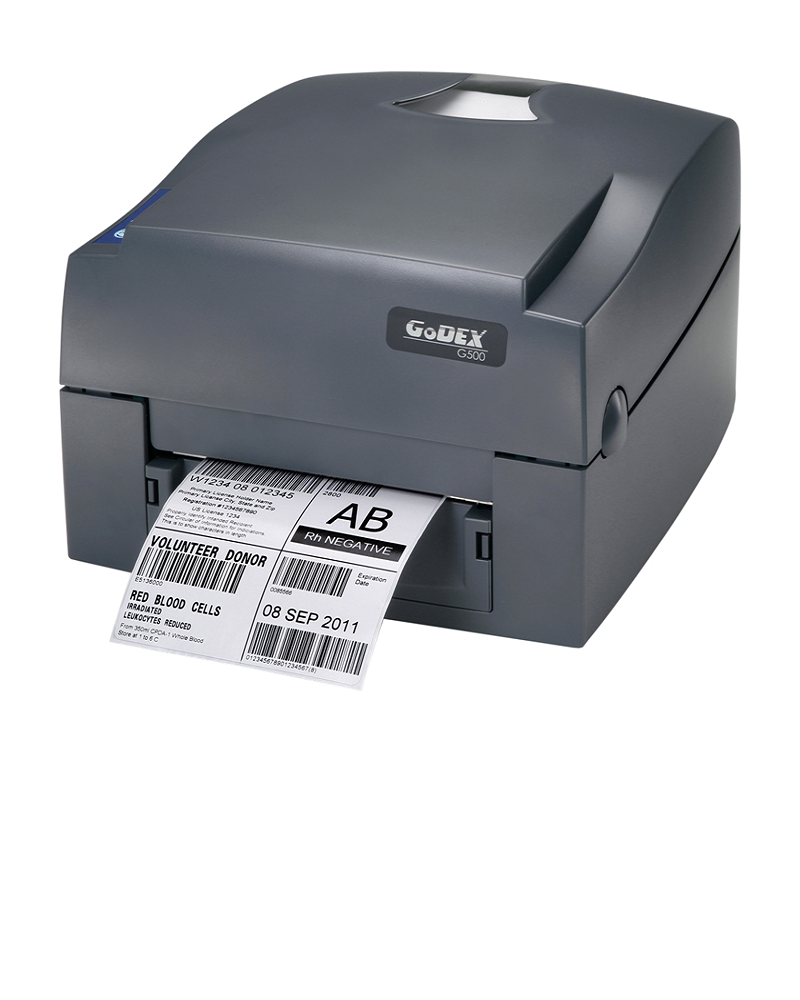
Godex G500 Barcode Printer
SKU: G500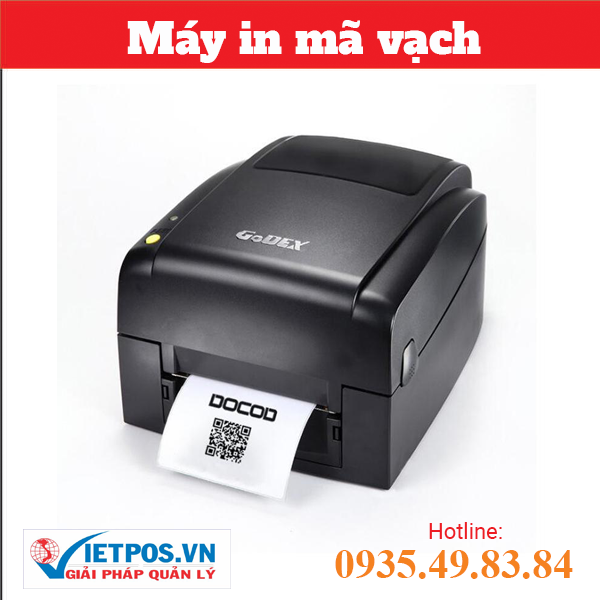
Godex EZ120 Barcode Printer
SKU: EZ120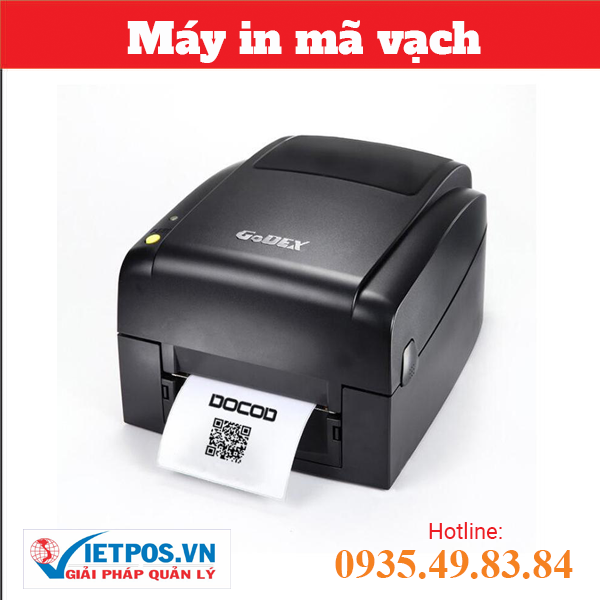
Godex EZ130 Barcode Printer
SKU: EZ130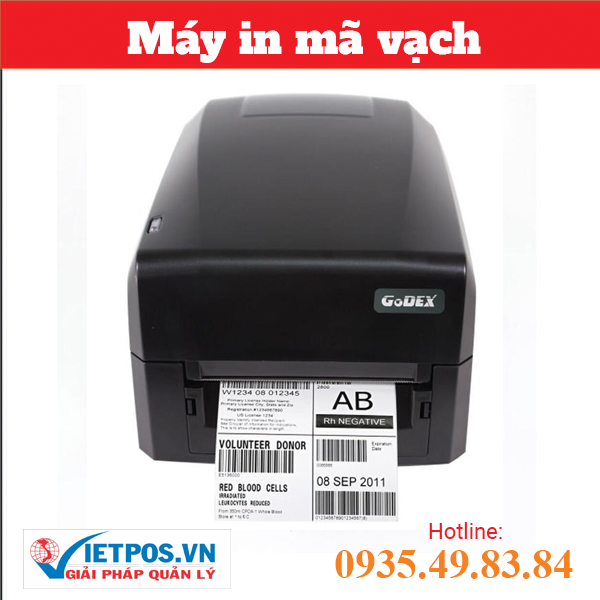
Godex GE300-USB Barcode Printer
SKU: GE300-USBAre you looking for products related to this topic?
Việt POS is an authorized distributor — 24-36 month warranty, 24/7 technical support.
| Godex Model | Print Type | Print Speed | Main Application |
|---|---|---|---|
| G500 | Direct Thermal | 100mm/s | Retail, small warehouse |
| EZ130 | Direct Thermal | 150mm/s | Retail, logistics |
| DT2x | Thermal Transfer | 150mm/s | Labels, packaging |
| ZX430i | Thermal Transfer | 300mm/s | Cold storage, high-end logistics |
| MX30i | Thermal Transfer | 300mm/s | Warehouse, distribution |
Each of the above models requires a separate driver for optimal operation. Việt POS provides genuine drivers for all Godex models.
Detailed steps to install Godex printer drivers?
The Godex driver installation process consists of 5-7 basic steps:
Step 1: Download the driver from the official Godex website
Access the Godex support page (godex.com.tw or contact Việt POS), find the Download section, select your printer model (e.g., ZX430i, EZ130), choose your operating system (Windows 7/10/11, Mac, Linux), and download the .exe or .zip file to your computer.
Step 2: Prepare connection devices
Prepare a USB or Ethernet cable (depending on the model). If using USB, plug the cable into the USB port of the printer and the computer. If using Ethernet, connect the printer to the router via a network cable, and note the printer's IP address (usually printed on a label or found in the printer menu).
Step 3: Run the driver installation file
Open the downloaded .exe file (or extract the .zip and run setup.exe). The installation window will appear, select 'Next' or 'Continue', agree to the terms of use, and choose the installation path (default is C:Program FilesGodex).
Step 4: Select printer model and connection port
During installation, the system will ask you to select the printer model (e.g., Godex ZX430i). Choose the connection port: USB (COM port automatically detected) or Ethernet (enter the printer's IP address). If unsure, leave it as default or select 'Auto Detect'.
Step 5: Complete installation and restart
Click 'Finish' to complete. The system will ask you to restart your computer. Select 'Yes' to restart immediately or 'No' to restart later.
Step 6: Check the driver in Devices and Printers
After restarting, open Control Panel → Devices and Printers (or Settings → Devices → Printers & scanners on Windows 10/11). Find the Godex printer in the list. If found, the driver has been successfully installed. If not found, check the USB/Ethernet connection or reinstall the driver.
How to check if the Godex printer driver is installed correctly?
After installing the driver, perform the following checks:
- Open Devices and Printers, find the Godex printer, right-click → Set as default printer
- Open a printing application (e.g., Notepad), select File → Print, choose the Godex printer, and click Print to test print
- Check the connection: if using USB, see if the LED on the printer is lit; if using Ethernet, ping the printer's IP address from Command Prompt (ping 192.168.x.x)
- If the test print is successful, the driver is installed correctly
Common errors when installing Godex printer drivers and how to fix them?
Some common errors and solutions:
- 'Device not found' error: Check USB/Ethernet connection, try replugging the cable, or restart the printer
- 'Driver installation failed' error: Re-download the driver from the official Godex website, or contact Việt POS for support
- Printer not printing after driver installation: Check the printing port in Devices and Printers, ensure the printer is set as default, or reinstall the driver
- 'Access Denied' error when installing driver: Run the setup file with Administrator privileges (right-click → Run as administrator)
If you encounter difficult errors, contact Việt POS technical team for free installation support.
Why choose Godex printers and Việt POS support services?
Godex is a leading barcode printer brand from Taiwan, trusted in 100+ countries. Godex models (G500, EZ130, DT2x, ZX430i, MX30i) stand out with:
- Fast printing speed 100-300mm/s, high resolution 203-600dpi
- Support for multiple barcode formats (Code128, QR, EAN, UPC, GS1)
- Flexible connectivity USB, Ethernet, Serial
- Competitive prices from 5-20 million VND depending on the model
Việt POS has been an official Godex distributor in Vietnam for 6+ years, providing:
- Genuine drivers and 24/7 installation support
- 12-24 month warranty, on-site repair
- Consultation for comprehensive sales management solutions integrated with Godex printers
- Support for integration with access control systems and RFID for warehouses
Contact Việt POS now for consultation and Godex printer driver installation: Hotline 0935 498 384 (Technical: 0932 555 260), offices in HCM, Da Nang, Can Tho, Hanoi.
Need specific equipment/solution consultation?
Việt POS responds within 30 minutes · 4 regional hotlines · Free survey.
Related products
Related articles

Cần tư vấn thiết bị/giải pháp cụ thể?
Việt POS phản hồi trong 30 phút · Hotline 4 vùng · Khảo sát miễn phí.
Bài viết cùng chủ đề