Mục lục bài viết (7)
- #What are the prerequisites for installing a TSC barcode printer driver?
- #What are the steps to install a TSC printer driver on Windows?
- #How to check if the TSC printer driver has been successfully installed?
- #How to handle common errors when installing a TSC printer driver?
- #Does the TSC printer driver need regular updates?
- Related products
- Related articles
TSC barcode printers are widely used in retail stores, warehouses, and commercial centers in Vietnam. To ensure stable operation and maximum performance, installing the TSC barcode printer driver is an essential step. The driver is intermediary software that helps the operating system communicate with the printer, controlling print speed, resolution, and advanced features.
What are the prerequisites for installing a TSC barcode printer driver?
Before installing a TSC printer driver, you need to prepare a computer/server running Windows 7 or later or Linux, connect the printer via USB or COM port, and download the driver file from the official TSC website or a distributor. Việt POS technical team recommends checking the operating system version and ensuring at least 500MB of free hard drive space before starting.
What are the steps to install a TSC printer driver on Windows?
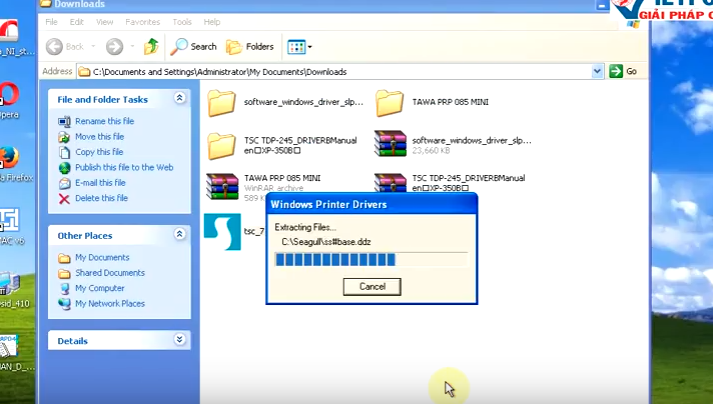
The process of installing a TSC barcode printer driver on Windows consists of 5 main steps. First, download the appropriate driver file for your printer model (e.g., TL240, TTP-344M, TX600) from the TSC website or contact Việt POS. Second, connect the printer to the computer via USB or COM. Third, run the installation file (.exe) and follow the on-screen instructions. Fourth, select the connection port (USB, COM, Network) and complete the installation. Fifth, restart the computer for the driver to be fully activated.
Bạn đang tìm sản phẩm cho chủ đề này?
Việt POS phân phối chính hãng — bảo hành 24-36 tháng, hỗ trợ kỹ thuật 24/7.

Barcode Printer TSC TE300
SKU: TSC TE300
TSC TE200 Barcode Printer
SKU: TSC TE200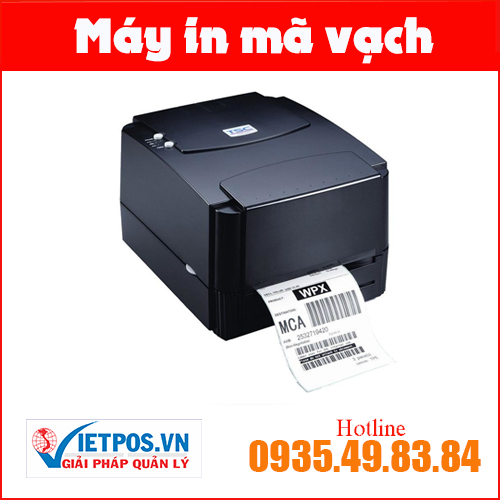
TSC TTP-244-Pro Barcode Printer
SKU: TSC TTP-244 PRO
TSC TTP-244-Plus Barcode Printer
SKU: TSC TTP-244 PLUSAre you looking for products for this topic?
Việt POS is an authorized distributor — 24-36 month warranty, 24/7 technical support.
How to check if the TSC printer driver has been successfully installed?
After installing the TSC barcode printer driver, check in Devices and Printers on Windows. If the printer appears in the list without a yellow warning sign, the driver has been successfully installed. Another way is to open Command Prompt and type a command to check the COM/USB port to confirm the connection. Việt POS provides remote support to check and troubleshoot driver errors if needed.
| Model TSC | Print Speed | Resolution | Connection Port |
|---|---|---|---|
| TL240 | 150mm/s | 203dpi | USB, COM |
| TTP-344M Pro | 300mm/s | 300dpi | USB, Ethernet |
| TX600 | 300mm/s | 600dpi | USB, Ethernet |
| Zenpert 4T520 | 200mm/s | 203dpi | USB, COM |
The table above lists popular TSC barcode printer models in Vietnamese businesses, along with their corresponding print speeds and resolutions. Each model has specific driver requirements, so it is necessary to download the correct driver version for each model.
How to handle common errors when installing a TSC printer driver?
The most common error is the driver not finding the printer, often due to an unactivated COM/USB port or a loose connection cable. Solution: check the physical connection, try a different USB port, or update the driver to the latest version. The second error is the printer being incorrectly identified (Unknown Device) — you need to uninstall the old driver, restart, then reinstall the new driver. If it still fails, contact Việt POS technical support team for detailed instructions.
Does the TSC printer driver need regular updates?
Regularly updating the TSC barcode printer driver helps improve stability, compatibility with new operating systems, and fixes security vulnerabilities. Việt POS recommends checking the driver version every 6-12 months and updating if a new version is available from TSC. To update, uninstall the old driver, download the new version from the TSC website, then reinstall. This process usually takes 10-15 minutes and does not affect previously printed data.
In addition to driver installation, integrating TSC printers into smart retail solutions or warehouse management systems also requires appropriate software configuration. Việt POS provides comprehensive deployment services, including driver installation, software configuration, and staff training at branches in HCMC, Da Nang, Can Tho, and Hanoi.
Need specific equipment/solution consultation?
Việt POS responds within 30 minutes · 4 regional hotlines · Free survey.
Related products
Related articles

Cần tư vấn thiết bị/giải pháp cụ thể?
Việt POS phản hồi trong 30 phút · Hotline 4 vùng · Khảo sát miễn phí.
Bài viết cùng chủ đề